











You're about to share your screen in a client review. You click into X's search bar to pull up a competitor account, and the dropdown serves up a messy list of old queries, typo searches, personal interests, and one-off research terms that have nothing to do with the brand in front of you.
That's the moment this stops being a casual privacy task and becomes account hygiene.
Knowing how to clear search history on Twitter, now X, matters if you manage brand accounts, agency logins, executive profiles, or shared devices. A clean search bar reduces distractions, keeps suggestions relevant, and prevents awkward moments when multiple people use the same account across desktop and mobile.
Why Cleaning Your X Search History Matters Professionally
Established routines often exist for content approvals, comment moderation, and password handling. Search cleanup belongs in the same category. It's small, fast, and easy to overlook until it creates friction in front of a client or internal stakeholder.
A cluttered search history doesn't just look sloppy. It can also change what X suggests when someone types in the search field. According to a practical walkthrough of clearing Twitter search history, recent searches can influence autocomplete and recommended queries, which is exactly why shared brand accounts need regular cleanup.
For social teams, that creates a few very real risks:
- Client-facing confusion: Old research terms can appear when you're live on a call.
- Mixed-account contamination: One teammate's exploration can shape another teammate's search suggestions.
- Off-brand distractions: Internal testing, competitor checks, and unrelated browsing can crowd the account's working environment.
Practical rule: If an account is used for publishing, reporting, or live demos, keep its recent searches as clean as its content calendar.
I treat search history the same way I treat draft posts and saved assets. If it's attached to a client account, it should be intentional. That's especially true when you're doing campaign planning, creator discovery, or trend monitoring alongside broader marketing with Twitter work.
What a clean search bar actually helps with
Professional cleanup is less about secrecy and more about control. You want the account to reflect current work, not every tangent that came up during a brainstorm.
A clean recent-search list helps you:
| Situation | Why cleanup helps |
|---|---|
| Screen shares | Removes irrelevant or sensitive prior queries |
| Shared devices | Reduces cross-user clutter |
| Brand research | Keeps autocomplete focused on active campaigns |
| Client handoffs | Makes the account feel maintained and organized |
This is the essential aspect. Clearing search history on X isn't overkill. It's part of running accounts professionally.
Clearing Your X Search History on Any Device
A clean handoff often starts with one small check. Before a client demo, reporting review, or shared-device session, clear recent searches on every device that has touched the account.

Desktop steps
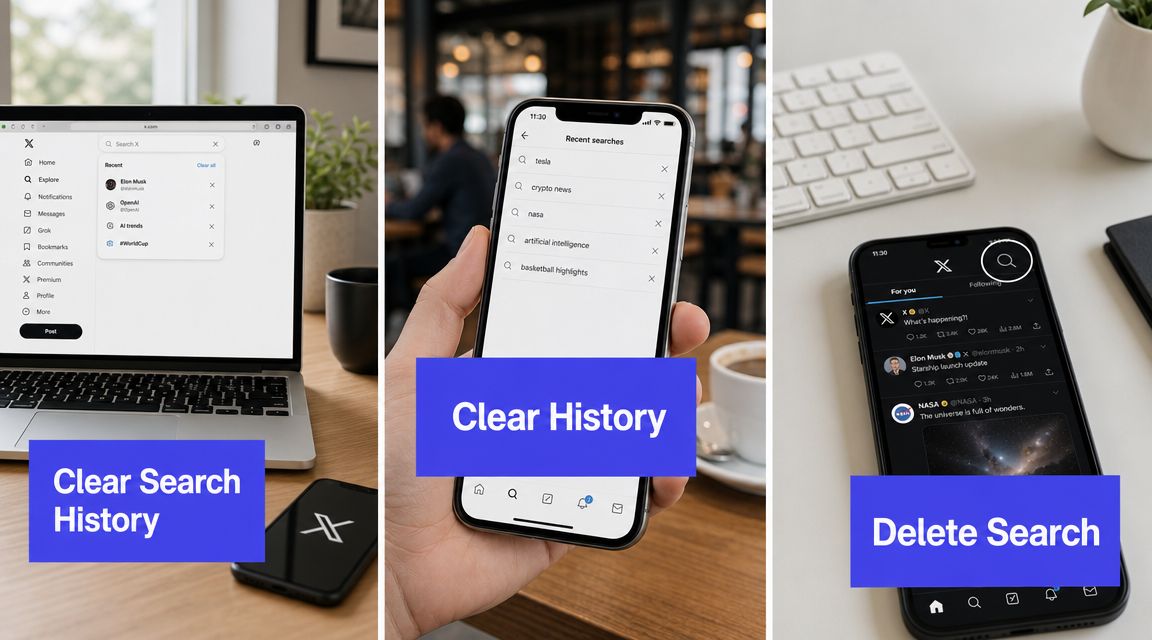
On desktop or web, sign in to X and click the search bar. The recent-search dropdown will open. Use the small x beside a single query to remove it, or click Clear all at the top of the list to remove everything at once.
This is the fastest cleanup method before a meeting, a screen recording, or an account handoff. It handles visible search clutter without sending you through account settings.
Mobile steps
In the mobile app, tap the search icon, open the search field, and review the recent searches list. Remove entries one by one or use the app's bulk clear option if you want a full reset.
Many teams miss a step here. Clearing desktop history does not always clear what appears in the app, especially on shared work phones or personal devices used for client support. Treat mobile and desktop as separate cleanup points and check both before you consider the job done.
Here's a quick visual walkthrough if you want to see the flow in action:
Remove one search or remove everything
Choose the per-item x when the issue is narrow. That works well for a mistyped handle, a temporary campaign codename, or a one-off competitor check that should not stay in the account's working view.
Use Clear all when the account has been used across multiple workstreams, teammates, or research sessions. For client accounts, full clearing is usually the better standard before:
- Client calls: Keeps old queries from appearing during live navigation.
- Account transfers: Gives the next teammate a cleaner workspace.
- Campaign resets: Clears out leftover research after a launch, event, or short-term push.
What works and what doesn't
What works is repeating the process on each device and browser session where the account has been active. That includes the desktop browser, the mobile app, and any secondary device used for monitoring or moderation.
What fails is assuming one cleanup syncs everywhere. Search history can persist by device session, so a desktop reset may leave mobile recents untouched. Clearing recent searches also does not remove cached app data, browser storage, or suggestion patterns tied to the device. For professional account hygiene, search cleanup is the first pass, not the only one.
Going Beyond Searches to Clear Cache and Suggestions
Clearing recent searches solves the visible problem in the search bar. It doesn't automatically clear cached app data, browser storage, or every trace of prior activity on the device.
That difference matters when you're managing shared work phones, agency laptops, or test devices that cycle between multiple accounts.

Search history and cache aren't the same thing
Recent searches are the terms you see in the search interface. Cache is device-level stored data that helps the app or browser load faster. If you only remove recent searches, you've cleaned the front-facing list. You haven't necessarily cleaned everything else tied to app behavior on that device.
A security-focused overview of X cleanup described the broader maintenance picture this way: users often need to manage search history, cache, and web storage as distinct data sets.
That's the right mental model for professional cleanup.
Clear cache on Android
If the X app on Android is acting sticky, showing stale behavior, or you want a more thorough cleanup, use the device settings path:
- Open Settings: Go to your phone settings.
- Choose Apps: Find X in the installed apps list.
- Open storage controls: Tap Storage & cache.
- Clear cache: Use Clear cache.
This doesn't replace clearing recent searches inside X. It complements it.
Browser cleanup for desktop users
If your team uses X in Chrome, Safari, or another browser, browser data is another layer to consider. Clearing your X search history from the interface won't automatically clear your browser's stored data.
For browser-based account hygiene, the practical move is to clear relevant browsing data separately in the browser you use for X. That's especially useful after temporary logins, shared workstation use, or heavy research sessions done from a client account.
If you're trying to fully reset what a device remembers about your X activity, deleting recent searches alone isn't enough.
What to do in a real client workflow
If I were cleaning a client account before a handoff, I'd treat it in this order:
- Clear recent searches in X
- Repeat on the mobile app if that account was used there
- Clear Android app cache or relevant browser data
- Log out from any device that shouldn't retain access
That sequence is practical because it addresses what people see first, then the supporting storage layers that can keep a device feeling “used” even after the search dropdown looks clean.
How to Prevent X From Saving Your Searches
If you're looking for a simple toggle that stops X from saving search history, that's the wrong expectation to bring into this workflow. In practice, the better approach is to control where and how sensitive research happens.
For professional account management, prevention is less about a hidden setting and more about disciplined browsing habits.

Use separate contexts for sensitive research
The cleanest habit is simple. Don't do exploratory work from the live brand account unless that search activity belongs there.
For competitor checks, controversial topic monitoring, executive reputation scans, or early-stage campaign research, use a separate browser context. That usually means:
- Private or incognito windows: Useful when you don't want a research session mixed into your usual browsing state.
- Separate browser profiles: Helpful for agencies juggling brand accounts, internal accounts, and personal work.
- Dedicated research accounts: Better than running everything through the official brand login.
This is one of the most useful habits for anyone learning how to clear search history on Twitter professionally, because the best cleanup is the search trail you never mix into the client account in the first place.
Keep the official account narrow
Brand accounts should be used for brand tasks. That sounds obvious, but it breaks down fast in real workflows. A teammate looks up a meme account, checks a personal interest during a break, or tests unrelated terms while troubleshooting trends. Soon the account's recent-search list reflects curiosity instead of operations.
The more tightly you define what the official account is for, the less cleanup you'll need later.
If you manage multiple profiles, operational consistency matters more than perfect memory. Document a few rules. Use the account for publishing, engagement, and campaign research. Move broad exploration elsewhere. That keeps the brand environment cleaner and makes everyday execution faster.
A practical companion habit is training your team on how to use Twitter X effectively within a shared workflow, so search behavior, publishing behavior, and account access all stay aligned.
Troubleshooting and Account Hygiene Best Practices
A search bar full of unrelated terms becomes a client-account problem fast. It shows up during screen shares, confuses teammates who inherit the account, and leaves behind a messy working environment that makes brand research harder to separate from personal or one-off checks.

If the clear function doesn't seem to work
When recent searches keep reappearing, the issue is usually local to the device or app session. Start by refreshing the web app or fully closing and reopening the mobile app. If you're on Android, clear the app cache, then check the search field again.
If the same account is active on multiple phones, tablets, or browsers, repeat the cleanup on each one. As noted earlier, search history can persist across separate sessions, so clearing it on a desktop does not always clean up what another logged-in device still displays. On shared machines, logging out and clearing the browser cache can also remove stale suggestions that make it look like the search history never cleared.
Professional hygiene checklist
For brand and agency accounts, treat search cleanup like pre-meeting prep and post-research cleanup.
- Before screen shares: Clear recent searches on the exact device you will present from.
- After campaign or competitor research: Remove terms that do not belong in the account's normal operating history.
- On shared devices: Log out at the end of the session and clear the browser cache if multiple people use the machine.
- During account audits: Check who still has access, which devices are signed in, and whether old sessions are leaving behind searchable traces.
If your team needs a broader process for logins, permissions, and handoffs, Throughwire has a useful guide for managing your access that fits well alongside social account cleanup.
Small habits that prevent bigger messes
Good account hygiene is cumulative. A clean search history, tight login controls, and clear team rules all reduce the chance of exposing irrelevant searches in front of a client or mixing exploratory work into the brand account.
This is also a good time to review adjacent cleanup tasks. Teams doing audience maintenance or account resets often pair search cleanup with removing X followers strategically, especially when the account has changed hands or gone through a brand refresh.
A tidy X account signals disciplined operations. That matters when multiple people publish, research, and report from the same login.