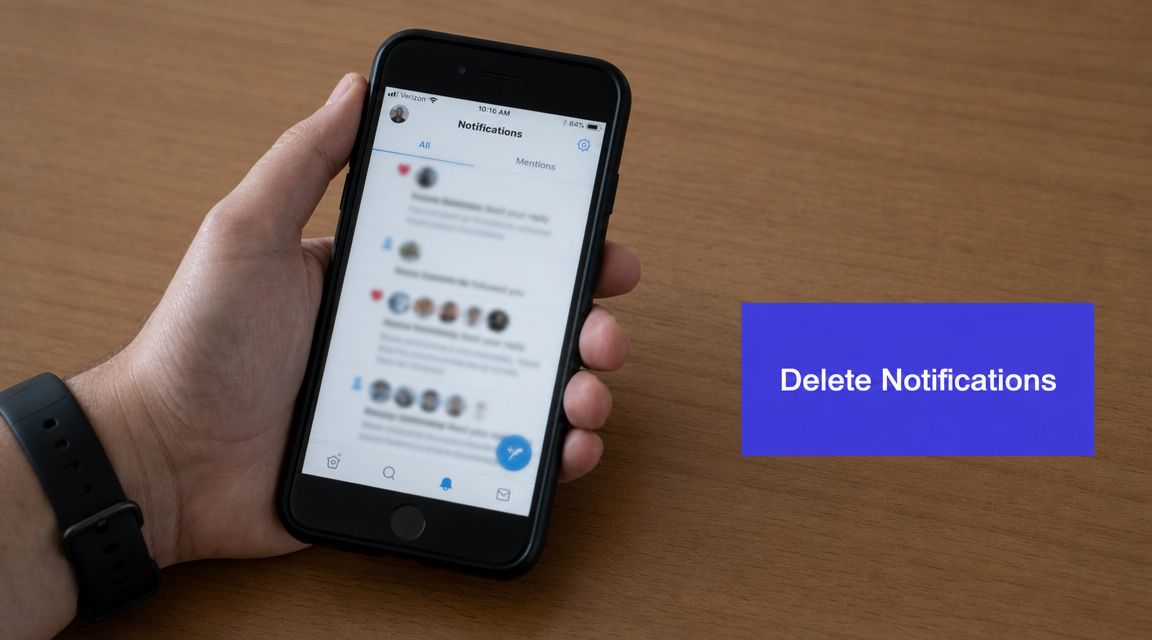












Your notifications tab is full, the red badge keeps coming back, and you want the cleanest possible answer to one question: how do you delete notifications on Twitter?
The frustrating part is that most guides answer the wrong question. They imply there's a hidden delete button somewhere in X, or that if you tap around long enough you'll find a way to wipe the whole history. That isn't how the platform works. If what you really want is a calmer notifications experience, the fix is less about deletion and more about clearing, filtering, muting, and turning off the alerts that create the mess in the first place.
The Truth About Deleting Twitter Notifications
If you're looking for a true bulk-delete option inside X, you won't find one.
X's own help pages focus on controlling what you receive, not erasing your notification history. The official mobile notification guidance explains how to choose notification types under Settings and privacy > Notifications > Preferences, and the notifications timeline help points users toward tools like the quality filter rather than any delete-all control. That's the core misunderstanding behind most searches for how to delete notifications on Twitter. People say "delete" when they usually mean "make this stop cluttering my screen." You can review that distinction in X's mobile notification settings guidance.
What people mean by delete
In practice, users usually want one of three different outcomes:
- Clear the badge so the tab doesn't look overloaded
- Hide or reduce junk alerts from strangers, low-value engagement, or spammy accounts
- Stop new notifications entirely on phone, email, or SMS
Those are all possible. Deleting the underlying historical notification record isn't.
Practical rule: On X, "delete," "clear," and "mute" are different actions. If you treat them like the same thing, you'll keep looking for a feature that doesn't exist.
The trade-off X makes
This is a product design decision. X is built to preserve account activity records and give users tools to manage incoming noise, not to bulk-erase the timeline after the fact. So the practical playbook isn't "find the delete menu." It's:
- Mark the current batch as read
- Filter future notifications
- Mute words or accounts
- Turn off off-platform alerts like email and push
That approach is less satisfying than a single delete button, but it's the one that works.
How to Clear Your Current Notification View
If your immediate goal is to get rid of the unread badge and make the notifications tab feel under control again, you can do that. Just don't confuse it with deletion.

As of December 30, 2025, X still did not offer a direct way to delete the full notification history, and notifications such as likes, retweets, follows, mentions, and direct messages were described as remaining stored in the account record in this walkthrough discussing the platform limitation. So the best you can do inside the app is clear what feels "active."
On the X mobile app
Open X and tap the Notifications tab. Then look for the menu or options control available in that view and use the action that marks notifications as read or clears the unread state.
What this usually accomplishes:
- Removes the red badge or unread count
- Makes the tab feel reset
- Leaves the notifications in the timeline
If you're managing digital clutter more broadly, this same mindset applies in other parts of the app too. For example, clearing old searches is a separate task from notification cleanup, and this guide on how to clear search history on Twitter covers that side of housekeeping.
On X for web
On desktop, go to the Notifications tab in your browser. From there, use the available interface controls to mark notifications as read or dismiss the unread indicator.
A few practical notes matter here:
- Use desktop when the mobile app feels inconsistent. The web interface is often easier for bulk visual cleanup.
- Don't expect the timeline to empty out. You're resetting status, not deleting records.
- Refresh after the action. Sometimes the badge clears only after the page reloads.
Clearing your current view is a cosmetic win. It's useful, but it isn't archival removal.
What this does and doesn't do
| Action | What happens | What doesn't happen |
|---|---|---|
| Mark as read | Unread status clears | Notifications aren't erased |
| Clear badge | Red dot goes away | Historical activity isn't deleted |
| Refresh tab | Timeline may look calmer | The underlying log remains |
If your real pain is repeat noise, don't stop here. A clean badge lasts only until the next wave of low-value alerts arrives.
Proactively Stop Unwanted Alerts with Advanced Filters
The best fix isn't trying to clean up after the flood. It's cutting off the flood.
X doesn't provide a built-in feature to delete an entire notification history. Instead, users can manage what appears in the Notifications timeline through tools such as the quality filter, muted words, and advanced filters in Settings and privacy, as documented in X's notifications timeline help page. That's why the most effective answer to how to delete notifications on Twitter is really about building a lower-noise notification system.

Use the Quality Filter first
The quality filter is the easiest setting to turn on if your notifications are cluttered with weak-signal activity. It reduces lower-quality alerts instead of wiping anything already there.
That matters because a lot of notification stress isn't caused by your core audience. It's caused by drive-by interactions, low-context mentions, and accounts you were never going to engage with anyway.
Use it when:
- Your mentions are noisy but not actively abusive
- You still want real engagement from people you know or follow
- You don't want to micromanage a long list of manual exclusions
This is the closest thing to a "clean up the mess" button that still respects how X works.
Tighten Advanced Filters
Advanced filters let you limit notifications from categories of accounts that tend to generate clutter. This enables a social media manager to get much more intentional.
For example, if a brand account gets flooded after a giveaway post or a polarizing topic, broad filtering often works better than reacting one account at a time. Instead of chasing noise manually, you set boundaries around who can surface in the notifications tab.
A practical way to think about advanced filters:
| Filter approach | Best use case |
|---|---|
| Broader filtering | Reduce random engagement spikes from unfamiliar accounts |
| Narrower filtering | Keep high-priority alerts visible during launches or campaigns |
| Temporary tightening | Clean up a noisy week without changing your long-term workflow |
If a notification source isn't useful for moderation, community management, or relationship building, it probably doesn't deserve space in your main timeline.
Mute words, phrases, and hashtags
This is the most underrated control in the whole stack.
If the same topic keeps generating junk replies or irrelevant mentions, mute the specific words, phrases, usernames, or hashtags linked to that noise. You don't need to block the world. You need to stop letting repeat triggers enter your feed.
Common situations where muted words help:
- Campaign overload when a branded hashtag starts attracting spam
- Trend hijacking when unrelated accounts jump into your mentions
- Topic fatigue when one repeated phrase dominates replies for days
A clean example from day-to-day account management is muting a hype term or niche topic that attracts low-quality outreach. If you're tired of unsolicited pitches around one recurring subject, muting that phrase is usually faster than dealing with the accounts one by one.
Build a filter routine, not a one-time cleanup
Teams often treat notification settings as something they configure once and forget. That's a mistake. The accounts that create noise change. Campaigns change. Audience behavior changes.
A better operating rhythm looks like this:
- Review the notifications tab after a noisy post
- Identify patterns, not just annoying individual alerts
- Adjust filters or muted words based on that pattern
- Recheck after the next publishing cycle
That gives you a notification feed that stays useful instead of becoming a dumping ground.
Use Muting and Blocking for Targeted Control
Broad filters handle categories. Muting and blocking handle people.
When one account keeps showing up in your notifications for the wrong reasons, you need a more surgical move. The right choice depends on whether the account is merely noisy or disruptive.

When muting is the better choice
Muting is the lower-friction option. It works well when you don't want to escalate anything and you just need silence.
Use mute if the account is:
- Overposting and constantly pulling your attention
- A real contact you don't want to unfollow publicly
- A client, partner, or colleague whose activity isn't relevant to daily monitoring
For account managers, mute is often the best fit for relationship-preserving cleanup. You reduce distraction without creating a new issue.
When blocking is the right call
Blocking is for harder boundaries. If an account is abusive, spammy, or repeatedly trying to force itself into your mentions, block it and move on.
Choose blocking when the account is:
| Situation | Better action |
|---|---|
| Persistent spam | Block |
| Harassment or baiting | Block |
| Just too chatty | Mute |
| Professional contact you still need | Mute |
This isn't about being dramatic. It's about keeping the account usable.
Some notifications aren't "engagement." They're interruption. Treat them accordingly.
If you're cleaning up the account at a deeper level, there's often overlap between notification clutter and audience quality. In cases where your feed is crowded because too many low-value accounts are still connected to the profile, this guide on how to delete Twitter followers can help with the follower-side cleanup.
A simple decision rule
Ask one question: Do I want this account to keep having access to my attention?
If the answer is no, but the relationship still matters, mute. If the answer is no and the relationship doesn't matter, block.
That single distinction prevents a lot of overthinking.
Stop Push SMS and Email Notifications for Good
Sometimes the in-app notification tab isn't the primary problem. The main problem is your lock screen lighting up, your inbox filling with X alerts, and your attention getting pulled away from actual work.
The fix here is to separate platform activity from delivery channels. You may still allow some notifications inside X while shutting off push, SMS, and email.
Turn off what reaches you off-platform
In X settings, go to Settings and privacy, then Notifications, then your Preferences area. That is where you can review and limit which alerts reach your device or inbox.
The practical approach is to be selective:
- Keep only urgent push alerts if you're actively managing mentions or support
- Disable email digests and activity emails if they aren't part of your workflow
- Turn off SMS alerts unless you have a specific operational need for them
Email notifications are the easiest to cut because they create clutter without improving response time.
Clean up old Twitter notification emails in Gmail
If your inbox already has a pile of old Twitter or X alerts, bulk-delete the emails directly in Gmail.
The most reliable workaround is described in this guide to clearing Twitter notification emails. Gmail users can search from:Twitter, select matching conversations, and trash them in bulk. Gmail's browser UI selects 50 messages at once before expanding to all matches in that workflow, but this affects only the email copies, not the in-app X Notifications timeline.
That distinction matters more than people think.
Deleting notification emails cleans your inbox. It doesn't clean X.
A cleaner setup for daily work
For a focused setup, keep X notifications inside the app and remove them from everywhere else. That gives you one place to review activity instead of letting it leak into email, SMS, and push alerts all day.
If you're handling a high-volume account, this is usually the point where the stress drops. The platform stays noisy when it must. Your phone and inbox don't have to.
Frequently Asked Questions for Social Media Managers
Does clearing notifications affect engagement analytics
No. Clearing the unread state is a visibility and workflow action. It doesn't change the fact that the interactions happened.
Can third-party tools delete X notifications
Generally, no. Be skeptical of tools that promise a magic delete function for notification history. If X doesn't offer that user-facing capability, a third-party service usually can't provide a clean, reliable version of it either.
What's the best way to handle notifications across multiple client accounts
Don't manage them as separate chaos streams if you can avoid it. The better workflow is to centralize monitoring, assign ownership internally, and decide which notifications actually require response. Teams that try to manually tidy every account's native notifications tab usually waste time on housekeeping instead of moderation and response.
Should I mute or block from a brand account
Use mute for low-stakes noise and block for spam, harassment, or persistent bad actors. Brand safety matters more than appearing endlessly available to everyone.
Is there a difference between deleting, clearing, and muting
Yes, and it's often the origin of most confusion.
- Deleting would mean erasing the record. X doesn't give users a true bulk-delete option for notification history.
- Clearing usually means marking notifications as read or removing the unread badge.
- Muting changes what you see going forward by silencing words, phrases, or accounts.
What's the most efficient way to stay organized on X as a marketer
Decide what deserves immediate attention. Everything else should be filtered, muted, or turned off. If your team also needs a broader publishing and engagement workflow, this guide to marketing with Twitter is a useful next read.
If you're juggling multiple social accounts, client approvals, publishing calendars, and engagement all at once, PostSyncer gives you a simpler way to run the workflow from one place. You can plan content, schedule across platforms, manage comments in a unified inbox, and keep your team organized without bouncing between tabs all day.