











A LinkedIn text formatter is a surprisingly simple tool that lets you add bold, italics, and other bits of styling to your posts. It’s what helps your content stand out and get noticed in a feed that’s more crowded than ever.
Without it, even the most brilliant post can get lost, and that’s a huge missed opportunity for engagement.
Why Plain Text Posts Fail on LinkedIn
We’ve all been there. You spend an hour writing the perfect post, full of great insights and a story you know will connect. You hit “Post,” then… crickets. It’s a common and incredibly frustrating experience, and the reason is usually quite simple: your post is just a wall of text.
Think about how you scroll through LinkedIn. Your eyes are naturally drawn to videos, slick carousels, and posts that are easy to scan. A dense block of plain text, no matter how well-written, just can't compete for that split-second of attention. People are scrolling fast, and your post gets skipped.
The Engagement Gap
The data doesn’t lie. There’s a massive performance gap between different content formats on LinkedIn, and plain text is consistently at the bottom of the pile.
Here’s a quick look at how the numbers shake out.
LinkedIn Engagement Rates by Content Type in 2026
| Content Format | Average Engagement Rate |
|---|---|
| Carousel Posts | 6.60% |
| Video Content | ~5.00% |
| Image Posts | ~4.00% |
| Text-Only Posts | 0.5% - 2% |
As you can see, the difference is stark. Carousels can outperform plain text by a mind-boggling 596%, and even videos and static images see significantly higher interaction. If you want to dive deeper, you can explore more LinkedIn statistics from 2026 to get the full picture.
This chart really drives the point home:

Despite this, text is still a go-to format for many because it's so quick—a simple text-and-image post can be put together in five minutes. This gap between easy creation and poor performance is exactly why a good linkedin text formatter has become a non-negotiable tool for creators who are serious about their results.
Breaking Through the Noise
Good formatting isn't just about making things look pretty; it's a strategic way to guide your reader's attention. It helps you emphasize your most important points and makes your entire message easier to digest on the fly. Without it, you’re basically asking your audience to do all the hard work of deciphering your post.
The harsh reality is that on LinkedIn, unformatted text is functionally invisible. Your great ideas are being scrolled past simply because they aren't presented in a way that respects the user's limited time and attention.
By using simple tricks like bolding key phrases, using italics for emphasis, and breaking up ideas with bullet points, you can transform a boring block of text into a scannable, engaging post. This small change signals that your content is well-organized and valuable, which immediately boosts the odds of getting those coveted likes, comments, and shares.
Mastering LinkedIn's Built-In Formatting Options
Before we dive into the world of fancy text formatters, it's crucial to get a handle on what LinkedIn offers right out of the box. Think of it as your foundation. While a dedicated linkedin text formatter unlocks advanced styles, mastering the native options is the first step to creating clean, readable posts that people actually stop and read.
What many people don't realize is that LinkedIn's formatting rules change depending on where you're writing. The tools you have for a regular feed post are different from the ones you get when writing a full-blown LinkedIn Article. Let's break it down.
Formatting in Regular LinkedIn Posts
When you’re drafting a standard post for the feed, you can't just highlight text to make it bold or italic. It’s a frustrating limitation and the main reason so many of us turn to external tools. But don't count the native options out—they are surprisingly powerful when you use them right.
- Bullet Points & Numbered Lists: This is your best friend for breaking up dense information. Just use an asterisk (*) or a hyphen (-) with a space to create a bullet point. For numbered lists, type a number followed by a period (1.) and a space. It’s perfect for listing steps, benefits, or key takeaways.
- Emojis: When used with a bit of restraint, emojis add personality and create visual landmarks in your text. A simple checkmark (✔️) or a pointer (👉) can effectively draw the eye to your call-to-action without looking unprofessional.
- Line Breaks (White Space): This might be the single most powerful native formatting tool you have. Instead of writing a wall of text, hit "Enter" twice to create a clean line break between short paragraphs. That white space is gold—it makes your content feel less intimidating and way easier to skim, especially on a phone.
Bolding and Italicizing in LinkedIn Articles
If you're publishing a LinkedIn Article—the platform's long-form blog format—you'll find you have much more control, almost like a simple word processor.
By simply highlighting text within the Article editor, a toolbar appears allowing you to apply bold or italics directly. This is ideal for structuring longer content, creating subheadings, and emphasizing important concepts without needing to copy-paste from another tool.
But here’s the catch: those native bold and italic styles are only for Articles. They won't work in regular posts, in comments, or in your profile's "About" section.
This is a critical distinction to understand. It’s the very reason an external linkedin text formatter becomes essential for creating dynamic, eye-catching content across the rest of the platform. The built-in tools are great for basic structure, but to make your posts truly stand out in the feed, you need to go a step further.
Ever wondered how a LinkedIn text formatter seems to work its magic, adding bold and italics when LinkedIn’s own editor offers no such options? It's not really magic, but a clever trick using something called Unicode.
Think of Unicode as a universal dictionary for every possible character, symbol, or letter you can imagine—far beyond the simple A-Z on your keyboard.
When you type "Hello" into a formatter and choose a bold style, the tool isn't applying a formatting tag like you would in a Word doc. Instead, it’s swapping each standard letter for a completely different, visually distinct character from the Unicode library. Your 'H' becomes '𝗛', 'e' becomes '𝗲', and so on.
This is a subtle but crucial difference. What you copy and paste into LinkedIn isn't technically bold text. It's a string of unique characters that just happen to look bold. This is exactly why it works everywhere—in your posts, comments, and even your profile headline. LinkedIn just reads it as plain text.

As you can see, the formatter simply replaces your standard letters with their stylized Unicode counterparts, ready for you to copy and paste.
The Downside of Unicode Styling
But before you go styling your entire post, you need to be aware of some significant drawbacks. Because these stylized letters aren't standard text, they can create real problems for accessibility.
- Screen Reader Problems: Software used by visually impaired people often can't interpret these characters correctly. Instead of reading your bolded "Hello," a screen reader might just say "mathematical sans-serif bold capital h" or a jumble of confusing symbols.
- Search and SEO Issues: LinkedIn's search algorithm is smart, but it's not perfect. It might not always recognize these non-standard characters as the words they're meant to represent, which could hurt your post's chances of being discovered.
The key takeaway is to treat Unicode formatting like a highlighter, not a paintbrush. Use it for strategic emphasis on your most important points to make your content eye-catching and inclusive.
Just styling a hook or a key statistic can make a world of difference. In one experiment I ran, simply bolding the question in the first three lines of a post doubled the comment rate. This small tweak contributed to a 512% increase in views and a 280% lift in engagement over 30 days.
Best Practices for Using Unicode
So, how do you strike the right balance? I recommend following a few simple guidelines. Reserve bold and italic styles for specific, high-impact elements to guide the reader’s eye without causing confusion. You can dive deeper into this in our guide to using bold and italic text on LinkedIn.
Here’s a practical approach I use:
- Bold Your Hook: The first line is your most valuable real estate. Make a compelling question or a shocking statement pop by bolding it.
- Emphasize Key Metrics: Draw attention to your data. Use bold to make numbers like a 45% increase or $1.2M in revenue stand out from the rest of the text.
- Highlight Your Call-to-Action (CTA): End your post with a clear, bolded instruction like, "What are your thoughts?" to prompt engagement.
By being intentional, you can get all the visual benefits of a LinkedIn text formatter while ensuring your message remains clear, accessible, and effective for everyone.
Choosing and Using an Online Formatter Safely
So, you know that a linkedin text formatter works by swapping out standard letters for special Unicode characters. That's the easy part. The real challenge is picking the right tool from the sea of free options online and using it without creating a headache for yourself.
Instead of just dropping a long list of tools, let's walk through how to choose one safely and build it into a smart workflow. It’s less about the tool itself and more about the process you create around it. A good system protects your work, saves you time, and makes sure your posts look great without any friction.
How to Spot a Safe and Reliable Formatter
Let's be real—not all free formatters are built the same. Many are plastered with aggressive ads, run slow, or have some pretty questionable privacy policies. Before you copy-paste your hard work into a random website, take a second to vet it.
It's crucial to pick a tool that respects your content and doesn't create security risks. Here’s a quick checklist to help you evaluate any online formatter you come across.
Online Formatter Safety Checklist
| Evaluation Criterion | What to Look For | Red Flags to Avoid |
|---|---|---|
| User Interface & Ads | A clean layout with minimal, non-intrusive ads. The focus should be on the tool's function. | Pop-ups, flashing banners, and ads that cover the content or buttons. |
| Data Privacy | A clear and easy-to-find privacy policy. Trustworthy sites explain how they handle your data. | No privacy policy, or one that is buried in jargon. Your content is your IP; protect it. |
| Website Security | An HTTPS connection, indicated by a padlock icon in your browser's address bar. | An "HTTP" address or a "Not Secure" warning from your browser. This is a basic standard. |
| Core Functionality | A simple, intuitive experience. It should be easy to paste, style, and copy your text with one click. | Unnecessary features, required sign-ups, or a clunky interface that makes formatting a chore. |
Choosing a secure tool is the first step. After that, it's all about creating an efficient process.
I've developed a simple "draft, format, then paste" habit that I swear by. I never write my posts directly in a formatter or even in the LinkedIn editor. I always start in a separate doc, like Google Docs or Notion, to make sure a browser crash or bad connection doesn't wipe out my work.
My Go-To Formatting Workflow
Once my draft is polished and ready to go, the actual formatting takes less than a minute. This method keeps my original text safe and makes it incredibly easy to go back and make edits later if I need to.
First, I write the entire post in my external document. This lets me focus purely on the message and the story I'm trying to tell without getting sidetracked by bolding and italics.
With the draft complete, I copy the whole thing and paste it into a formatter I trust. If you need a solid, no-nonsense option, we built our free LinkedIn post formatter specifically with these safety principles in mind. It’s clean, simple, and respects your privacy.
From there, I apply the formatting strategically. The goal isn't to make every other word bold. I focus on styling just the hook, a key statistic, or the final call-to-action to make them pop. Remember, less is always more.
Finally, I copy the newly styled text from the formatter and paste it directly into the "Create a post" box on LinkedIn. I always give it one last proofread on the platform to make sure everything looks right before I hit "Post." It's a simple process, but it's foolproof.
Integrating Formatted Posts into a Pro Workflow
Sure, using a free online linkedin text formatter is a decent place to start. But let's be real—if you're a busy professional, agency owner, or part of a marketing team, that manual copy-paste routine just doesn't scale. Real growth and brand consistency on LinkedIn aren't built on spending extra minutes formatting every single post by hand.
This is where shifting to a professional, integrated workflow becomes a total game-changer. Instead of juggling content creation, formatting, and scheduling as separate chores, a dedicated platform brings them all under one roof. An approach like this saves a ton of time and, more importantly, makes sure every post that goes out looks exactly how it should. With a tool like PostSyncer, you can plan, create, format, and schedule everything from a single visual calendar.
From Manual Effort to Automated Efficiency
The real magic of an integrated system is how it automates the most tedious parts of creating content. Imagine having an AI assistant that doesn't just help you brainstorm ideas but also whips up captions and hooks that are already pre-formatted with bold text and the right emojis.
That’s exactly what PostSyncer's AI Content Agent is designed to do. It pulls the formatting process into the very beginning of your workflow, embedding it directly into the creation stage. This frees you up to focus on the big-picture strategy and creative ideas, while the tool handles the little stylistic details that make your posts pop in the feed.
And those little details have a huge impact. One creator I followed spent just 30 days tweaking their post formatting and saw a staggering 512% surge in post views and a 280% boost in engagement, gaining 450 new followers in the process. It's a powerful case study for why automating this small but mighty step is so valuable.
Centralizing Your LinkedIn Strategy
A unified workflow also gives you a bird's-eye view of your entire content strategy. When all your scheduled posts are laid out on a visual calendar, you can instantly see how your formatted text posts, carousels, videos, and articles all fit together.
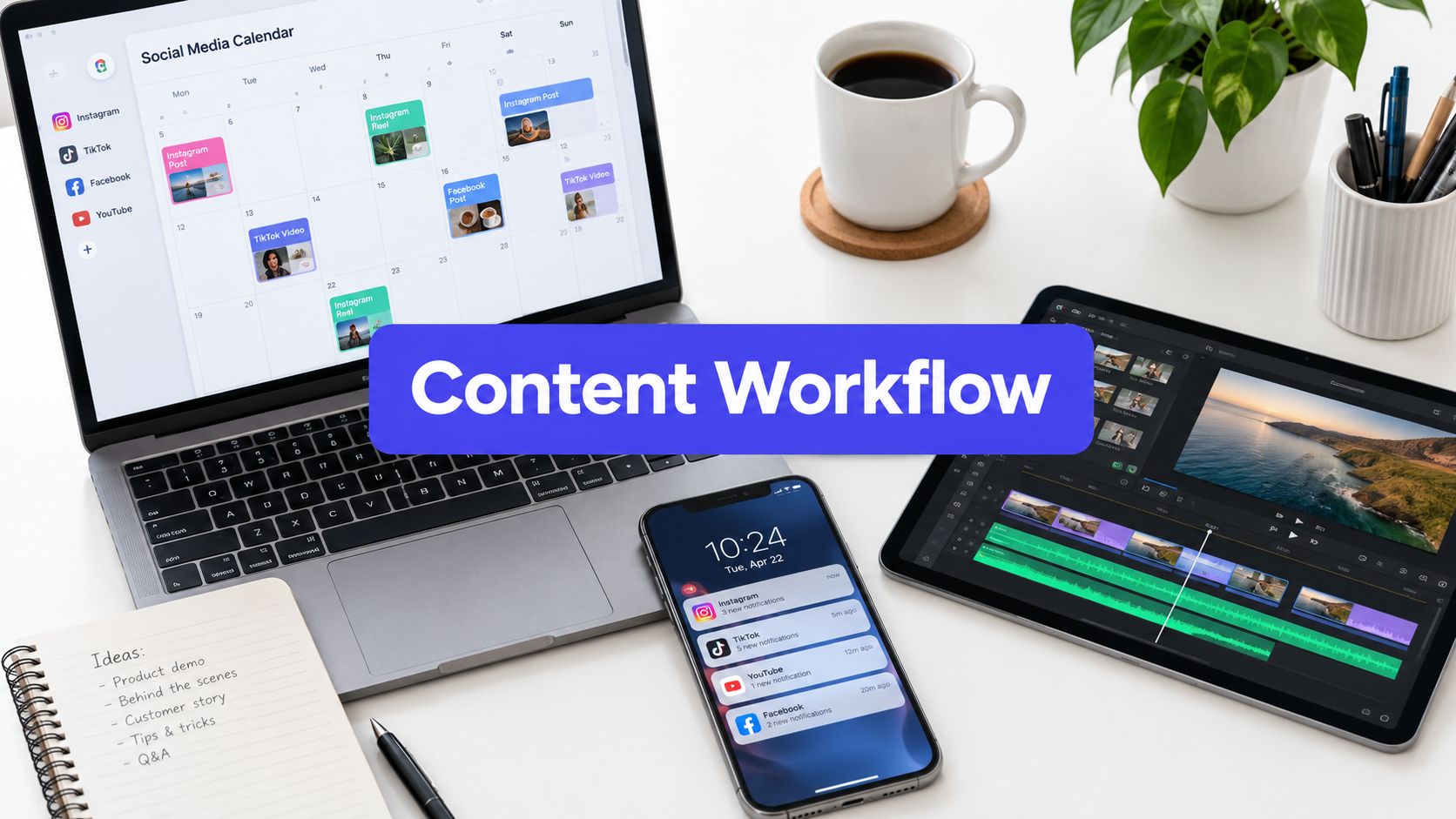
Here’s a peek at how a professional workflow organizes your content plan inside PostSyncer, making it simple to manage everything while keeping your brand looking sharp.

This centralized command center helps you maintain a consistent visual identity and posting rhythm—something that’s nearly impossible to get right when you’re managing posts manually.
The goal is to move from a reactive, post-by-post formatting habit to a proactive, system-driven strategy. By doing so, you reclaim valuable time, eliminate inconsistencies, and gain the ability to analyze what's working at a glance.
For any serious creator or agency, this streamlined approach offers some pretty clear wins:
- Time Savings: Automating formatting and scheduling can easily free up several hours a week. That's more time you can spend on client relationships or growing your business.
- Brand Consistency: Every post looks professional and on-brand, no matter who on the team created it. This reinforces a polished, cohesive image.
- Performance Analysis: With all your content in one place, it's far easier to track analytics and understand which types of formatted posts are driving the most engagement.
Ultimately, integrating a linkedin text formatter into a scheduling tool like PostSyncer elevates your process from a simple tactic to a core part of your professional social media machine. If you're looking to put this kind of system in place, our guide on how to schedule posts on LinkedIn is the perfect next step.
Common Questions About LinkedIn Text Formatting
Even after you get the hang of using formatters, a few questions always seem to pop up. I get it. You want to make sure these new techniques won't backfire on you.
Let's tackle the big ones I hear all the time about reach, editing, and how your posts look across different devices.
Will Using a Formatter Hurt My Post's Reach?
This is easily the most common concern, and the short answer is: it can, but only if you go overboard.
Remember, those fancy bold and italic characters are technically Unicode symbols, not standard text. This can create a couple of snags. For one, screen readers used by visually impaired professionals might not be able to interpret them correctly. If your hook or key takeaway is unreadable, you've lost a part of your audience.
On top of that, LinkedIn’s own search algorithm might not recognize stylized characters as the keywords you’re trying to rank for, which could ding your post's discoverability.
My advice has always been to use formatting for strategic emphasis, not decoration. Never, ever format your entire post. Keep your main message in plain text, and just use the styling to make your hook, key points, or call-to-action pop.
Can I Edit Formatted Text After Posting?
Yes, but it’s definitely not a simple one-click fix. Once your post is live, LinkedIn doesn't give you the ability to re-style text directly in its editor. Those bold and italic options just aren't there.
If you spot a mistake in a formatted section, you have to jump through a few hoops:
- Copy the text directly from your live LinkedIn post.
- Paste it back into the online formatter tool you used.
- Make your edits and style adjustments there.
- Copy the new, corrected version from the formatter.
- Go back to LinkedIn, edit your post, and paste the new text over the old block.
It's a bit of a hassle, right? This is exactly why I’m a huge advocate for drafting and formatting your content in an external doc or a scheduler before you hit publish. It saves a ton of headaches later.
Does Formatted Text Look the Same on All Devices?
For the most part, yes. Unicode is a universal standard, so your formatted text should look perfectly fine on any modern web browser or smartphone, whether it’s Android or iOS.
However, on the rare occasion someone is using a very old, outdated operating system, they might see a little placeholder box (like □) instead of a stylized letter.
With the vast majority of LinkedIn's 875 million members using up-to-date devices, this is a tiny risk. Think of it as one more reason to use formatting sparingly for emphasis, ensuring your core message is always crystal clear, no matter what.
Ready to stop wasting time on manual formatting and start creating consistently professional content? PostSyncer brings AI-powered content creation, formatting, and multi-platform scheduling into a single, seamless workflow. Start your free trial today and see the difference.