











You've pasted a blog post into an AI video tool, picked a style, and hit generate. The preview looks promising until the product changes shape, the captions cover the action, and the narrator makes a claim your original post never supported.
An AI video creator from text works better when you treat its output as a set of shots to approve, not a finished video to accept. Lock the message, plan the framing, and review each candidate before assembling the Reel. That puts your time into fixing specific failures instead of repeatedly rebuilding an almost-right video.
Format Settings for Reels, Shorts and Feeds
Choose the destination before generating footage. A wide composition doesn't automatically become a good vertical composition when you crop it. You may lose the product, the presenter's hands, or the empty space you intended to use for captions.
Treat the settings below as production starting points, not platform limits or promises about performance. Preview the finished export inside its destination app, because interface overlays and feed placements can affect what viewers see.
Format settings by platform
| Platform | Aspect ratio | Practical length | Shot length | Placement note |
|---|---|---|---|---|
| TikTok | Vertical | Brief, single-message edit | Quick, complete actions | Keep captions clear of bottom controls and the right-side icon column |
| Instagram Reels | Vertical | Hook, demonstration, next step | Short shots with readable holds | Keep hook text high but clear of interface overlays |
| YouTube Shorts | Vertical | Only as long as the explanation needs | Short, self-contained actions | Keep essential text away from lower channel controls |
| Facebook feed | Portrait or square | Compact explanation | Allow time to read subtitles | Design for viewing without sound |
| Square or portrait | Enough room to explain the claim | Measured rather than frantic | Introduce the business relevance immediately |
For vertical framing, use the Instagram Reels size and safe-area guide while laying out captions and product placement. Don't position essential details against the edge just because they fit in the editor.
Size the script around the recording
Generate or record a scratch voice-over before committing to a shot count. Read it at the pace you want viewers to hear, including pauses around important terms. A script that fits only when rushed needs cutting, not faster narration.
Mark the spoken phrases that need distinct visuals. A change of idea may justify a cut, but every sentence doesn't need a new scene.
Practical rule: Shorten the message before shortening every shot.
Keep a master script and shot list, then create destination-specific variants. Regenerate compositions for substantially different shapes rather than assuming an automatic crop will preserve the subject. For a shorter feed version, remove a supporting shot and its narration together, instead of speeding up the entire sequence.
Turning Blog Posts and URLs Into Checked Scripts
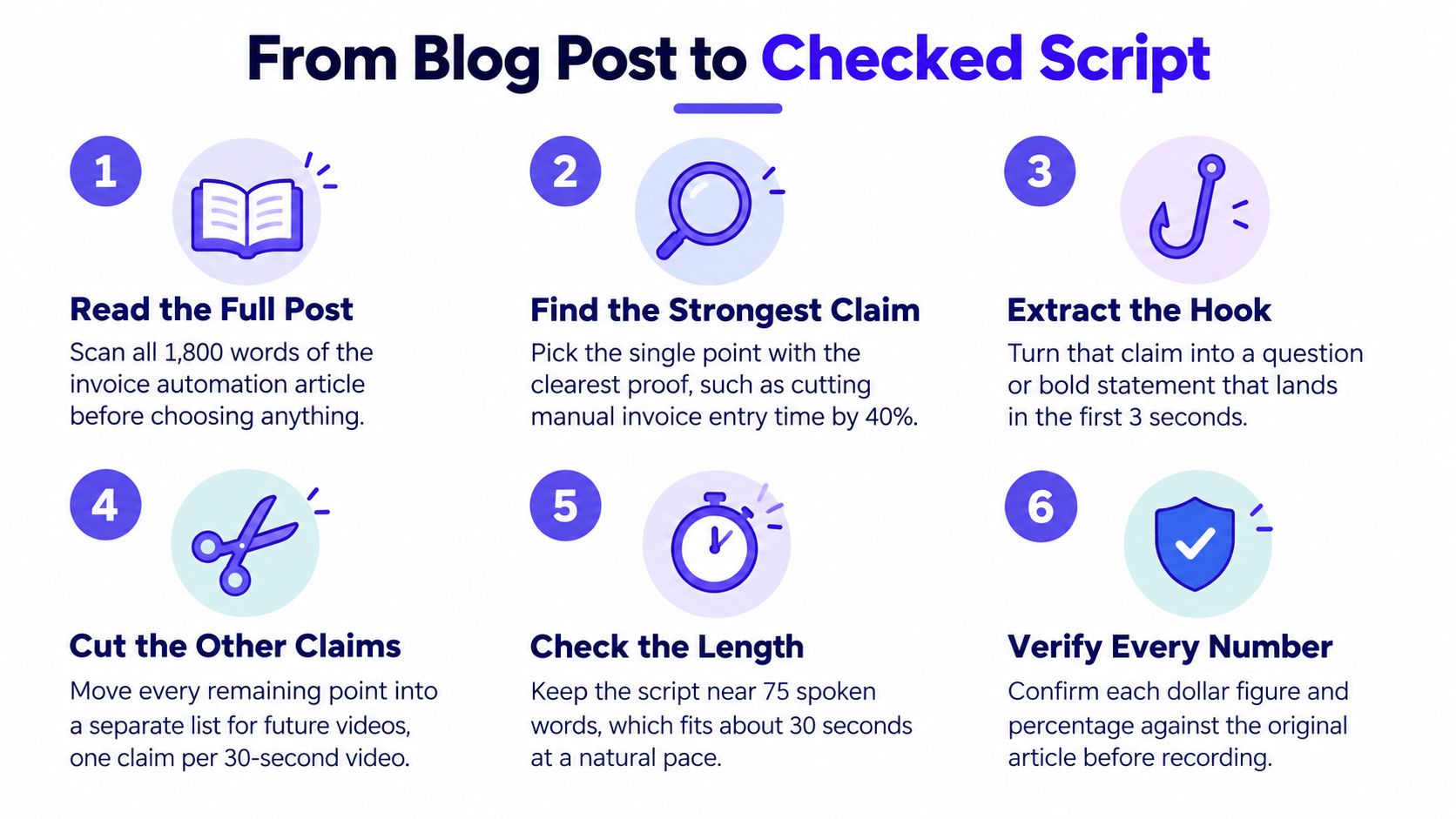
An invoice-automation post may cover data entry, approvals, payment reminders, and reporting. A short video cannot explain all four well. Treat the post as source material, not a script: choose a single defensible claim and save the other ideas for future content.
Start with the problem statement. If the post describes staff copying invoice details between systems, the hook could ask whether viewers are still retyping information that already exists digitally. That frames the issue without inventing a saving, customer result, or product capability.
Approve the claim before the visuals
Make script approval a production gate. Check the source before a generator turns its wording into confident narration:
- Trace every number. Open the original source and verify its wording, population, timeframe, and qualifications.
- Flag unsupported statements. Cut claims the source does not establish, even if they sound plausible.
- Separate demonstration from evidence. A generated interface or animated workflow does not prove that a product performs the action shown.
- Escalate sensitive advice. Remove unreviewed health, financial, or legal recommendations, especially when a synthetic presenter could appear to speak with professional authority.
- Record approval. Save the approved script, source links, reviewer, and disclosure decision before rendering.
Use this checklist visual to plan the handoff from post to script. Keep illustrative performance claims out of the final copy unless you can substantiate them.
Audience trust is another reason to review the script before generation. Digiday's coverage of generative AI and audience concerns discusses concerns about AI-generated media. Use that context to make a deliberate disclosure decision, not to stand in for evidence about a particular audience.
A product teaser and a financial explainer call for different levels of scrutiny. Review the stakes and the underlying claim, then check that synthetic delivery has not made qualified wording sound unconditional.
For advertising experiments, ShortGenius automated ad generation is one tool to evaluate after the script passes review. Keep editorial approval separate from generation, and preserve the source-to-script handoff in your content repurposing workflow. The review should follow each claim into the finished video, not stop when the script is approved.
Build Shots and Score Each Candidate
A ceramic-mug ad can be built as four distinct shots: introduce the mug, show its finish, demonstrate a simple interaction, and end on a clean product frame. Treat this as a production example, not a claim about a particular brand's results. The practical mistake is asking a generator to make the whole ad from one paragraph. A shot-by-shot review loop gives you room to reject weak footage before it dictates the edit.
1. Build the shot sheet
Give every planned shot its own line, with subject, setting, action, camera movement, lighting, duration, aspect ratio, and style. Add the narration phrase the shot supports and a specific condition that would make it unacceptable.
For a hero shot, specify a cream ceramic mug with a rounded handle, on a walnut table, turning slowly under soft morning window light. Keep the camera static. Keep reusable identity details separate from scene directions: color and handle shape belong in the product description, while the table and camera instructions belong in that shot's entry. This separation makes revisions easier to diagnose.
State the editorial job, too. “Show the glaze texture” gives the reviewer something concrete to check. “Make it cinematic” does not. If the approved clip fails to reveal the finish, attractive lighting cannot make the shot useful.
2. Prompt one action and classify its difficulty
Use a consistent prompt order: subject, action, setting, camera, lighting. For example:
Cream ceramic mug with a rounded handle, rotating slowly on a walnut table, static camera, soft morning window light, restrained product-photography style.
Set duration and output shape in the tool's controls when available. Avoid competing directions, such as asking for a static camera and an orbiting move in the same shot.
Classify the motion before generation. These are editorial categories for deciding how closely to inspect a candidate, not model-specific guarantees.
| Dynamics level | Example shot | Target length | Acceptance checks |
|---|---|---|---|
| Low | Product turns slowly on a table | Brief hold that reveals the product | Logo remains stable; edges don't warp |
| Medium | Person turns toward camera and lifts a mug | Long enough to complete the interaction | Hands remain intact; the mug keeps its shape |
| High | Car passes through standing water | Short, isolated action | Natural acceleration, completed action, stable camera, no morphing |
The NeurIPS DEVIL evaluation research reports that generated-video naturalness declines as motion dynamics increase and identifies low-dynamics bias as a reason movement can look slow. Use that finding as a reason to scrutinize fast action, not as a guarantee that any particular prompt will work.
For complex movement, describe one short move rather than a chain of events. Generate several candidates from the same shot specification. Comparing outputs against a fixed brief makes review more reliable than accepting the first plausible render.
3. Score candidates before choosing favorites
Use the same review questions throughout the batch. The FETV benchmark paper evaluates text-to-video results using text-video alignment and video quality. For production review, add separate checks for motion and temporal consistency, then rate each dimension on a 1–5 scale. That scale is a practical house rubric, not a finding attributed to the benchmark.
| Dimension | Review question | Reject when |
|---|---|---|
| Text-video alignment | Does the clip show the requested subject and action? | The action changes or an essential relationship is wrong |
| Motion quality | Does movement look physically coherent? | Speed, acceleration, contact, or camera behavior looks wrong |
| Temporal consistency | Do identities and objects persist? | Features, clothing, product shape, or object count changes |
| Visual quality | Is the image usable for this edit? | Artifacts, poor framing, or distracting lighting obscure the message |
Keep the ratings separate. A beautiful frame cannot compensate for a handle that disappears during the lift. Use rejection thresholds that match the shot's job, and record the reason when a candidate fails. This turns review into a repeatable decision rather than a preference for whichever render looks polished at first glance.
For high-dynamics shots, check acceleration, object continuity, action completion, camera stability, and morphing. Watch once at normal speed to judge whether the action feels believable, then scrub through it to locate defects.
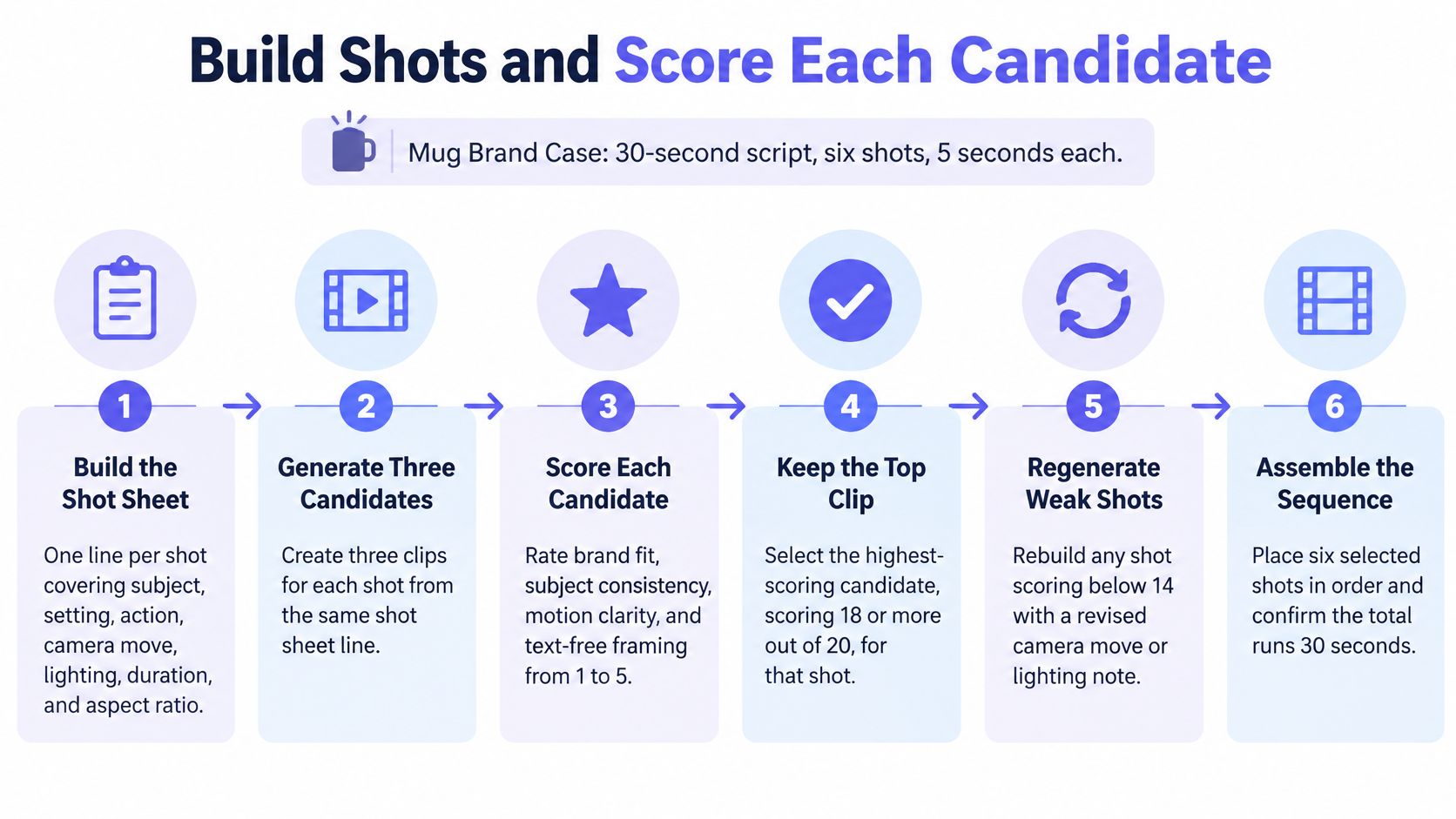
Use the shot sheet and rubric to approve each candidate, then check that the final sequence still supports the narration and approved claims. Keep brand details in view during that review, including product shape, approved colors, and any logo or packaging that appears.
4. Regenerate only the failed shot
Save approved clips before changing anything. Write down the precise failure for a rejected candidate. “Handle changes shape during rotation” points to a testable correction; “looks weird” gives the next attempt no useful direction.
Change one variable at a time. Reduce the action, simplify the background, or replace the camera move. Rewriting every instruction at once makes it hard to tell which change helped. Keep the original prompt with its revision and rejection reason so reviewers can avoid repeating a direction that already failed.
5. Assemble and inspect the complete sequence
Place approved clips against the locked voice-over, then add captions, music, and destination-specific graphics. Check that each cut supports the spoken thought, rather than following a regular rhythm by default.
Watch the full edit without stopping, then inspect transitions, repeated objects, hands, logos, typography, and each final action state. A convincing opening frame is not approval for the rest of the clip.
Fixing Drifting Characters, Warped Text and Bad Motion
A presenter may look consistent in each clip on its own, then appear to change identity when the sequence is assembled. Compare faces, hairstyles, clothing, and proportions side by side before spending time polishing transitions. Treat every generated shot as a candidate to review, not a finished result.
Symptoms, likely causes and fixes
| Symptom | Likely cause | Fix |
|---|---|---|
| Face or outfit changes between shots | Identity references are missing or inconsistent | Reuse an approved reference image and the same character description |
| Logo or on-screen text is warped | The model cannot reliably reproduce the required typography | Remove generated lettering and add approved artwork in the editor |
| Motion looks like slow motion | The action is vague or the model favors low-dynamics movement | State a clear action and direction, then shorten the action |
| Hands or objects morph mid-shot | The interaction is too complex for one shot | Split it into separate shots |
| Camera drifts or zooms unexpectedly | Camera instructions are vague or competing | Specify one camera move and keep other movement static |
| Clip ends in the wrong pose | The final state is unspecified | Describe the required endpoint |
| Voice-over and shots drift apart | Shot timing was set before narration | Set the voice-over first, then cut footage to its phrasing |
For the mug campaign, stop regenerating a visible logo in the hope that its lettering will stabilize. Use an approved product photo or real product footage when branding must be exact. Generated supporting imagery can still establish the setting.
Preserve campaign continuity
Create a compact reference pack with the approved character or product image, reusable description, palette, lighting direction, and acceptable framing examples. Keep model settings and references stable during a production session. That reduces avoidable variation, but it does not guarantee continuity between shots.
The CVPR workshop survey on generative AI for film creation identifies character movement and consistency as practical concerns in generative video. Build time to review and correct those issues into the workflow, alongside generation credits.
Preserve the approved parts of the edit. Replace the defective action, not the entire campaign.
For localization, keep narration, subtitles, and graphics editable. Ask a fluent reviewer to check meaning, pronunciation, line breaks, and whether the translated claim still matches the approved source.
When a shot fails, trim it before the defect, cut to an approved detail, or substitute real footage. If the faulty action carries the message, regenerate that shot alone and leave the approved sequence intact. Review the replacement in context before accepting it.
Run One Test Batch Before You Scale
Take a blog post and make a small set of destination-specific edits from the same approved shot list. Include a vertical Reel, a portrait feed version, and a square LinkedIn version as a practical test, not a claim that these formats guarantee better results.
Use the scheduling workspace to keep the variants identifiable.
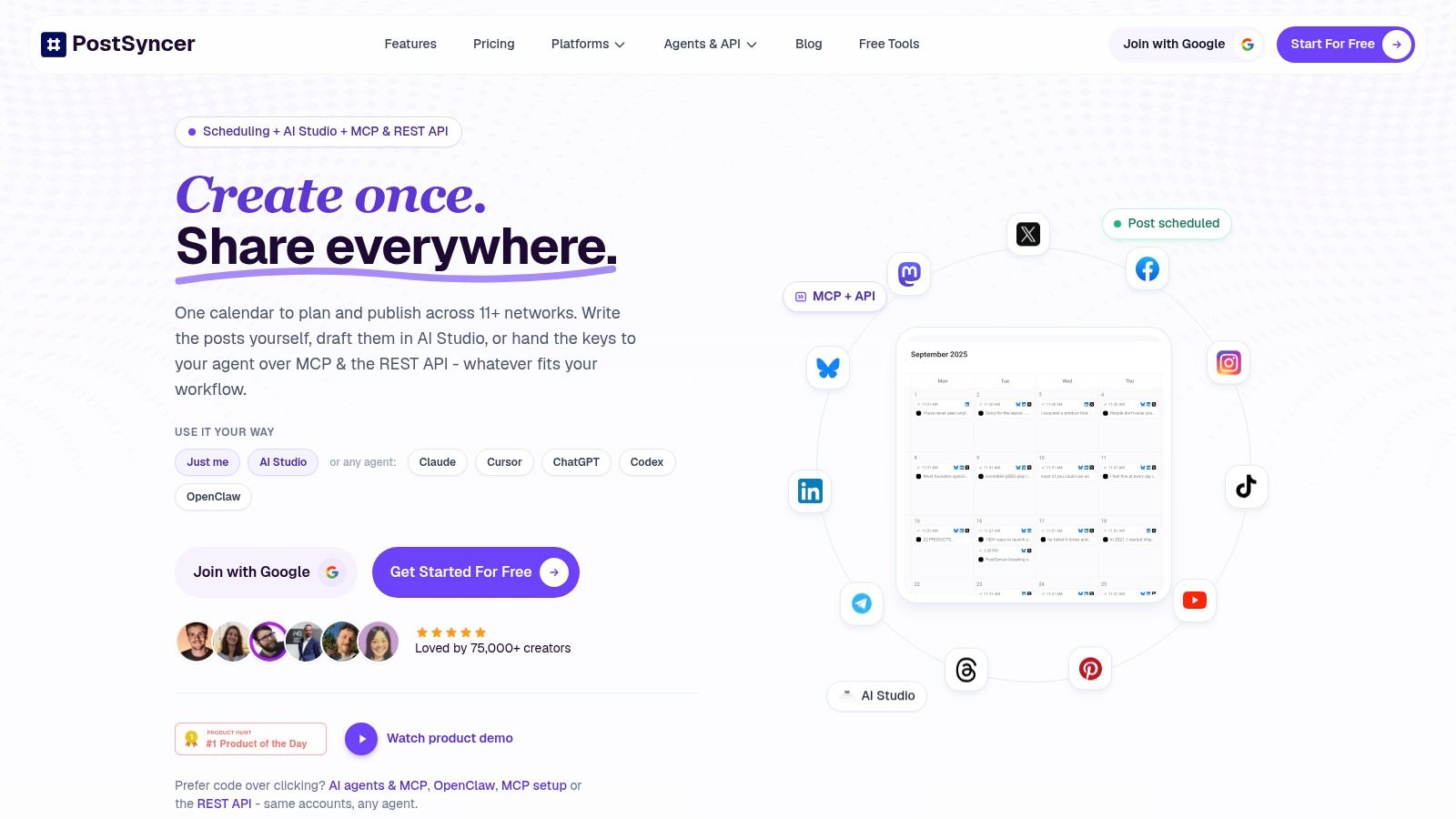
Finish script approval, establish narration timing, render the shots, apply the review rubric, and assemble the exports. Upload the files with distinct labels, platform-specific captions, and publish times. Compare watch-through and saves within each platform, using performance insights without assuming that different platforms define every metric identically.
Watch the walkthrough before setting up the batch.
Make the scale decision explicit
- Proceed when approval is predictable. Most variants should pass without repeated structural changes.
- Pause when defects recur. Rework the shot specification or replace unsuitable generated footage.
- Track the real workload. Include editorial checks, revisions, caption repair, and export review, not just rendering.
Scale the workflow only when you can reproduce an accurate, recognizable result without depending on a lucky generation.
PostSyncer offers an AI Video Creator that turns URLs, PDFs, and text into video drafts, alongside scheduling tools for distributing your finished platform variants. Visit PostSyncer and use the free trial to run a checked-script test batch before committing your wider content calendar.