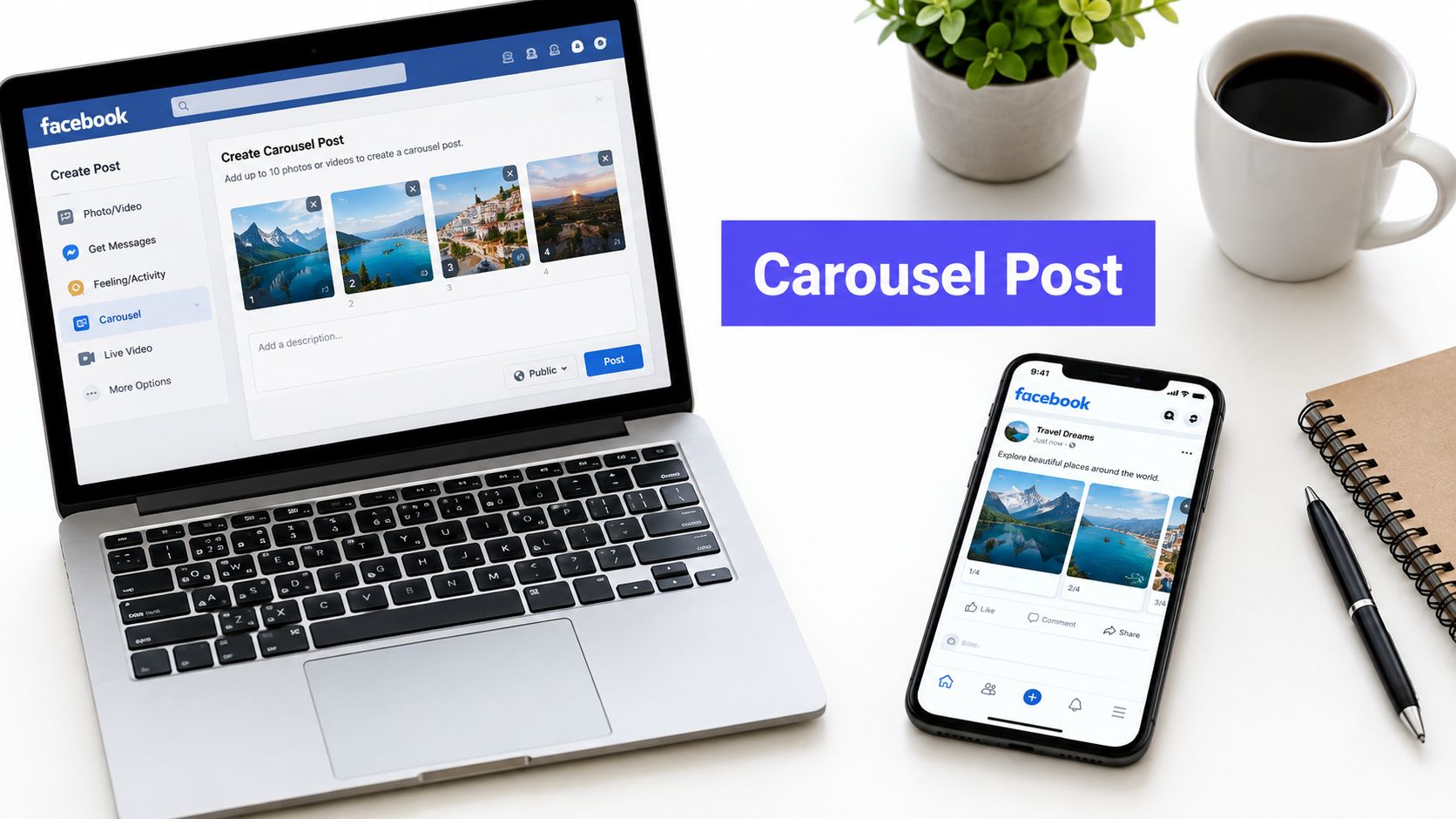












An Instagram feed carousel currently allows up to 20 combined photos and videos in a single post. Both media types count toward that total, and the Instagram composer remains the final compatibility check for your account.
Why might a collection that fits inside Instagram still fail when you schedule it elsewhere? The answer depends on more than how many pictures you select. You also need to match the format, prepare compatible files, and confirm that your publishing method can handle the complete sequence.
Instagram Picture Limits at a Glance
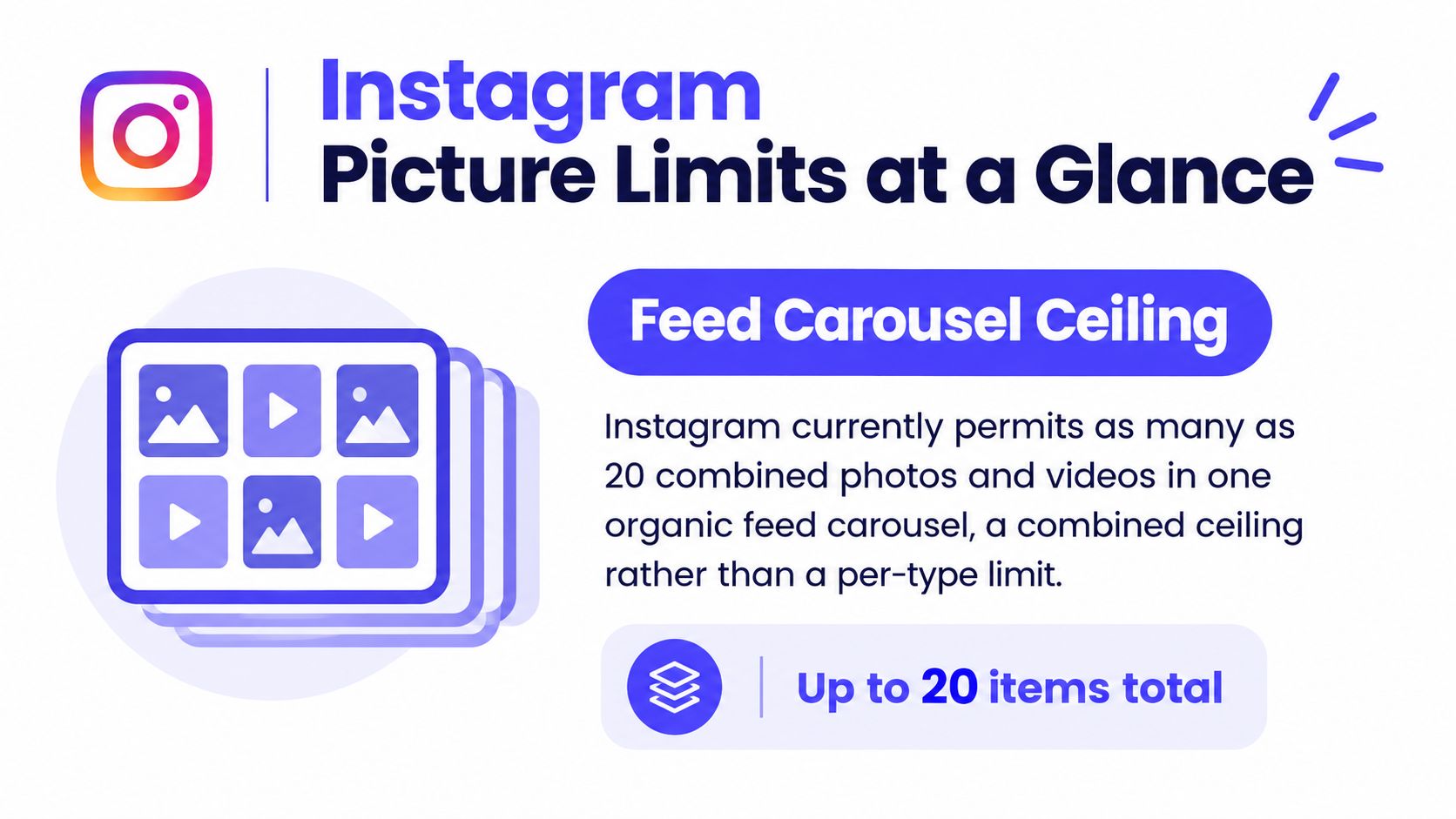
Instagram's native organic feed carousel supports up to 20 combined photos and videos, following an increase from 10 items in August 2024, as explained in this overview of Instagram's posting limits. That's the headline answer, but it describes a particular kind of publication, not every place you can share pictures.
A single-image feed post presents a standalone picture. A carousel groups visual items behind a shared caption, letting you build a connected sequence instead of publishing each asset separately.
Capacity Isn't the Same as Content Selection
Start by separating these questions:
- What can the format hold? Check the capacity of the actual publishing surface you'll use.
- What belongs together? Choose images that support the same message rather than filling every available slot.
- How will you publish? Confirm whether you're using Instagram directly, a connected scheduler, or an advertising workflow.
For a property business, for example, the complete listing gallery and the Instagram selection don't have to match. Pinnacle Property Media's guide to listing photo counts is a useful companion when planning the listing itself. For the social post, choose the views that tell a coherent story about the property.
Practical rule: Treat the available capacity as a ceiling, not a target.
Stories, Reels, and the profile grid shouldn't be treated as interchangeable containers for the same image batch. Choose where the content belongs before deciding how much to include.
Choosing the Right Instagram Format
A product announcement, a behind-the-scenes update, and a visual tutorial don't need the same presentation. Choose the communication job first, then select the format that makes the pictures easiest to understand.
For an organic carousel, mixed media still shares the same allowance: 12 photos and 8 videos reaches the same ceiling as 20 photos, as detailed in this explanation of combined carousel media counts. Adding videos doesn't create a separate allowance for photographs.
Instagram Format Selection Guide
| Publishing Goal | Best-Fit Format | What the Format Handles |
|---|---|---|
| Share a standalone announcement | Single feed image | A visual that makes sense without a sequence |
| Explain a process or compare products | Organic feed carousel | Related assets arranged for deliberate swiping |
| Share informal updates | Story | A sequence suited to an immediate, conversational presentation |
| Demonstrate movement or narrate a process | Reel | A video-led presentation rather than a swipe-led collection |
| Present a recognizable account identity | Profile-grid planning | The relationship between published posts, not an extra carousel allowance |
Suppose you sell handmade ceramics. A finished mug might suit a standalone image, while glaze comparisons could work as a carousel. If the important detail is how you shape the clay, a moving demonstration may communicate more clearly than still photographs.
For broader planning, Carlos Alba Media's social media content marketing guide provides a relevant resource for connecting content choices to your marketing purpose. Keep that purpose visible when reviewing a folder of possible images.
- Choose a carousel when viewers benefit from controlling the pace and comparing adjacent visuals.
- Choose another format when movement, immediacy, or a standalone message matters more than swiping.
Once you've selected the format, consult the Instagram image sizes guide before creating final exports. It's easier to design for the intended presentation than to repair awkward crops after approval.
Preparing and Publishing a Multi-Image Carousel
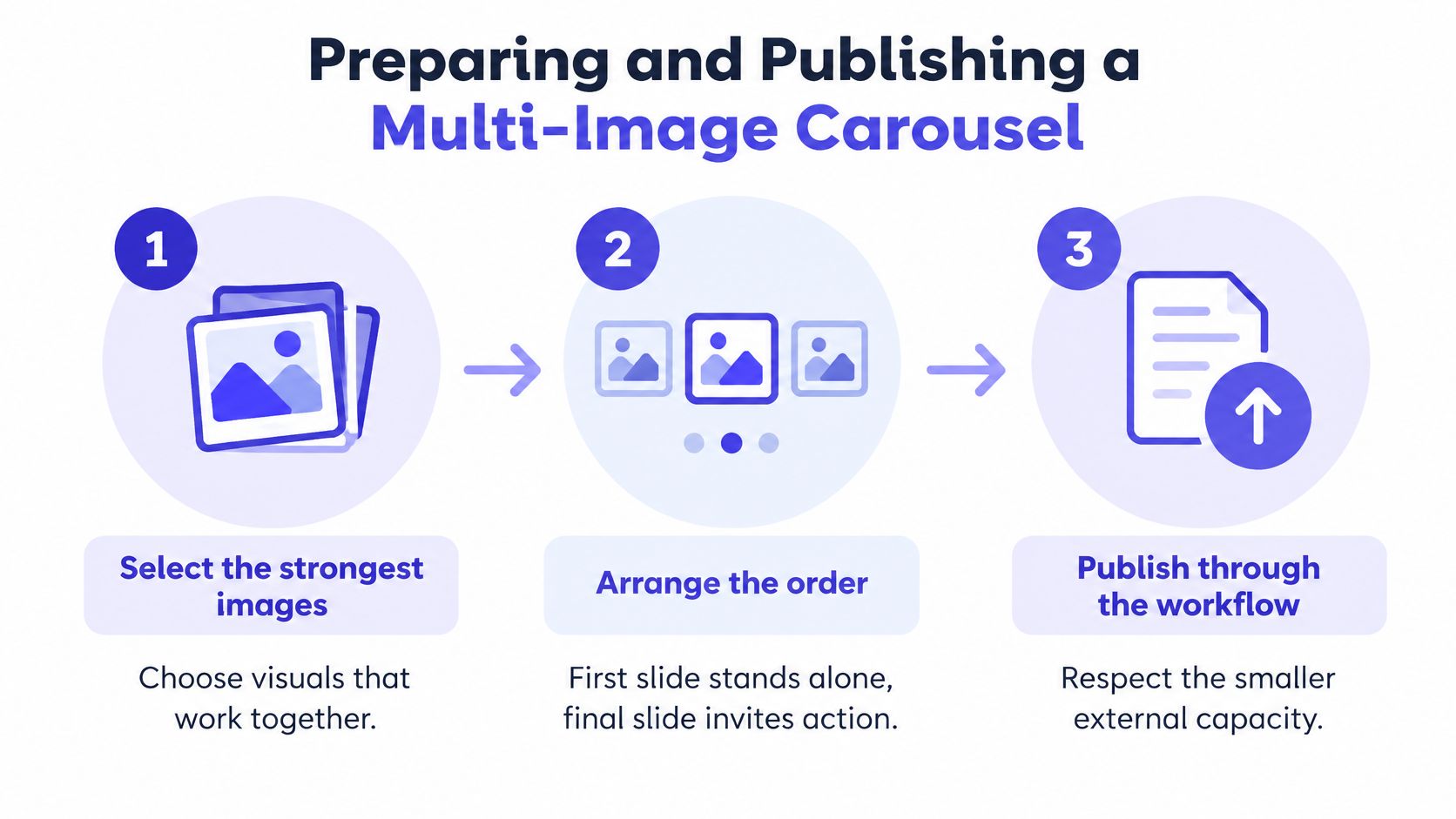
Begin with the message you want someone to understand, not the order in which you photographed the subject. Select the strongest images, remove near-duplicates, and arrange the remaining assets so each contributes something useful.
For a product collection, you might open with the complete range, continue with individual variations, show close-up details, and finish with a practical comparison. The opening should make sense on its own, while the final slide should provide a clear ending rather than feel like a leftover image.
Prepare the Files Before Importing
Instagram retains uploaded photos at their original resolution when their width is 320 to 1080 pixels and their aspect ratio is between 1.91:1 and 3:4; carousel items should also use a consistent orientation, according to this guide to carousel image requirements.
Use a common canvas so horizontal photographs, portrait shots, and text graphics don't receive unintended crops. Inspect faces, product edges, labels, and any text near the boundaries.
- Normalize the composition. Decide what must remain visible, then crop or add surrounding space deliberately.
- Check connected artwork. If a design continues across slides, an image splitter can help prepare the separate pieces. Preview the joins after importing them.
- Review readability. Open the exported files at a phone-friendly viewing size rather than judging everything on a large design monitor.
Preview the Actual Publication
Import the prepared assets into your chosen composer and check the order using the controls available there. Don't assume the upload sequence matches your intended narrative.
Write a shared caption that explains the collection's purpose, supplies missing context, and gives readers a useful next action. Avoid transcribing every slide into the caption unless that repetition serves a clear accessibility or explanatory purpose.
Finally, distinguish file readiness from publishing readiness. Clean exports mean your artwork is prepared; they don't prove that the destination account and publishing route will accept the whole collection. Check the final preview before committing the post.
Why Scheduled Carousels May Fail
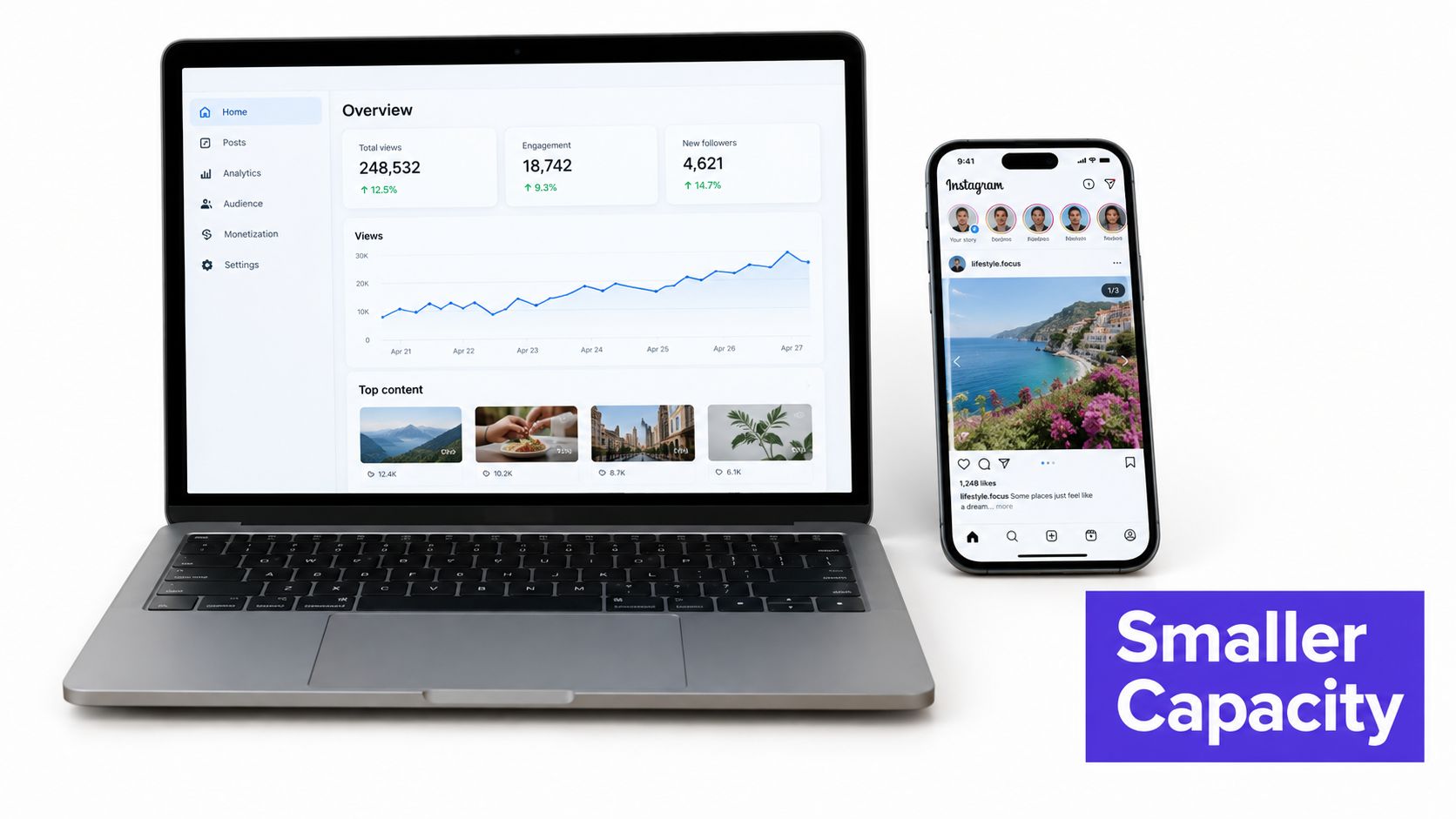
Being able to select a collection in Instagram doesn't prove that an external publishing tool can submit it unchanged. The app's native composer and a scheduler's publishing connection are different routes, so you shouldn't assume they expose identical capabilities.
Available documentation indicates that Instagram's publishing API may accept only 10 items even when the native organic composer permits 20, while carousel ads may also remain capped at 10, as discussed in this guide to native and external carousel publishing. Treat those external limits as something to validate in your current workflow, not as a permanent rule for every tool.
Diagnose the Route Before Rebuilding the Content
A large carousel can potentially fail, arrive incomplete, or require splitting when it passes through an external workflow. If that happens, investigate the publishing route before repeatedly exporting the same photographs.
- Check the supported capacity. Look at the scheduler's current guidance and the limits shown for the connected account.
- Review account access. Confirm that the intended account is connected and that the workflow has the access it requests.
- Inspect the submitted assets. Compare the approved sequence with the scheduler's final preview and any error message.
- Separate organic and paid work. Don't reuse an organic carousel plan for an ad without checking that ad workflow independently.
A successful upload to an editor isn't proof of a successful publication.
For a planned campaign, decide who will handle a native fallback before the scheduled publishing time. If splitting becomes necessary, give each resulting post a meaningful opening and ending rather than cutting the sequence arbitrarily.
The Instagram scheduling guide is a useful companion when setting up the broader process. Verify the complete route before circulating a final approval preview, especially when a client expects every slide to appear together.
Choosing the Right Carousel Length
The strongest carousel isn't automatically the longest. Your editorial task is to decide how much explanation the subject needs and whether viewers can follow the sequence without unnecessary repetition.
Consider a compact product story: show the item, demonstrate its use, highlight a meaningful detail, and close with the buying context. If another image merely repeats the same angle, removing it may make the comparison clearer. That's an editorial judgment, not a promise of higher engagement.
Match Length to the Reader's Task
| Scenario | What Justifies More Images | What Suggests a Shorter Sequence |
|---|---|---|
| Product collection | Each variation changes a meaningful buying decision | Several pictures communicate the same feature |
| Step-by-step tutorial | Readers need distinct stages to reproduce the process | Small actions can be explained clearly together |
| Event recap | Different scenes contribute to a coherent account | Repeated group shots add little context |
| Before-and-after story | Intermediate stages help explain the change | The result is understandable without extra images |
A tutorial deserves enough space for someone to understand the process. Don't compress essential instructions just to make the carousel shorter, but don't separate trivial actions merely to create more slides.
An event recap presents a different challenge. You may have many technically strong photographs, yet only some explain what happened. Select for variety of information, not just variety of camera angles.
Keep an image when it changes what the reader understands, not simply because you like it.
Split by Meaning, Not by Convenience
Separate carousels can make sense when a project contains distinct chapters, such as a collection reveal and a production walkthrough. Each can have its own opening, caption, and next action.
If a workflow requires a split, preserve those natural boundaries where possible. Avoid leaving readers with an unfinished explanation merely because the file batch reached the tool's capacity.
Choose another format when the sequence depends on timing or movement. A carousel should serve the story, not become the default destination for every asset in the folder.
A Reliable Carousel Publishing Checklist
Use a preflight check before you approve or schedule the finished post. The aim isn't to add bureaucracy. It's to catch the difference between a folder that looks complete and a publication that's ready to go.
Check the Content and Files
- Confirm the format. Make sure the approved deliverable is an organic feed carousel rather than a Story, Reel, or advertisement.
- Count all media together. Include videos in the same asset count instead of maintaining a separate photo tally.
- Inspect the canvas. Confirm consistent orientation and check the crops in the actual publishing preview.
- Read the sequence. Review the assets in order without relying on filenames or the creator's explanation.
- Check the caption. Supply context that helps readers understand the collection, and make sure the requested action matches the post.
Ask a teammate to review the exported sequence rather than only the editable design file. They should be able to understand what's being presented and notice if an essential detail has disappeared during preparation.
Check the Account and Publishing Route
- Verify the destination. Confirm the correct brand account and required publishing access before scheduling.
- Validate workflow compatibility. Use the capacity supported by the connected route, not a guess based on another interface.
- Agree on the fallback. Decide whether an incompatible collection should be published natively, revised, or divided into separate posts.
- Keep the final check explicit. For native posting, inspect what the active Instagram composer accepts.
A scheduling workspace can help your team organize assets, review captions, and keep the approved order attached to the planned publication. It doesn't remove the need to validate Instagram's account-specific and workflow-specific constraints.
Record any publishing adjustment alongside the approved content. If someone changes the order or divides the collection, reviewers should see the revised publication plan rather than an outdated preview.
Make the Final Limit Decision
The useful answer to how many pictures can you post on Instagram has an editorial part and a technical part. First, decide which images belong together. Then confirm that the intended format and publishing route can carry that collection as approved.
Use the native composer to check native availability for your account. For connected scheduling or advertising, verify the relevant workflow before building the approval calendar around a large collection.
Decision rule: Approve the story and the publishing route together.
If the route can't handle the collection, choose deliberately between native publishing, a shorter selection, and separate posts with meaningful boundaries. Don't let an unexpected upload restriction make that editorial decision for you at the last moment.
PostSyncer offers a visual content calendar, carousel scheduling, and approval workflows for organizing multi-image content in a shared workspace. Visit PostSyncer to plan your next carousel, review its caption and sequence, and confirm your connected publishing workflow before scheduling.