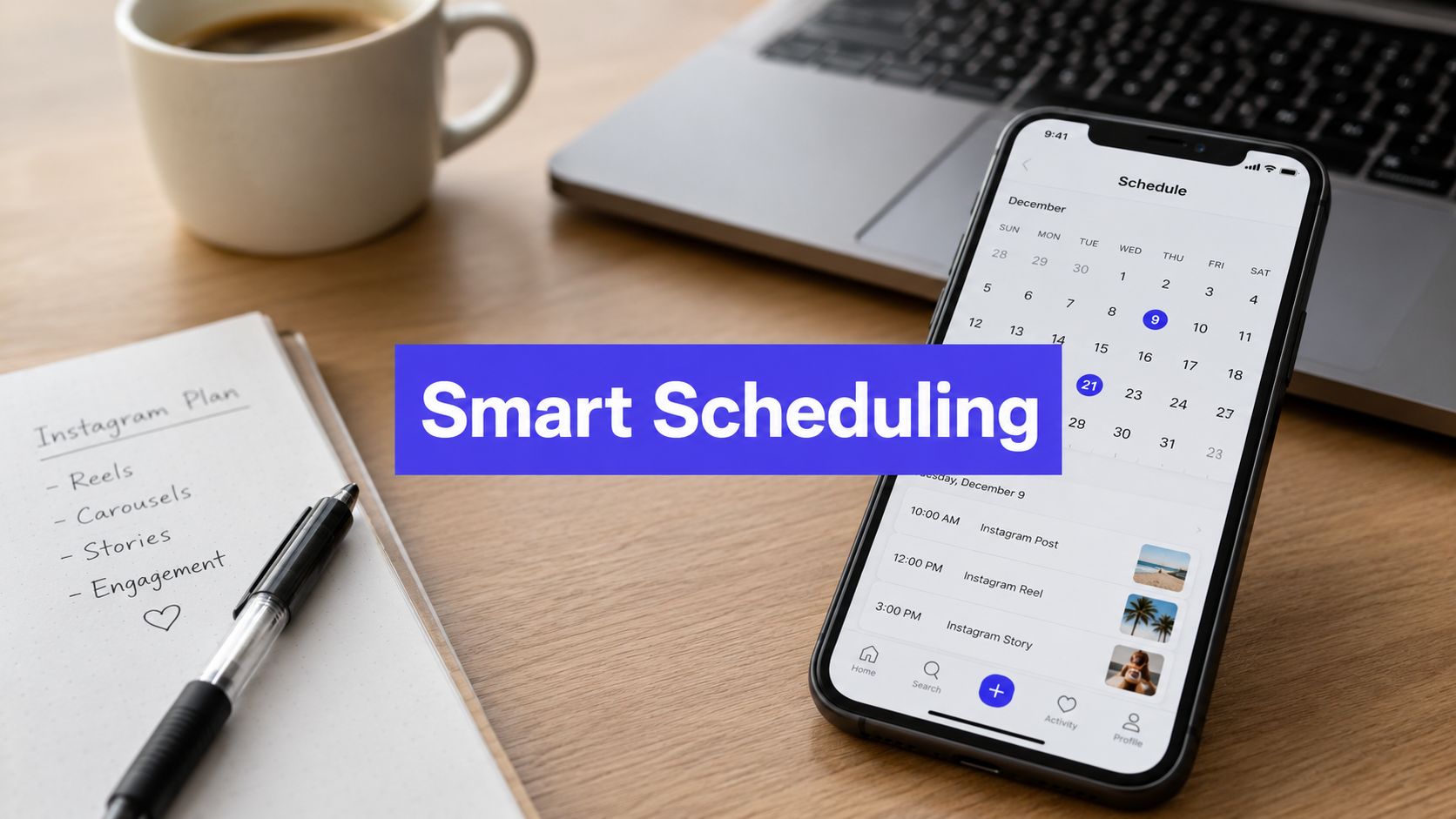












You've finished a week of Instagram content, written the captions, exported the Reels, and queued everything for the times your audience is most likely to see it. Then launch day arrives, and one post is missing, another publishes twice, and a third appears without its audio. The problem isn't usually the calendar. It's the publishing pipeline behind the calendar.
To schedule posts on Instagram reliably, choose the right route for your account, understand what each tool can and can't publish, and verify that every queued item went live. Instagram's native app is fine for simple personal workflows, Meta Business Suite adds shared planning and Facebook publishing, and third-party tools introduce approvals, multi-account management, and API-based publishing controls. This guide gives you the operational playbook for all three.
What Instagram Scheduling Means Today
Instagram scheduling is a publishing pipeline with three routes: the Instagram app, Meta Business Suite, and a third-party platform connected through Meta's publishing infrastructure. Each route has different permissions, queues, and failure points, so a scheduled timestamp alone does not confirm that content will publish.
The native app suits eligible professional accounts that manage one account and straightforward posts, carousels, or Reels. Meta Business Suite adds a desktop calendar, Facebook cross-posting, and business permissions. A third-party scheduler adds team approvals and a separate queue, but it also relies on OAuth authorization, API permissions, account tokens, and background publishing jobs.
A native post can fail because the account is not eligible for the selected format. In Business Suite, a post may remain queued if the connected Facebook or Instagram permission changes. In a third-party tool, an expired OAuth token can stop the publishing job before Instagram receives it. Treat each route as its own workflow, then confirm the live post in Instagram rather than trusting the scheduler's status.
Instagram's official scheduling foundation began on January 30, 2018, when Instagram introduced scheduling through its Graph API for business accounts via approved tools and partners. The launch also began the transition away from the older API platform, which Instagram said would be deprecated over the following two years, beginning July 31, 2018. TechCrunch's coverage of Instagram's API scheduling launch explains how scheduling moved from reminders and manual workarounds into an official publishing workflow.
Operational rule: Assign one system to each post. Two schedulers publishing the same item can create duplicates.
For listing campaigns, review Instagram listing strategies for agents. Teams comparing automation can use AI-powered scheduling software to assess approvals, content preparation, publishing, and verification together.
Scheduling Posts Inside the Instagram App
For a solo creator or one-account business, the Instagram app is the cleanest place to start. It removes OAuth setup, avoids a separate dashboard, and lets you see the post exactly as Instagram will process it.
The in-app sequence
Open the creation flow. Tap the plus icon, then choose Post or Reel. Select a single image, multiple media items for a carousel, or the video you want to publish.
Finish the content first. Add the caption, location, tags, cover image, and any available accessibility details. Don't schedule an unfinished draft and assume you'll be able to repair every setting later.
Open the advanced controls. On the final publishing screen, tap Advanced settings. Look for Schedule this post, or the equivalent scheduling control shown by your app version.
Choose the publishing time. Pick a date and time within Instagram's available planning window, then confirm the schedule. The item should appear in your scheduled content area under the Professional dashboard or account menu.
Verify the queue. Open the scheduled list and check the thumbnail, caption, account, and local time. If the item isn't visible there, treat it as a draft or failed action, not a confirmed scheduled post.

Instagram's current native scheduling workflow allows eligible public accounts to schedule photos, carousels, and Reels directly in the app, up to 75 days ahead and up to 25 posts per day, according to the recent update on expanded Instagram scheduling access. Those limits are practical boundaries, not suggestions. A campaign planned beyond the available window needs another planning layer, and a high-volume queue can hit the daily ceiling.
What the app doesn't solve
The native app works poorly for review-heavy teams. It doesn't provide a shared approval queue, client sign-off links, or role-based publishing controls, so everyone who needs to edit or approve content is effectively working around the same account workflow.
Stories also remain a separate consideration. Don't assume that a feed post or Reel schedule means every Story workflow is available in the same way. For Reels, check the audio, cover, and effects before confirming the queue because certain creative elements may not survive scheduled processing consistently.
Use the app when you're publishing for one account and can personally verify the queue. Move to Business Suite when you need a shared business workspace, and move to a third-party scheduler when approvals and multiple accounts become routine rather than occasional.
Using Meta Business Suite for Instagram Scheduling
Meta Business Suite is the practical middle layer between the Instagram app and a full social media operations platform. It's useful when you manage Instagram alongside a Facebook Page, need a desktop calendar, or want basic separation between people who draft content and people who publish it.
Start by connecting the Instagram professional account to the relevant Facebook Page and Meta business portfolio. Then open Meta Business Suite, select the correct business and Instagram account, and go to Content or Planner. Choose Create post, add the media and caption, select Instagram as the destination, and set the publishing time.
A workable desktop process
Choose the identity first. Confirm the Instagram account shown in the composer before uploading anything. Multi-account mistakes usually happen before the caption is even written.
Build the post in the composer. Add the image, carousel, or Reel, then review the preview. If you're cross-posting to Facebook, edit the copy for each network instead of blindly duplicating the same caption.
Schedule from the publishing control. Select the date and time, then confirm the item appears in the Planner calendar. The calendar is the main advantage here because it shows Instagram and Facebook content in one operational view.
Set permissions separately. Use Meta Business Settings to assign the appropriate business roles. Team members shouldn't need shared passwords just to prepare a draft or review a caption.
Meta's current Business Suite workflow supports connected professional accounts and allows Instagram content to be scheduled up to 75 days in advance, as documented in this overview of scheduling Instagram content through Meta Business Suite. That planning horizon is useful for launch calendars, seasonal campaigns, and approval cycles, but it still doesn't replace a careful review of account connections and content eligibility.

Where Business Suite becomes frustrating
Business Suite is official and often sufficient, but it isn't a complete production system. Some Instagram creative features can behave differently when content passes through a desktop workflow, especially audio, effects, and interactive Story elements. Treat the preview as a checkpoint, not a guarantee that every native feature will transfer unchanged.
Use Planner as the team's source of truth. Assign one person to own final approval, keep Facebook and Instagram destinations explicit, and require the publisher to confirm the scheduled item after creation. Business Suite is a strong free starting point for small businesses. It becomes limiting when you need client approval links, detailed audit history, account-level alerts, or a unified queue across several brands.
How Third-Party Schedulers Publish to Instagram
A third-party scheduler isn't just an online calendar with an Instagram button. Tools such as Buffer, Later, Hootsuite, Sprout Social, and SocialPilot typically connect to Meta through an authorization flow, prepare media for publishing, and run a background job at the selected time.
The publishing chain
First, a user connects an eligible Instagram account and grants the tool permission to publish. The account connection is commonly associated with Meta assets such as a Facebook Page and an Instagram user identity. If a password change, role removal, or security review invalidates that connection, the calendar can still display the post even though the publisher no longer has permission to send it.
The scheduler then uploads the media to Meta and creates an unpublished media container. It receives a container ID, checks whether Meta has finished processing the media, and uses a cron job or queue worker to publish the container at the scheduled time. Instagram's Graph API doesn't provide a native scheduled-publish endpoint, so the scheduler has to operate this two-step pipeline itself.
Containers expire after 24 hours if they aren't published. That makes processing delays especially important for video. A Reel that remains stuck during upload or processing can't be left in the queue indefinitely. The scheduler needs to recreate the media container and retry safely.

For technical teams, this API automation guide to Instagram scheduling recommends storing one stable internal key per post, validating media before queueing, and monitoring account usage headers. A scheduler should slow or pause non-urgent jobs as usage approaches 80%, rather than creating a burst of retries that produces failures or duplicates.
What agencies should demand
An agency needs more than a publish button. Require:
- Approval states: Draft, internal review, client review, approved, and published should be visible.
- Role controls: Writers, designers, clients, and publishers shouldn't all have identical permissions.
- Audit history: The system should show who changed the caption, media, time, or status.
- Failure alerts: A missed background job should create an actionable task.
- Idempotency: Retrying a failed job shouldn't create a second live post.
Stories may use reminder-based workflows depending on the tool and its API access. Carousels and Reels are generally more suitable for automated publishing, but native features can still be restricted. Live video shouldn't be treated as ordinary scheduled feed content.
Watch the process visually before selecting a platform:
If your workflow needs a unified queue for Instagram content and other networks, review how an Instagram scheduler handles account connections, calendar planning, approvals, and publishing status before committing your team to it.
Timing, Captions, and Hashtags That Perform
Use timing data to form a test plan, not to dictate every publication. Engagement varies by audience, day, and time, so there is no universal slot that guarantees results. Buffer's analysis of Instagram timing offers a benchmark, but your own Instagram Insights should control the final schedule.
Start with recent posts. Rank them by reach and saves, identify recurring patterns in your audience's local time, then schedule comparable content in those windows. Test for 2 to 4 weeks before changing the plan. Move recurring posts toward the slots that produce the strongest response for your account.
| Variable to Test | Metric to Measure | Minimum Sample | Test Window |
|---|---|---|---|
| Publishing time | Reach, impressions, engagement rate | Several comparable posts per slot | 2 to 4 weeks |
| Format | Reach, saves, shares | Comparable posts for each format | 2 to 4 weeks |
| Caption hook | Saves, comments, profile actions | Repeated hook patterns | 2 to 4 weeks |
| Hashtag set | Reach from non-followers, saves | Multiple niche sets | 2 to 4 weeks |
Write for the preview, not the archive
Lead with the point. The opening lines must earn the tap on “more,” and the call to action belongs before any hashtag block. A Reel caption usually needs a tighter structure than a carousel caption because the video carries more of the explanation. Use this guide to writing Instagram captions when developing and revising those openings.
Hashtags need controlled testing rather than a large generic block. Compare a small group of specific, relevant tags with broader sets, and use a scheduler's first-comment feature when you want the caption to stay clean. This guide to proven hashtag tactics helps structure tag choices around relevance instead of volume.
Keep the calendar focused on learning. Change one major variable at a time, record the audience's local time, and wait for several comparable posts before selecting a winner. Review the live post after publication to confirm that its caption, format, and hashtag set match the scheduled version.
Fixing Scheduled Posts That Did Not Go Live
A missing scheduled post usually isn't an internet problem. Start with the system that owned the publishing job, then trace the content from queue to live profile.
The failures that matter
Container expiry is the first API-specific check. If a third-party tool created a media container and never published it within 24 hours, that container has expired. Re-upload the media and create a new publishing job. Retrying the old container won't bring it back.
Permission failure is the next likely cause. Check whether the Facebook Page role changed, the Instagram account is still connected, or an access token became invalid after a security or password event. A personal account that isn't eligible for the selected workflow can also block publishing.
Duplicate ownership creates a different problem. If Meta Business Suite and a third-party scheduler both hold the same post, one may publish while the other retries. Assign one system as the owner and remove duplicate queue entries before rescheduling.

Hashtags or caption text may also be altered when Instagram rejects a setting or a caption exceeds the platform's allowed length. If a post loses hashtags, compare the original draft with the published caption and test a shorter, more focused version instead of repeatedly sending the same failed payload.
The verification order
Use this sequence before telling a client that Instagram failed:
- Scheduled queue: Confirm the item existed, the selected account was correct, and the time zone matched the intended audience.
- Scheduler failure inbox: Look for API, media-processing, permission, or timeout messages.
- Instagram activity area: Check whether Instagram recorded a publishing action or restriction.
- Published grid and Reels tab: Search the live profile directly, not only the scheduler dashboard.
- Insights: Confirm that Instagram has registered the new media item and begun collecting activity.
Verification rule: A green status in a scheduling dashboard means the job completed. It doesn't always prove that the post is visible on the intended Instagram profile.
Choosing the Right Scheduling Setup for You
Choose the smallest system that reliably handles your workload.
Solo creators with one account should start in Instagram. Its native workflow avoids extra connections and provides direct control over feed posts, carousels, and Reels. Add Meta Business Suite when desktop planning or Facebook cross-posting becomes useful.
Small businesses publishing regularly can begin with Meta Business Suite's calendar and basic role separation. Choose a third-party scheduler when approvals, multiple accounts, or cross-network publishing create repeated manual work. Base the schedule on your audience's active periods, then adjust it using actual account results.
Agencies need a publishing queue with role-based permissions, review states, approval links, audit logs, and alerts for containers approaching expiry. If the team needs structured content ideation, a tool for creating AI-powered listicles for e-commerce can support planning before approved assets enter the queue.
Use this pre-publish checklist:
- Account: Confirm the profile supports the selected publishing route.
- Media: Check format, crop, cover, audio, and preview.
- Ownership: Assign one scheduler to the post.
- Timing: Verify account and audience time zones.
- Caption: Review the hook, call to action, mentions, and hashtags.
- Proof: Save confirmation, then verify the live post.
Meta Business Suite schedules within its available planning window, so long-range campaigns may require staged planning rather than one extended queue.
PostSyncer gives creators, teams, and agencies one workspace for Instagram connections, visual planning, post and Reel scheduling, and approval workflows. Visit PostSyncer to track ownership, status, and publication verification in one documented process.