











You know the scenario. The designer saved the final logo in a Dropbox folder called “Brand New.” The account manager has another “final” logo in Google Drive. The social media manager downloaded a resized version to their desktop six months ago and still uses it because it's easy to find. Then a client asks for a campaign image, and the whole team burns half an hour in Slack asking the same question: “Which file is the approved one?”
That mess is what pushes small teams to build a digital asset library.
For agencies, startups, and lean in-house teams, the problem usually isn't lack of effort. It's that assets live in too many places, naming is inconsistent, and nobody owns the rules after files are uploaded. A workable system doesn't need an IT department. It needs clear structure, sane metadata, and habits your team will follow.
What Is a Digital Asset Library and Why You Need One
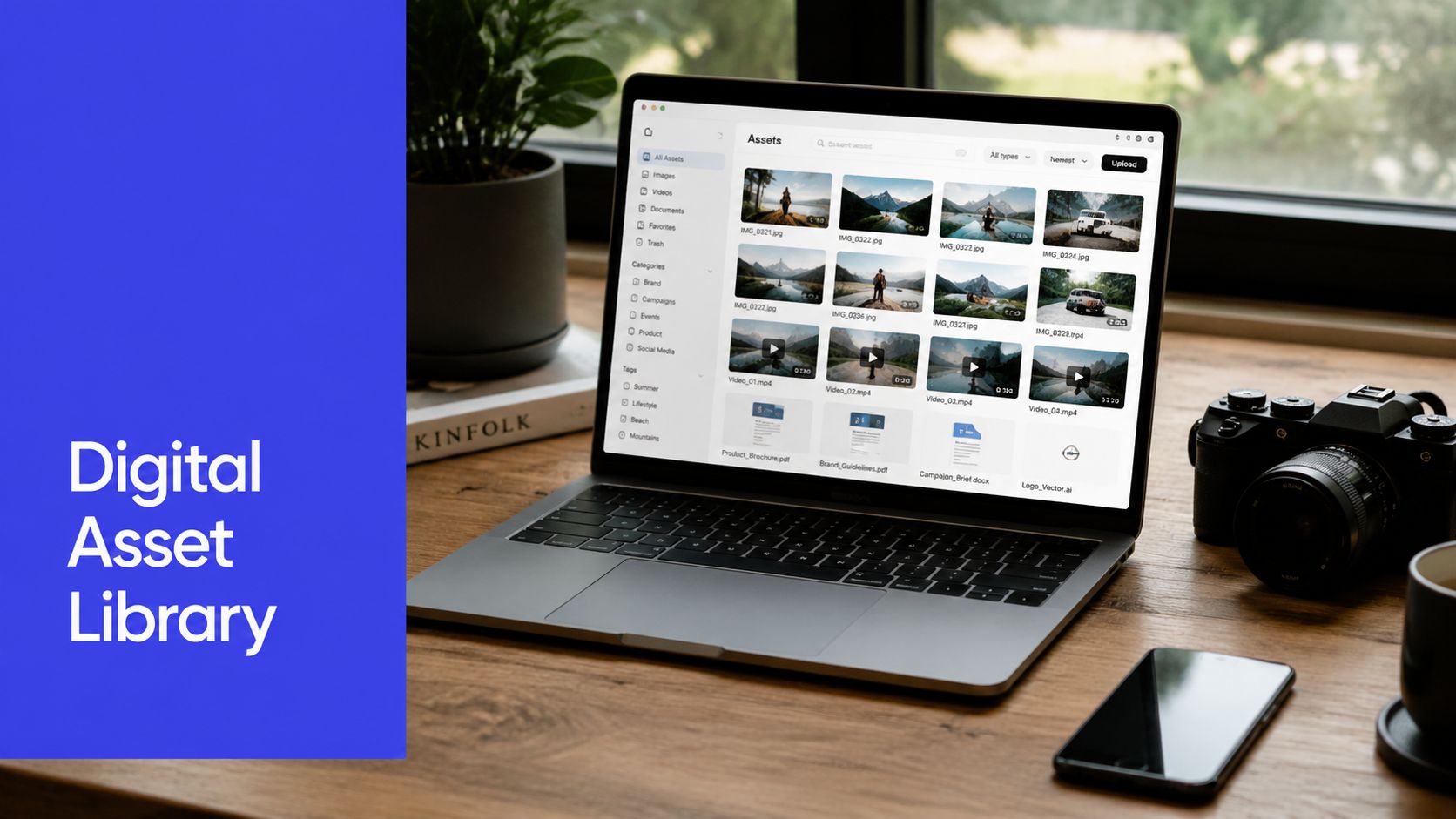
A digital asset library is the central home for your brand files. Images, logos, videos, PDFs, templates, presentation decks, social graphics, product shots, and approved documents all live in one organized system.
Think of it as a supply closet with labels that make sense. Not a junk drawer.

The real problem it solves
The need for a digital asset library often goes unnoticed until reuse breaks down. You can still “store files” in shared folders for a while. The cracks show up later:
- Search takes too long because filenames are vague or inconsistent
- Old assets stay in circulation because nobody can tell what's current
- Creative work gets repeated because people can't find what already exists
- Client-facing mistakes happen because the wrong version gets published
- New team members struggle because the system lives in tribal knowledge
That's why a digital asset library matters. It turns content from scattered files into usable operational assets.
Why it's no longer optional
This isn't just a nice-to-have for large enterprises. In a 2025 DAM trends report, 60% of organizations using a DAM system said they save time and money, and users reported saving an average of 13.5 hours per week, according to MediaValet's DAM trends report. That kind of weekly time recovery is a big deal for a five-person agency or a startup marketing team where everyone already has too much on their plate.
The category itself has also matured. One industry summary says the global DAM market is projected to grow from USD 5.3 billion in 2025 to USD 10.9 billion by 2029, while another cited forecast projects about 14% CAGR from 2024 to 2032, according to Cloudinary's DAM market overview. The useful takeaway isn't just market size. It's that digital asset management has shifted from a niche organizing tool into core infrastructure for content operations.
Practical rule: If your team creates assets repeatedly, reuses them across channels, or shares them with clients and contractors, you need a system built for retrieval, not just storage.
What good looks like
A functional digital asset library gives your team three things:
| Need | What the library provides |
|---|---|
| One place to look | A central source of approved files |
| Confidence in what's current | Version history and clear status |
| Faster reuse | Tags, filters, and search that reflect real work |
For a small team, that's the difference between “Where did we put it?” and “I found it in ten seconds.”
Digital Asset Library vs DAM What Is the Difference
People use these terms interchangeably, and that's understandable. In day-to-day work, they often overlap. But the distinction helps when you're choosing tools.
The simple way to think about it
A digital asset library is the collection itself. It's the organized set of files your team depends on.
A DAM system is the software and operating model that manages that collection.
If you want an analogy, the digital asset library is the books. The DAM is the building, the catalog, the checkout process, the rules, and the staff who keep the shelves from becoming chaos.
Why the difference matters
A small team can create a basic digital asset library in Google Drive, Dropbox, OneDrive, Notion, Airtable, or a shared NAS. If the folder structure is clean and naming is disciplined, that may work for a while.
But a true DAM system adds the control layer that basic file storage usually lacks:
- Version control so people stop using outdated files
- Permissions so contractors, clients, and internal teams don't all see the same things
- Metadata support so assets can be found by more than filename
- Workflow and integrations so files move into real work instead of sitting in storage
A side-by-side view
| Question | Basic digital asset library | DAM system |
|---|---|---|
| Can it store files? | Yes | Yes |
| Can people search by tags and attributes? | Sometimes, in a limited way | Usually, yes |
| Can you control access by role? | Basic sharing permissions | Granular permissions |
| Can you track versions cleanly? | Often clunky | Built for it |
| Can it connect to other tools? | Sometimes | Usually more robust |
That doesn't mean every small team should buy enterprise software on day one. It means you should be honest about the level of control you need.
A shared folder becomes fragile when your team needs approvals, external access, asset reuse across channels, and certainty about which file is current.
What smaller teams should actually shop for
Don't ask, “Do we need a DAM?” first.
Ask these instead:
- How often do we reuse assets?
- How often do we publish the wrong version?
- How many people need access?
- Do clients or freelancers need different permissions?
- Do our assets need to connect to publishing or creative tools?
If the answers point to frequent reuse, version confusion, and multi-user collaboration, you're not shopping for storage anymore. You're shopping for management.
The Four Pillars of an Effective Asset Library
A digital asset library works when four parts hold together. If one is weak, the whole thing starts to feel unreliable.

Metadata
Metadata is the label system that tells your team what a file is, where it belongs, and when to use it. Without it, search becomes guesswork.
For a social image, metadata might include campaign name, product line, region, channel, approval status, usage rights, and file type. For a video, it may also include duration, format, transcript-related tags, and orientation.
When metadata is weak, teams compensate with folder nesting. That usually makes things worse.
Centralized storage
Your library needs one authoritative home. That doesn't mean every historical file must stay active forever. It means everyone knows where approved assets live.
Scrappy teams often fail here by keeping “temporary” copies everywhere. One folder for design, another for social, another in email, another on local machines. Once that happens, nobody trusts the library because everyone assumes a better version exists somewhere else.
Search and retrieval
Storage without retrieval isn't a library. It's a warehouse.
Good search means users can find a file by how they remember it, not only by what it was named. Some people search by campaign. Others search by product, quarter, audience, or channel. Your system should reflect those habits.
A useful search setup usually includes:
- Keyword search for titles and tags
- Filters for type, team, campaign, status, or date
- Saved views for recurring needs like approved social assets
- Preview support so users can confirm before downloading
Access and permissions
Small teams frequently cut corners, a decision they later regret. A high-performing digital asset library should enforce version control, granular permissions, and API or integration hooks because those controls reduce duplication, prevent outdated files from being used, and keep teams aligned on an approved source of truth, as explained in MediaValet's digital asset library guidance.
Permissions don't need to be complicated. They need to match real roles.
- Designers may upload and replace files
- Account managers may share approved assets with clients
- Freelancers may only view a limited set
- Clients may only access final deliverables
Weak permissions create two problems at once. The wrong people can access files they shouldn't, and the right people stop trusting what they can see.
What breaks when a pillar is missing
| Missing pillar | What happens |
|---|---|
| Metadata | Files become hard to find |
| Centralized storage | Multiple “final” versions appear |
| Search and retrieval | People ask teammates instead of using the system |
| Access and permissions | Off-brand or outdated assets get used |
Small teams don't need the most complex setup. They need all four pillars covered well enough that the system stays dependable under normal daily pressure.
How to Build Your Digital Asset Library Step by Step
Organizations often overcomplicate this. They try to design the perfect structure before they've even looked at what they have. Start smaller. Build something your team can use in the next few weeks, not a theoretical system you'll launch “someday.”

Start with the mess you already own
First, audit your current assets. Don't organize while auditing. Inventory first.
Look across Google Drive, Dropbox, desktops, old project folders, shared Slack uploads, and client portals. You're trying to answer a few blunt questions:
- What asset types do we use?
- Which files are active, outdated, duplicated, or unclear?
- Who needs access to what?
- Which assets are requested repeatedly?
This step usually reveals a pattern. A small percentage of assets drives most day-to-day requests. Those are the first files worth organizing properly.
Design around usage, not theory
Once you know what people need, define the use cases. A digital asset library for a small agency often supports recurring work like campaign launches, client approvals, social publishing, sales collateral, and brand management.
Build the structure around those actions. If your team often asks for “approved Instagram reels from the spring product launch,” your system should support that search path. If your current process slows down production, tightening your content creation workflow often helps you decide what the library must support.
Don't start with folders. Start with retrieval questions. “How will someone look for this later?” is the right planning lens.
Choose the lightest tool that solves the problem
A lightweight setup can work if your volume is manageable and your team is disciplined. For some teams, that means structured cloud storage plus naming rules and shared metadata fields. For others, that means a dedicated DAM with permissions, versioning, and integrations.
Use this decision guide:
| Situation | Usually enough |
|---|---|
| Small team, low asset volume, simple sharing | Structured cloud storage |
| Agency with multiple clients and approvals | Lightweight DAM |
| Heavy reuse, lots of versions, external collaborators | DAM with permissions and integrations |
Don't buy enterprise complexity if your team won't maintain it. But don't expect a folder tree to solve version control if multiple people publish assets every week.
Build the schema before migration
Before upload starts, set your naming conventions, folder logic, and metadata fields. If you skip this and “clean it up later,” later usually never comes.
At minimum, decide:
- What gets tagged
- Who applies tags
- What “approved” means
- How versions are named or managed
- When files move from active to archive
Then migrate in batches. Start with current brand assets, active campaigns, and frequently reused files. Don't dump everything in at once.
Train for behavior, not features
A short training session beats a long policy document. Show people how to search, upload, replace versions, and share correctly. Then define a few core requirements:
- Use the library, not desktop copies, for active assets
- Replace versions inside the system
- Don't invent new tags casually
- Archive stale files instead of leaving them mixed with active ones
That's enough to get a scrappy team moving.
Essential Metadata Fields and Taxonomy Tips
If your digital asset library feels hard to search, the problem usually isn't storage. It's metadata.
Metadata is the information attached to a file that helps people find it and use it correctly. It's similar to the label on a pantry container. Without the label, flour and powdered sugar look the same until something goes wrong.
The metadata fields worth setting up first
A technically sound library depends on metadata design. Asset records often need fields for format, resolution, and compression so systems can preserve files correctly, support interoperability, and automate quality control, as described in Orange Logic's guide to technical metadata in DAM.
For small teams, a starter schema usually works best when it includes three categories.
Descriptive fields
These help humans search.
- Asset title for a plain-language name
- Campaign or project name for grouped retrieval
- Client or brand for agencies
- Product or service line for reusable content
- Channel such as web, email, social, paid, print
- Status like draft, approved, archived
Technical fields
These help systems and production workflows.
- File format
- Resolution
- Compression
- Orientation
- Duration for audio or video
- Dimensions
Rights and governance fields
These protect your team from accidental misuse.
- Owner
- Approval date
- Usage rights note
- License expiry date
- Retirement or archive status
Keep taxonomy flatter than you think
Teams often build folder trees that are too deep. They make sense only to the person who created them.
A flatter taxonomy works better. Use broad folders for high-level grouping, then rely on metadata and filters for specificity. That keeps one asset from being trapped in a single path.
Here's the difference:
| Approach | Result |
|---|---|
| Deep folders | Rigid, slow, hard to maintain |
| Flat structure plus metadata | Flexible, searchable, easier to scale |
A related fix is controlled vocabulary. That means agreeing on one approved term for the same concept. Don't let one person tag “IG,” another “Instagram,” and another “Insta.” The same rule applies to product names, regions, asset types, and audience segments. If your team needs a refresher on common creative language, a simple glossary of graphic design terms can help standardize how people describe assets.
Use the words your team actually searches for, not the words that sound most official.
What good metadata does in practice
Good metadata reduces manual tagging mistakes, speeds up retrieval, and makes governance easier later. It also gives smaller teams something they rarely have enough of, consistency.
The best test is simple. If a new team member can find the right social graphic, the approved logo pack, and the latest product screenshot without asking anyone, your metadata is doing its job.
Integrating Your Library into Real-World Workflows
A digital asset library shouldn't be a place people visit only when someone asks for a logo. It should sit inside the flow of daily work.
That matters most in content teams because the same assets get reused, resized, repurposed, and scheduled across channels. If the library is disconnected from publishing, people fall back to local downloads and ad hoc copies. That's where version chaos returns.
A simple social workflow that actually works
Take a small agency managing multiple client accounts. The designer uploads approved campaign visuals. The account manager checks that only final assets are visible to the social team. The social manager then selects images and short video clips for upcoming posts.
Instead of downloading everything into random folders, they pull from the approved library, write captions, line up posts by channel, and schedule the content. If a creative is updated, the team should be able to replace the source asset without starting from scratch on every downstream task.
That's where integrations matter. As covered earlier, management systems with integration hooks make distribution smoother because assets don't have to be manually passed around each time.

What to connect first
For smaller teams, the most useful connections are usually the boring ones:
- Social scheduling tools so approved media is ready to publish
- Design tools so creatives pull from the same source files
- Project management tools so assets match active work
- CMS or web tools so web teams don't upload outdated images
One option in that stack is PostSyncer, which includes a media and assets library alongside scheduling and publishing workflows. For teams comparing systems, it's useful to review different content organization tools based on how they fit actual publishing work, not just how they store files.
The workflow test
If you want to know whether your library is integrated well, ask these questions:
- Can the team publish without downloading files into personal folders?
- Can they tell which asset is approved without asking design?
- Can they swap in an updated asset without rebuilding the workflow manually?
- Can contractors access only what they need?
If the answer to those is mostly yes, the library is doing more than storing files. It's reducing handoffs and protecting brand consistency during execution.
A useful library shortens the distance between “asset approved” and “content live.”
Governance and Maintenance Best Practices
Most digital asset libraries fail after setup, not during setup.
The first few weeks look fine because everyone is still paying attention. Then files start coming in without proper tags. Old versions remain visible. Nobody knows who should archive stale content. Search quality drops, trust drops with it, and the team slowly returns to Slack requests and desktop folders.
That's why governance matters. A major gap in most advice is what happens after launch: who owns metadata quality, how often the library should be audited, and how stale assets should be retired without breaking workflows. That governance gap is exactly what Empower's guidance on digital asset libraries points toward.
Assign ownership clearly
Small teams don't need a governance committee. They need named owners.
A practical model looks like this:
- Library owner keeps structure, permissions, and rules current
- Content contributors upload assets and apply required metadata
- Approvers mark what is final and publishable
- Team leads review whether their areas are keeping the system clean
If everyone owns metadata, nobody owns metadata.
Set rules for asset retirement
Not every old file should be deleted. Some should be archived for legal, client, or historical reasons. But archived assets must be visibly separate from active ones.
Use a simple decision model:
| Asset condition | Action |
|---|---|
| Still approved and reusable | Keep active |
| Outdated but may need reference | Archive |
| Duplicate or clearly unnecessary | Delete if policy allows |
| Rights expired or unsafe to use | Remove from active access immediately |
The mistake to avoid is leaving outdated files mixed into search results with current ones. That turns the library into a “single source of truth” in name only.
Run maintenance on a schedule
Governance works best when it's lightweight and recurring. For smaller teams, a regular checklist is more realistic than a formal program.
A simple operating rhythm:
Weekly
- Review newly uploaded assets for missing tags
- Confirm approved files are marked correctly
Monthly
- Check duplicates and near-duplicates
- Archive finished campaign assets that no longer belong in active views
- Review user access for freelancers, vendors, and clients
Quarterly
- Audit taxonomy terms
- Remove confusing or redundant tags
- Review whether search reflects how the team now works
Governance is what keeps a digital asset library useful after the launch excitement wears off.
The goal isn't perfection. It's reliability. When someone searches for an approved asset three months from now, they should find the right file quickly and trust what they found.
If your team is trying to organize creative assets and publish faster without adding another disconnected tool, PostSyncer is worth a look. It combines media storage, scheduling, approvals, and cross-channel publishing in one workspace, which can make life easier for small teams and agencies that need their asset library connected to daily content operations.