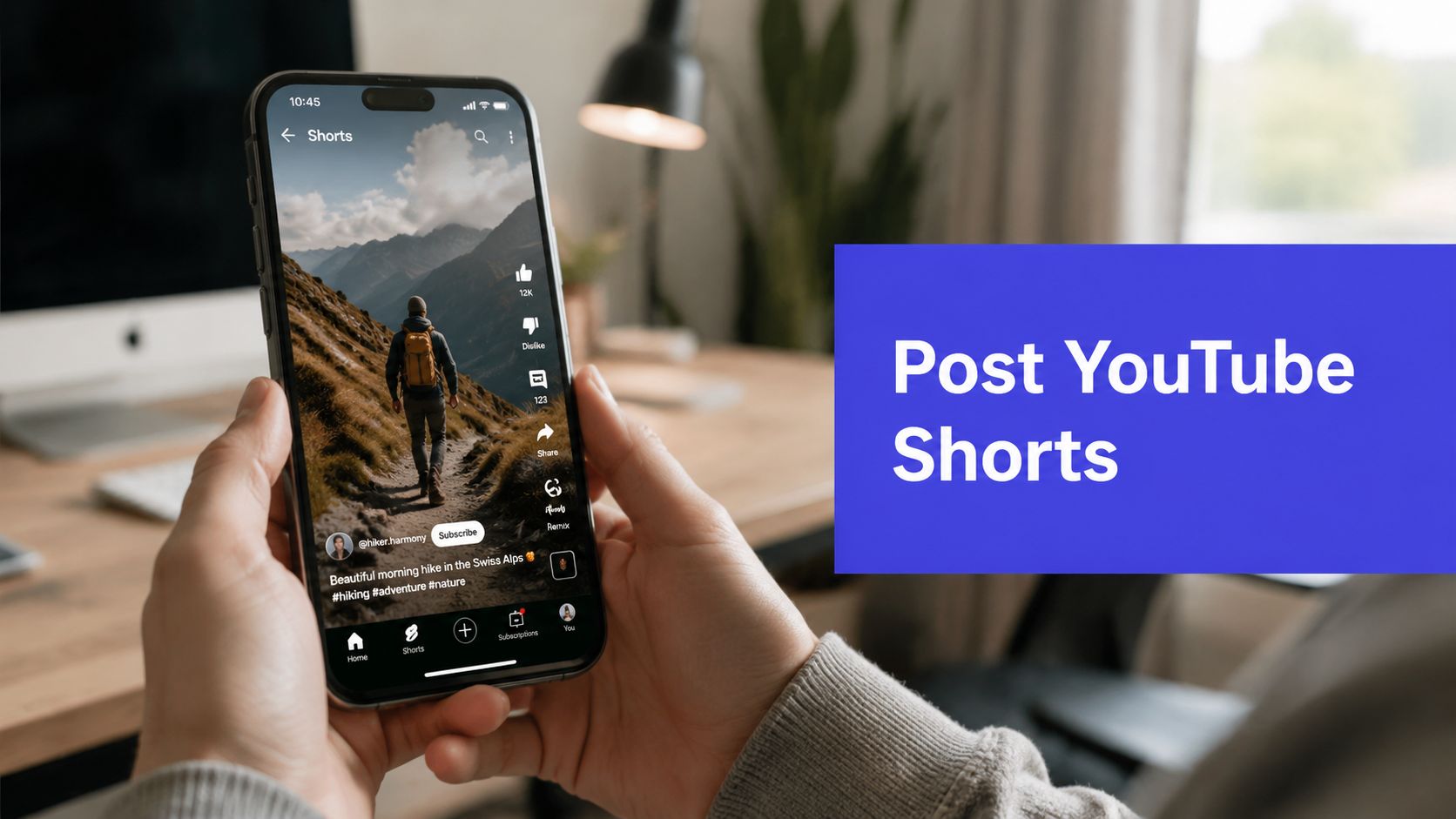












You're probably doing one of two things right now. You either have a vertical video ready to upload and want the fastest clean workflow, or you're stuck because every tutorial tells you to tap the mobile Create button and ignores what happens when you edit on desktop, batch content, or work with a team.
That gap is why posting Shorts feels more confusing than it should. The basics are simple. The details are where people waste time, upload in the wrong format, publish too early, or accidentally send a Short into the regular video feed.
A solid workflow fixes that. If you want to learn how to post YouTube Shorts without guessing, the process is straightforward: prep the file correctly, choose the right upload path, package it for discovery, and schedule it like a channel operator instead of posting whenever you remember.
Why YouTube Shorts Are Your Biggest Growth Lever in 2026
Shorts aren't just an extra content format anymore. They're one of the clearest discovery channels on YouTube because the audience scale is already enormous. YouTube Shorts averaged over 200 billion daily views as of June 2025, according to publicly reported platform data summarized by Teleprompter's YouTube Shorts statistics breakdown.
That matters for one reason. Reach is no longer reserved for channels with a deep archive or a loyal subscriber base. Shorts can put a brand, creator, or product in front of new viewers fast, but only if the video survives early testing.
Distribution depends on early viewer behavior
Shorts distribution isn't just about uploading a file and waiting. The feed responds to what viewers do right away. Practical creator guidance often points to signals like swipe-away rate, view duration, and rewatches because those are the kinds of behaviors that influence whether YouTube keeps pushing the Short after the initial audience sample.
Practical rule: A Short earns more reach when the opening gives people a reason to stay instead of swipe.
That changes how you should think about posting. The upload itself is the easy part. The actual work starts before you hit publish: choosing a hook, cutting dead time, and packaging the video so the first impression is clear.
Shorts support growth beyond views
For businesses, Shorts can do more than rack up top-of-funnel visibility. They can introduce products, answer objections, show behind-the-scenes footage, and warm viewers toward longer videos or offers. For creators, they can bring new viewers into a broader monetization strategy. If you're mapping that bigger picture, this comprehensive guide to creator income is useful because it connects audience growth with the revenue paths that matter once attention starts compounding.
What works is consistency and clarity. What doesn't work is treating Shorts like recycled leftovers with no hook, no packaging, and no posting system. The rest of the workflow fixes that.
Preparing Your Video for the Shorts Feed
Most upload problems happen before the upload screen. The file is the wrong shape, the first second is weak, the title is too vague, or the creator assumes YouTube will automatically understand what they meant to publish.
If you want a Short to land in the Shorts feed, prepare it like one.
Start with format and identification
A Short needs to be in vertical format to be recognized properly, and creator guidance also recommends adding #Shorts in the title or description to help signal the format, as noted in Wayin's practical YouTube Shorts guide.

There's a reason this matters operationally. If your file doesn't match the expected shape and duration rules for the upload flow you're using, YouTube may treat it like a standard video instead of a Short. That usually means weaker placement in Shorts surfaces and a messy content pipeline.
A simple pre-flight check helps:
- Orientation first: Export a vertical version, not a cropped horizontal afterthought.
- Title discipline: Keep the title concise and clear so viewers understand the promise quickly.
- Format signal: Add #Shorts in the title or description when relevant.
- Platform fit: Check the current in-app or desktop limit before uploading.
- Visibility plan: Decide whether this should go live immediately or sit as private, unlisted, or scheduled.
If you need a more detailed format checklist before exporting, this guide to YouTube Shorts size and specs is a helpful reference point.
Build the video for retention, not just completion
A lot of creators focus on finishing the edit. Better operators focus on whether someone will keep watching.
That usually means trimming setup, bringing the outcome forward, and making the first line do real work. If you're writing from scratch, a resource like this on Generate viral YouTube Shorts scripts can speed up hook development and structure, especially when you're repurposing educational, product, or commentary content.
Don't ask the viewer to wait for the point. Put the point on screen early, then earn the rest of the watch.
A practical checklist before posting:
| Check | What to confirm |
|---|---|
| Opening | The first moment is understandable without context |
| Captioning | Key words are readable on a phone screen |
| Pacing | No dead air before the payoff |
| Metadata | Title and description support the topic |
| Publish mode | You know whether it goes live now or later |
When creators ask how to post YouTube Shorts successfully, this is the part that usually gets skipped. Uploading is technical. Preparation is strategic.
How to Post Shorts from the YouTube Mobile App
The mobile app is still the fastest native route when you want to record, edit, and publish in one place. YouTube's own Shorts creation flow launched globally in 2021, and Google's help documentation shows the core steps clearly: create or upload a vertical video, refine it with effects, add a title of up to 100 characters, choose an audience, and tap Upload Short in the main app workflow, as outlined in YouTube's Shorts help documentation.

The fastest mobile posting flow
If your video is already saved on your phone, the simplest workflow is:
- Open the YouTube app.
- Tap the + button.
- Choose Create a Short.
- Upload your vertical clip from your camera roll, or record directly in the app.
- Make edits inside the Shorts editor.
- Add your title.
- Set the audience selection.
- Choose the visibility option and upload.
That's the native path most creators need. It's especially useful for reaction clips, quick tutorials, simple product demos, and day-of content where speed matters more than advanced editing.
Recording inside the app
If you're creating from scratch, YouTube's mobile tools are good enough for lightweight production. You can record clips in segments instead of nailing the whole Short in one take. That makes it easier to build jump cuts, stitch quick steps together, or reset your delivery without leaving the app.
Use the app tools when you need fast polish:
- Music and sound: Add audio that supports pacing or mood.
- Filters: Helpful for quick visual consistency.
- Text overlays: Good for hooks, steps, or callouts.
- Text-to-speech and effects: Useful when you want clarity without extra editing software.
- Drafts: Helpful when you need to pause and come back.
What usually doesn't work well in the app is heavy revision. If you're doing precise captions, branded motion graphics, layered B-roll, or multi-person approvals, mobile becomes limiting quickly.
Here's a walkthrough if you want to see a native workflow in action:
Mobile mistakes that cause avoidable problems
Most posting issues on mobile come from rushing through the last screen.
Publish settings are part of the workflow, not an afterthought.
Before you tap upload, check three things:
- Audience setting: Especially important if your content has to meet channel compliance rules.
- Visibility: If you're unsure, don't publish immediately. Save it as private or unlisted first if your workflow allows it.
- Final preview: Watch for cut-off text, awkward crop, or a weak first frame.
Mobile is ideal when you want immediacy. It's less ideal when you need batch control, team review, or longer-form short video packaging. That's where desktop starts to win.
Uploading Shorts from a Desktop or Laptop
Desktop is the overlooked method, and for many teams it's the cleaner one. If your Shorts are edited in Premiere Pro, Final Cut, DaVinci Resolve, CapCut Desktop, or another editor, uploading through YouTube Studio gives you more control and a better handoff from editing to publishing.
The biggest misconception is that Shorts are still basically mobile-only. Google's official desktop documentation says uploads can be square or vertical and up to 3 minutes long, which opens a very different workflow for edited short-form content, as confirmed in YouTube's desktop Shorts upload help page.

The desktop workflow that actually saves time
If your team edits before publishing, use this route:
- Open YouTube Studio on desktop.
- Click Create.
- Select Upload videos.
- Upload the short-form file you exported.
- Fill in the details page.
- Confirm audience and visibility settings.
- Save as private, unlisted, scheduled, or publish.
The value here isn't just screen size. It's control. You can manage metadata more comfortably, review the upload in a more production-friendly environment, and work from organized asset folders instead of a phone camera roll.
Why desktop is better for serious content ops
Desktop makes more sense when any of these are true:
| Workflow need | Why desktop helps |
|---|---|
| Batch uploading | Easier to process multiple finished edits |
| Version control | Teams can track final exports and revisions |
| Scheduling buffer | Safer for approvals before going live |
| Longer short-form edits | Supports the current desktop Shorts rules more flexibly |
| Repurposed content | Better for clips cut from podcasts, webinars, or long videos |
A lot of businesses still default to phone uploads because older tutorials trained them to. That's fine for spontaneous content. It's inefficient for planned publishing.
Common desktop trade-offs
Desktop gives you structure, but it also asks for more discipline. You need the right export, the right naming convention, and a clear review process. If someone uploads the wrong aspect ratio or the wrong cut, the mistake is easier to miss because the workflow feels more formal.
Desktop is the better option when the Short is part of a system, not just a quick post.
If you're learning how to post YouTube Shorts for a brand account, agency client, or founder-led channel, desktop is often the better default. It supports batching, scheduling, and cleaner approvals without forcing everything through one person's phone.
Optimize Your Short to Maximize Reach
Posting gets the video online. Packaging decides whether people stop scrolling.
Recent creator guidance stresses that the first 3 seconds, title keywords, description, hashtags, and custom thumbnails can materially affect how far a Short travels, according to this creator-focused YouTube video on Shorts packaging and reach. That lines up with what most experienced social managers already see in practice. Weak packaging buries good footage.
Treat the first impression as one system
Most creators split optimization into separate tasks. Write title. Add hashtag. Pick thumbnail. That's the wrong mindset.
These elements work together:
- The opening frame tells the viewer what they're about to get.
- The first words spoken or shown on screen decide whether the viewer keeps watching.
- The title reinforces topic and expectation.
- The description and hashtags provide supporting context.
- The thumbnail matters on channel pages and other surfaces where selection still happens before playback.
If the first seconds promise one thing and the title implies another, the Short feels messy. If the hook is clear but the title is generic, you lose relevance. If the edit is strong but the first frame looks empty, people swipe.
What works and what usually underperforms
A practical comparison helps:
| Better packaging | Weaker packaging |
|---|---|
| Specific title with clear topic | Vague title that could mean anything |
| Immediate outcome or tension | Slow intro and scene setting |
| Readable on-screen text | Tiny captions or cluttered layout |
| Relevant hashtags used sparingly | Random tags with no relationship to the video |
| Thumbnail chosen intentionally | Default frame that looks accidental |
One more factor matters here: timing. Packaging and timing work together, especially when you're trying to learn from repeat posting patterns. If you need help building a repeatable publishing rhythm, this guide on the best time to post on YouTube is a useful planning reference.
A good Short doesn't ask viewers to figure it out. It tells them what matters instantly.
For businesses, that often means leading with the problem or result. For educators, it means putting the answer upfront. For product brands, it means showing the payoff before the explanation. The strongest Shorts are usually easy to understand on mute, easy to identify in a feed, and easy to remember after the swipe.
The Pro Move Schedule and Repurpose Your Shorts
The hard part of Shorts isn't uploading one video. It's publishing consistently without turning your workflow into daily chaos.
Manual posting breaks down fast. Someone exports the file, someone else forgets the title, the video sits in drafts, and repurposing never happens because no one wants to repeat the process for TikTok, Instagram Reels, and everything else. That's why serious creators move from posting to systems.
Scheduling fixes the real bottleneck
If your team already edits content in batches, scheduling should be the next step. Instead of uploading each Short one at a time, you prep the assets, finalize metadata, and assign publish dates in advance. That creates review space and makes consistency possible.

For teams cutting clips from longer videos, an AI clipping workflow can also help. A tool like this long video to short video AI workflow is useful when you want to turn webinars, interviews, podcasts, or tutorials into multiple Shorts instead of relying on one-off edits.
Repurpose once the core asset is ready
Repurposing works best after the YouTube version is packaged well. Once the vertical asset, captions, and hook are solid, you can adapt the same core clip for other short-form channels with minor changes in text, cover frame, or caption style.
One practical add-on for repurposing is audio handling. If you're pulling usable sound from existing video material before recutting it into Shorts, a tool for YouTube audio extraction can help simplify that prep step for certain workflows.
Used carefully, a platform like PostSyncer can handle YouTube Shorts scheduling and multi-platform short-form publishing from one workspace, which is useful when a team wants fewer manual uploads and a cleaner approval flow.
Consistency usually isn't a creativity problem. It's an operations problem.
If you post occasionally, native upload is enough. If you publish every week, manage clients, or run multiple brand channels, scheduling and repurposing stop being optional. They become the system that keeps the content machine moving.
If you want a cleaner way to plan, schedule, and repurpose your short-form content, take a look at PostSyncer. It gives creators and teams a practical workflow for managing YouTube Shorts alongside the rest of their social publishing without relying on manual uploads every day.