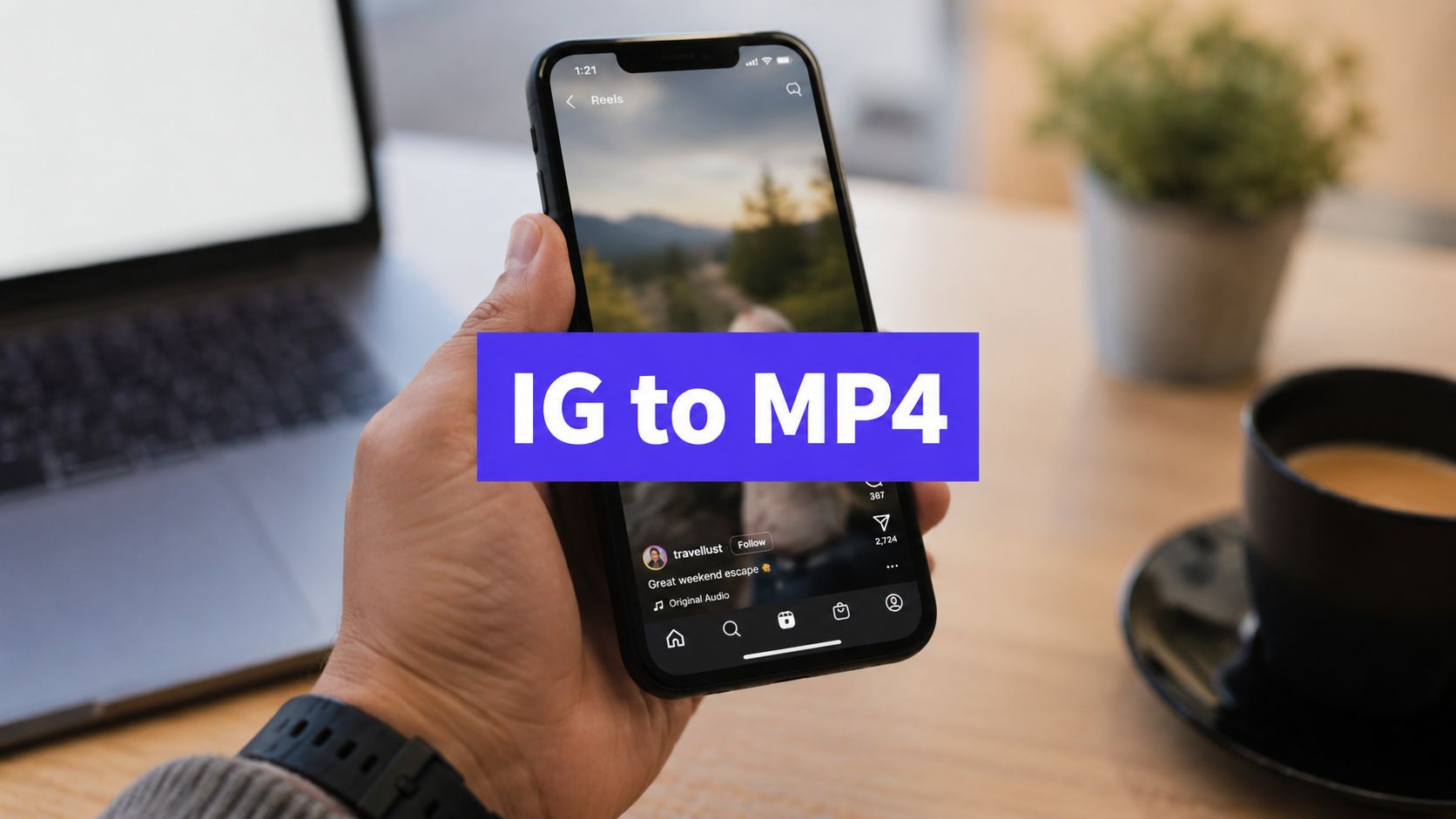












You've probably had this happen already. You save a Reel you want to reuse, paste the link into a downloader, and the file either won't resolve, comes out soft, or works fine on desktop but falls apart on mobile. That's the world of download IG to MP4, and it's messier than the average three-step guide makes it sound.
Instagram's video ecosystem changed fast. IGTV launched in June 2018, Instagram introduced Reels in August 2020, and much of the old long-form logic got folded into a broader short-video flow, which is why downloader tools now focus on Instagram videos, Reels, and HD MP4 export instead of a single legacy format (historical overview of Instagram video formats). If you repurpose content for work, that shift matters, because the question isn't just whether you can save a clip, it's whether the saved file still fits your editing, scheduling, and publishing workflow.
Why Downloading Instagram Videos Is Harder Than It Looks
The simple version is always the same. Copy the link, paste it into a downloader, save the MP4. The problem is that Instagram doesn't behave like a clean file host, and the content you see in-app has already been shaped by the platform before you ever touch it.
The video you see isn't the file you get
Instagram re-encodes uploads, so the clip on your screen is already a processed version of the original. Meta engineering says Instagram reduced its basic video compute time by 94%, which is a good reminder that the platform uses an aggressive internal processing chain rather than pass-through storage (Meta engineering on Instagram video processing). That means a download can preserve what Instagram delivered, but it can't magically restore detail that was stripped out upstream.
Practical rule: If the source looks compressed in the app, the MP4 you save will usually inherit that limitation.
The format mix adds more friction. Reels, feed videos, Stories, and carousel items don't always behave the same way in downloader tools, and some pages assume every post is public and easily retrievable. That's not how it works in practice. Privacy settings, temporary Story availability, browser quirks, and device-specific behavior all affect whether the link resolves at all.
Mobile is where a lot of failures show up
Mobile is convenient, but it's also where broken flows happen most often. Some tools want a copied link moved from phone to desktop, some are picky about the browser, and some just fail on certain devices without telling you why. A lot of guides skip that friction entirely, which leaves you thinking the problem is your link when it's really the tool.
The result is a workflow problem, not just a download problem. If you're saving content weekly for repurposing, you need to know which content type you're dealing with, which device you're on, and whether the source is public, still live, and compatible with the downloader you chose.
The URL-Based Method That Works for Most Content

The most reliable path is still the most boring one. Grab the post or Reel URL, paste it into a downloader, choose the highest available quality, then save the MP4. That workflow shows up again and again because it avoids the extra friction of screen recording and the inconsistency of app-based hacks.
Use the original post link, not a screenshot or share fragment
Start from the actual Instagram post or Reel URL. On mobile, that usually means opening the post, tapping the share icon, and copying the link. On desktop, copy the URL directly from the browser bar. A downloader can only work with a link it can resolve, so shortcuts like screenshots or copied text snippets won't help.
This method is strongest for public posts, Reels, and some Stories depending on the tool and access conditions. It's weaker for private accounts and certain carousel posts, especially when the downloader only extracts the first visible asset. If the tool claims universal support without caveats, treat that as a warning sign.
Quality selection matters more than most users think
After you paste the URL, look for an explicit quality selector. Don't just click the first download button. Many downloader guides converge on the same pattern, paste the URL first, then choose the highest available output before saving the file. That matters because a tool can only export what it can access, and a lower preset will give you a smaller file with more compression baked in.
If you need a reference workflow, PostSyncer's social media photo and video downloader follows the same URL-based logic for Instagram video and Reel downloads. It's useful when you're moving content into a repurposing queue instead of handling one-off saves.
Video is a good place to watch this process in action, especially if you're training a team member or documenting your own SOP.
The most common mistake is assuming the default output is good enough. It usually isn't. Pick the highest available option, preserve the original aspect ratio, and avoid extra transcodes right after download if you can help it.
Comparing Download Tools and Fallback Methods
No single method wins in every situation. Browser tools are fast, mobile apps feel convenient, and screen recording works when nothing else does. The trick is knowing which one fits the content type and the device in your hand.
For a broader look at format handling after download, best video format converter tools is a useful reference when you're deciding what to do with a file after you save it. That matters because download success and editability aren't the same thing.
| Method | Reliability | Quality | Ease of Use | Best For |
|---|---|---|---|---|
| Browser-based online tools | High for public links, lower when the page or browser is restrictive | Usually solid if the tool exposes quality options | Simple on desktop, sometimes clunky on mobile | Fast saves for Reels and public posts |
| Dedicated mobile apps | Mixed, because app permissions and platform rules can interfere | Can be decent, but output depends on the app | Convenient once installed | On-the-go downloads and repeat use |
| Screen recording | Universal, because it doesn't depend on a resolved URL | Lowest, since you're capturing playback rather than source media | Easy to start, but manual | Last-resort capture when tools fail |
Use browser tools first, then fall back strategically
Browser tools are the fastest option when the link is public and the page behaves normally. They're also the easiest way to keep the workflow consistent across a team, because everyone can follow the same copy-paste process. The downside is obvious, ad-heavy pages, broken resolver behavior, and occasional mobile friction.
Dedicated apps can be useful if you're constantly saving content on a phone. They're convenient, but they often add permission prompts, paid tiers, or device-specific weirdness that slows you down. Screen recording is universal, but it should stay in reserve for cases where the download route fails or the asset is only needed for rough internal review.
Use screen recording only when source access is blocked
Screen recording is the fallback, not the default. It bypasses link resolution completely, which makes it useful when a Story vanishes, a downloader breaks, or a device won't cooperate. The trade-off is quality, because you're capturing whatever playback your screen produces, not the underlying file.
For teams that repurpose content at scale, the better pattern is to save the source MP4 when possible, then move that file into a structured workflow. That's where a system like PostSyncer fits in practice, because the download is only one part of the content pipeline. If you're also building captions, resizing, scheduling, and distributing across channels, how to repurpose content is the next layer to solve.
Understanding Instagram's Video Quality Limitations
The hard truth is simple. A downloaded MP4 can preserve what Instagram delivered, but it can't improve the source stream. That's why people get disappointed when a download looks softer than they expected, even when the downloader itself worked correctly.

Match the export to the platform's reality
Independent and vendor-published guidance consistently points to 1080×1920 for vertical social video, with bitrate ranges in the 16 to 45 Mbps zone for Reels-style assets, and H.264 MP4 for broad compatibility. Some workflows use H.265/HEVC when device support is certain, but H.264 is the safer default for sharing, editing, and cross-platform reuse. A practical benchmark from creator discussions is that 1080p/H.264 at about 16 Mbps is often enough for smaller files, while higher presets like 25 Mbps VBR two-pass are chosen when motion detail matters, and another workflow recommends 50 Mbps for 60 fps exports (creator discussion on Instagram export bitrate).
That doesn't mean higher is always better. It means you should keep your export aligned with the source and the destination. If your downloaded clip is meant for quick repurposing, H.264 is usually the least painful route.
If you plan to re-edit the MP4, keep the original frame rate and avoid extra transcoding unless you need it.
Frame-rate mismatches are where artifacts show up
The biggest technical mistake is exporting at a frame rate that doesn't match the source. That's where you get unnecessary compression artifacts, odd motion, or playback that feels slightly off. The safest process is to preserve the original resolution, match the source fps, and run a short test clip on both mobile and desktop before batch processing.
This is also where upscaling expectations need to stay realistic. If the downloaded file already lost detail inside Instagram's processing pipeline, upscaling can only go so far. For a pragmatic overview of what upscaling can and can't do, practical video upscaling tips is worth reading before you promise “better quality” to a client or teammate.
For publishing rules and channel-specific specs, PostSyncer's Instagram ad specifications can help you match file handling to the placement instead of guessing.
Save the file you can reuse, not the file you wish existed
A downloaded MP4 is most useful when it's stable, editable, and accepted by the next tool in your chain. That's why the best workflows favor compatibility over chasing a theoretical maximum. If the goal is to post elsewhere, the file has to survive trimming, captioning, resizing, and upload without throwing new errors.
Troubleshooting Common Download Failures
When a download breaks, the cause is usually boring and fixable. The challenge is knowing which failure you're dealing with, because mobile browser behavior, private accounts, disappearing Stories, and carousel edge cases all look similar at first glance.

Diagnose the failure before switching tools
If a link won't resolve on mobile, try a desktop browser first. Some downloader pages behave differently depending on browser engine, extensions, and mobile permissions, so the issue may not be the Instagram link at all. Switching browsers often tells you whether you have a tool problem or a source problem.
Private accounts are a different story. If you can't see the post in a way the tool can access, you can't download it through a public URL flow. That's not a bug, it's an access limit.
Watch timing on Stories and unstable content
Stories disappear fast, so delay is the enemy. If a Story is still live, grab the link and process it immediately. If it's gone, most public downloader workflows won't recover it later unless you already saved it elsewhere.
Carousel posts create another kind of friction. Some tools only pull the first item cleanly, while others partially resolve the set and leave the rest behind. If that happens, try a different browser, then test a dedicated downloader before assuming the post is unsupported.
Quick fix order: desktop browser first, then disable ad blockers, then retry the link before moving to screen recording.
Treat extensions and server errors as separate problems
If a page spins, stalls, or returns a generic failure, extensions are often the culprit. Ad blockers, privacy extensions, and script blockers can interfere with resolver pages. Disable them temporarily, refresh, and try again.
If the tool still fails, wait and retry later. Server-side errors happen, especially on ad-heavy free tools with variable uptime. The goal isn't to force every downloader to work, it's to build a reliable fallback sequence so one broken page doesn't stop the whole repurposing task.
Integrating Downloads into a Repurposing Workflow
Downloading an Instagram video is rarely the final job. For a social media manager, it's the entry point to editing, versioning, captioning, scheduling, and publishing the same asset across more than one channel.

Use the download as a source asset, not a finished deliverable
A clean MP4 is most valuable when it moves into a repeatable pipeline. That means naming files consistently, storing the original download in a central folder, and creating derivatives for TikTok, YouTube Shorts, LinkedIn, or internal approvals without overwriting the source. If you batch content weekly, that discipline saves time fast.
PostSyncer fits here as one option for teams that want to move from saved files to scheduled distribution in the same workspace. It handles planning and publishing across networks, and its AI content tools can help turn a downloaded clip into captions, hooks, or a new short-form version. The platform's broader content-creation workflow is also useful if you need a practical reference for turning one asset into multiple outputs, like the approach described in Image Studio's social media content creation guide.
Build a repurposing habit around the source file
The value shows up when one Reel becomes multiple assets. You save the MP4 once, then trim it for vertical video, crop it for a different platform, and schedule the variants from one workspace. That process is especially helpful when the original post is time-sensitive and you want to reuse the same message without rebuilding everything from scratch.
If you're already organizing repurposed assets, keep the workflow simple. Download, label, edit, review, publish. The fewer ad hoc steps you add, the less likely you are to lose track of which version went where.
Legal Considerations and Key Takeaways
Downloading your own content is the cleanest use case. Downloading content you have explicit permission to reuse is usually straightforward too. The risky area is saving copyrighted or commercial material without rights, especially if you plan to publish it outside the original Instagram context.
Instagram's terms, copyright rules, and DMCA-style takedown concerns all matter here, even when the technical download works perfectly. A file being easy to save doesn't make it safe to republish. If you're repurposing client content, get the rights squared away before the clip enters your publishing queue.
The practical takeaway is simple. Use the URL-based method first, expect MP4s to preserve rather than improve quality, troubleshoot on desktop when mobile fails, and keep a fallback like screen recording only for edge cases. Then move the file into a structured workflow so the download serves a real purpose instead of sitting in a camera roll.
If you want a cleaner way to turn saved Instagram videos into scheduled content, PostSyncer gives you one workspace for downloading, repurposing, and publishing across channels. It's a practical next step if you're already collecting Reels and posts every week and want the file to move straight into a real publishing workflow.