










You've got a finished video, the thumbnail is ready, and the only thing left is publishing it at the right moment. Then real life gets in the way. You're in meetings, offline, asleep, or juggling three other channels. That's where scheduling stops being a convenience and starts being part of a serious YouTube workflow.
Most creators learn the button. Fewer build the system around it. If you want to know how to schedule YouTube videos in a way that supports consistency, launch timing, and post-publish follow-through, this is the workflow to use.
The Core Workflow for Scheduling YouTube Videos
Scheduling matters because manual publishing creates avoidable mistakes. Someone forgets the upload. A video goes live in the wrong time zone. Processing finishes later than expected and you miss the audience window you wanted. Using YouTube Studio turns publishing into a planned calendar action instead of a live scramble.
The desktop workflow is still the cleanest place to do this. It gives you the full upload flow, better visibility into metadata, and easier review before the video goes public.

Upload and prep the video properly
Start in YouTube Studio and upload your file. Work through the normal setup fields first: title, description, thumbnail, audience setting, monetization if applicable, and video elements.
Don't rush to the schedule setting before the rest is clean. If the title is still a placeholder or the thumbnail is temporary, you're just moving the mess earlier in the process.
A simple operating rule helps here:
- Finish metadata first. Write the final title and description before you lock in the release time.
- Check the thumbnail in context. A thumbnail can look good in a design tool and weak in the YouTube upload preview.
- Treat scheduling as the last publishing step. That keeps the calendar from filling with half-finished uploads.
Practical rule: A scheduled video should be ready to publish right now. The date changes. The quality bar doesn't.
Set the visibility to Schedule
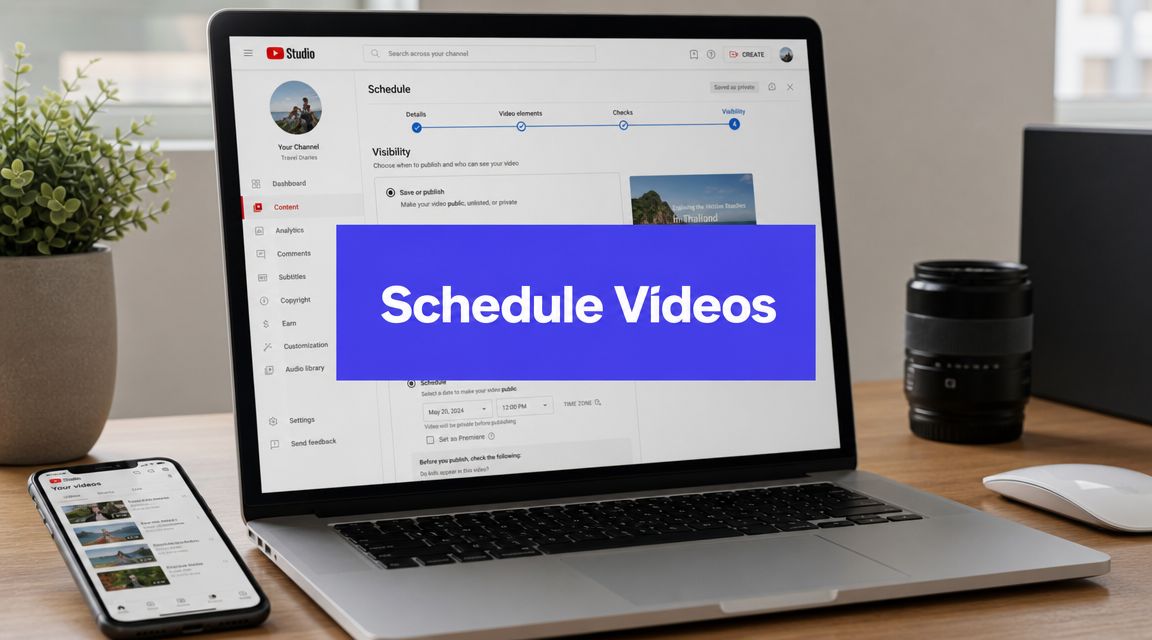
During upload, YouTube lets you change the video's visibility from Public to Schedule, then choose the publish date, time, and time zone in the same workflow. The interface supports 15-minute increments, and you can edit scheduled videos later from the Content tab in Studio, as described in this YouTube scheduling workflow guide.
That matters more than it sounds. Precision helps when you coordinate around audience habits, internal approvals, or a broader campaign launch.
Use this path:
- Upload the video into YouTube Studio.
- Complete the standard setup fields.
- Open the Visibility step.
- Select Schedule instead of Public.
- Choose the date, time, and time zone.
- Confirm the schedule.
When managing uploads in batches, the workflow starts paying off. You can prep several videos in one sitting and assign each one its own release slot. If you want a more calendar-driven setup beyond YouTube's native screen, a dedicated YouTube scheduler can help centralize that planning.
Know what the setting actually does
Creators sometimes confuse Private, Unlisted, and Scheduled.
Here's the practical difference:
| Setting | What it does | When to use it |
|---|---|---|
| Private | Only approved viewers can access it | Internal review or final checks |
| Unlisted | Anyone with the link can watch | Client approval, sponsor review, collaborator access |
| Scheduled | Publishes automatically at the selected time | Planned public release |
The mistake I see most often is using Unlisted as if it's the same thing as scheduled. It isn't. Unlisted is a sharing state. Scheduled is a publishing action.
If you're learning how to schedule YouTube videos for a team, that distinction matters. Review can happen in Private or Unlisted. Public launch should happen through Schedule.
Schedule Content On the Go with the Mobile App
Sometimes the schedule changes when you're nowhere near your desk. A creator sends the final export late. A sponsor approves the title while you're out. A launch slot opens and you need to lock it in from your phone. The YouTube Studio mobile app is good enough for that kind of work.

On mobile, keep the task narrow. Upload the video, clean up the essentials, set the publish time, and move on. The app works best when you already know your title, thumbnail, and release plan.
What to do in the app
Open the YouTube Studio app, start the upload, and move through the available video details. Before publishing, choose the visibility option that lets you schedule the release and set the desired date and time.
The mobile flow is useful for speed, but it's less comfortable for deep edits. Long descriptions, end-screen checks, and final visual review are still easier on desktop.
That's the trade-off. Mobile gives you flexibility. Desktop gives you control.
If I'm scheduling from a phone, I assume I'll miss something unless the prep was already done earlier.
Here's a quick rule set that holds up well:
- Use mobile for timing changes. It's ideal when the video is already finished and only the launch slot needs attention.
- Use desktop for full QA. Title polish, thumbnail review, and packaging decisions are easier on a larger screen.
- Don't stack approvals on mobile. If multiple people need to review a video, the phone shouldn't be the command center.
If you want to see the flow in action, this walkthrough is useful:
Build Anticipation with YouTube Premieres
A standard scheduled video goes public at the time you choose. A YouTube Premiere turns that release into an event. That difference matters when the video is a major launch, a flagship episode, or something your audience is likely to watch together.
The practical reason to use a Premiere is simple. You get a watch page ahead of release, and that gives you time to send traffic before the video starts.
When a Premiere makes sense
Use a Premiere when the launch itself is part of the strategy. That usually means a product reveal, a community-focused upload, a series kickoff, or a high-effort piece you want people to anticipate.
Don't use a Premiere for every upload. If every video is treated like an event, none of them feels like one.
A quick comparison helps:
| Format | Best for | Audience experience |
|---|---|---|
| Scheduled video | Regular publishing cadence | Video appears normally at release time |
| Premiere | Event-style launches | Watch page, countdown, and live chat |
How to set it up without overcomplicating it
In YouTube Studio, upload the video as usual and choose the Premiere option during setup rather than a standard scheduled release. From there, set the launch time carefully and make sure the thumbnail, title, and description are final before you start promoting the watch page.
The value of a Premiere isn't the button itself. It's what you do around it.
- Share the watch page early. That gives your audience one clear destination before launch.
- Be present in chat. If you run a Premiere and disappear, you lose half the point.
- Match the format to the content. Tutorials, weekly updates, and low-stakes uploads usually work better as normal scheduled videos.
A Premiere works best when the audience has a reason to show up at that exact moment.
How to Edit or Cancel a Scheduled Video
Scheduling isn't a one-way door. Titles change, thumbnails get revised, and sometimes the release slot you picked stops making sense. YouTube gives you room to fix that, which is one reason scheduling is safer than many people assume.
The key is knowing where to go after the video has already been queued.
Find the scheduled video in YouTube Studio
Go to YouTube Studio, open the Content tab, and locate the scheduled upload. From there, open the video details and make the necessary changes.
A disciplined naming system is helpful. If your draft titles are vague, scheduled videos become harder to identify quickly, especially if you're managing multiple uploads at once.
Common edits include:
- Changing the publish time. Useful when campaign timing shifts or a competing announcement lands.
- Updating packaging. You can revise the title, description, and thumbnail before release.
- Adjusting visibility. If needed, you can stop the scheduled release and move the video back into a non-public state.
Know when to reschedule and when to pull it
Not every issue deserves a full cancellation. If the video is solid and only the timing is off, reschedule it. If the content itself has a real problem, pull it back and fix the asset before you think about timing again.
That sounds obvious, but teams often do the reverse. They obsess over the release hour while a weak title or outdated description stays untouched.
A practical filter works well here:
| Situation | Better move |
|---|---|
| Minor timing conflict | Reschedule |
| Thumbnail or title improvement | Edit and keep the slot if possible |
| Brand or legal review issue | Cancel the release until approved |
| Video file problem | Re-upload after correction |
One more rule is worth keeping: avoid replacing judgment with automation. A full calendar looks organized, but a bad scheduled upload is still a bad upload.
Unlock Efficiency with Bulk Scheduling Tools
Native YouTube scheduling is enough when you publish occasionally. It starts to drag when you manage a backlog, multiple channels, or a campaign that also includes Shorts and posts on other platforms. That's where manual scheduling turns into repetitive admin.
The friction isn't clicking Schedule once. It's doing the same setup again and again while trying to keep dates, approvals, and channel priorities aligned.
Where the native workflow starts to break
Most basic guides stop at the mechanics. They show how to upload a video and set a date, but they don't solve the harder planning questions around timing, team process, and performance analysis. That gap is reflected in this YouTube help context on scheduling strategy limits, where the mechanics are clear but the strategic questions creators ask are mostly outside the official workflow.
In practice, the pain shows up like this:
- You can't see the whole month easily. One upload screen at a time doesn't give you a planning view.
- Team review gets messy. Editors, managers, and clients need one place to check status.
- Cross-platform launches become manual. YouTube may be one piece of a wider campaign.
What bulk scheduling changes
Bulk scheduling tools solve an operational problem first. They move you from isolated uploads to a calendar-based system where content can be grouped, reviewed, and scheduled in batches.
A tool like PostSyncer bulk scheduling fits that use case by giving teams a central place to plan and schedule content across channels. The point isn't that YouTube Studio stops working. The point is that native scheduling isn't built to handle larger publishing workflows on its own.
Other social scheduling platforms can also help if your main need is shared calendars, approval steps, or multi-platform planning. The right choice depends on whether your bottleneck is volume, collaboration, or campaign coordination.
The moment you start tracking videos in spreadsheets to compensate for the upload screen, you're already feeling the limit of the native workflow.
Bulk tools don't replace judgment. They reduce repetition. That matters because consistency usually breaks under operational friction long before it breaks under lack of ideas.
Strategic Scheduling to Maximize Your Reach
Knowing how to schedule YouTube videos is the easy part. Choosing when they should go live is where the actual work starts. There isn't one magic hour that works for every channel, niche, or audience geography.
What works is a repeatable method. Pick a time for a reason, hold it long enough to evaluate it, and change it only when the pattern is clear.

Start with audience behavior, not guesswork
A solid default is to use your audience activity patterns as the starting point. Several scheduling guides recommend publishing 1–2 hours before your audience's peak activity window so the video has time to finish processing and begin surfacing before the biggest viewing surge. Those same guides suggest testing a chosen slot over 3–6 upload cycles instead of judging it on one video, as outlined in this YouTube analytics scheduling guide.
That approach is practical because it respects how noisy YouTube data can be. One upload can underperform for reasons that have nothing to do with timing. Packaging, topic, competition, and seasonality all distort single-video conclusions.
Build a timing framework you can actually use
Here's the framework I'd use for most channels:
- Choose one primary audience time zone. If your viewers are spread globally, pick the market that matters most for the video.
- Schedule ahead of the peak, not during it. That gives the platform time to process and distribute the video.
- Hold the slot steady. Changing times every upload makes it harder to learn anything.
- Review early performance patterns. Look at the first-day response and compare similar uploads.
- Adjust only after enough repeats. A pattern matters more than a hunch.
For deeper timing decisions, this guide on the best time to upload video on YouTube is a useful companion read.
What to consider when the obvious answer isn't obvious
Audience activity isn't the only factor. Some channels target a market in a different region than the person uploading. Some videos need to land before a business day starts. Others work better as evening entertainment. The right schedule depends on the role of the video.
Use this decision lens:
| Question | What it affects |
|---|---|
| Where is the main audience located? | Time zone choice |
| Is this video informational or entertainment-driven? | Workday versus evening timing |
| Does the topic need momentum early? | Whether to schedule before peak activity |
| Are you comparing time slots fairly? | Whether your testing is valid |
Don't optimize for a perfect publish time you can't repeat. Optimize for a strong time slot you can sustain.
Consistency beats constant tinkering. A reliable publishing rhythm trains your team first, then helps your audience know when to expect you, and finally gives you cleaner data to work from.
If you're ready to stop managing YouTube uploads one by one, PostSyncer gives you a way to plan, schedule, and organize video publishing in the same workflow you use for the rest of your social content. That's especially useful when YouTube is only one part of a bigger content calendar.