











You've had the shop live for weeks, the photos look fine, and Pinterest is still mostly quiet. A few saves landed. The order report did not. That gap is the usual shape of how to sell on Pinterest, not proof the catalog is dead.
People show up while they're planning a room, a gift, or a season, then come back later to buy. If you score every Pin by same-day checkout, you'll cut the ones doing the earlier work. What follows is the setup, the catalog, the checkout, and the metrics I'd trust before you scale spend.
What Selling on Pinterest Actually Requires
Say you run a small candle shop. The first Pins went up in early autumn, all reading nooks and evening tables. Three weeks passed with saves and a handful of site visits, and the first order showed up in week four. That wait is the planning cycle, not a failed launch.
The audience is large enough to justify the patience. Pinterest's 2024 annual filing reported 553 million monthly active users worldwide as of December 31, 2024, an 11% increase from the prior year, and weekly active users represented 62% of monthly active users at the end of 2024. That filing also stated that women represented roughly two-thirds of the user base and that Gen Z accounted for more than 40% of users.
Visual, seasonal, and lifestyle products fit that mix. A candle, a throw, or a kit with a clear scene can earn a save while someone is still deciding. A plain replacement part with no visual hook can still sell, but only if the creative shows the job it does. I wouldn't assume every age group or region buys the same way. Read your own analytics by product before you lock a creative style.
Pinterest works as a planning channel. Expect saves and outbound visits before purchases, and give a Pin several weeks before you call it a miss.
Practical rule: Treat a first sale in week three or four as the channel behaving normally, then keep publishing while you fix any page that doesn't match the feed.
Run this readiness check on the live site today:
- Business account: A Pinterest business account exists, not only a personal profile.
- Product pages: Each item has a complete page a stranger can understand without extra clicks.
- Policies and story: Shipping, returns, and an About page are visible without a hunt.
- Contact: A working email or form is on the site.
- Catalog match: Prices and stock in the feed match what the page shows right now.
If any line fails, fix it before you publish more Pins. The setup steps are the order of work.
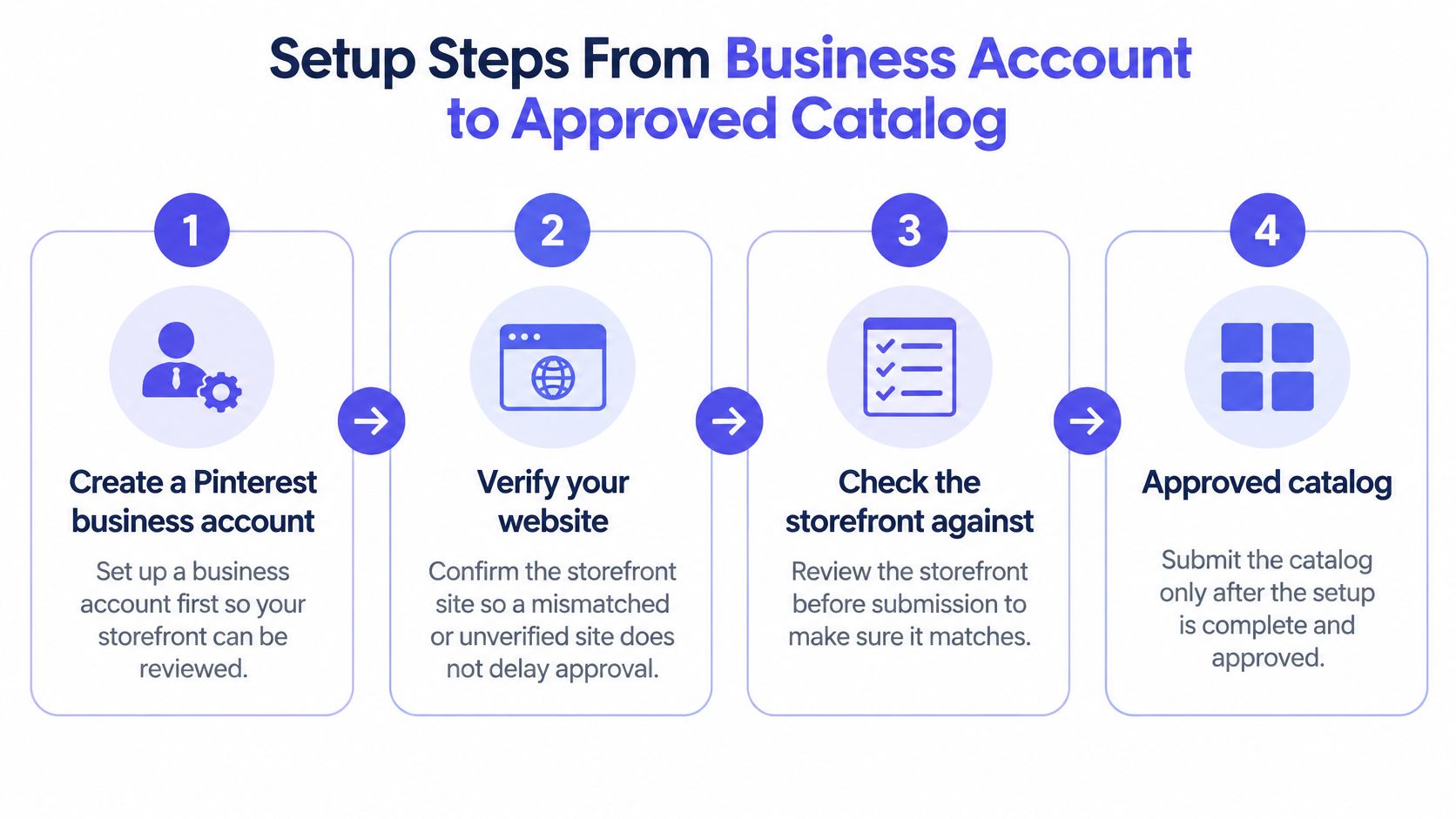
Setup Steps From Business Account to Approved Catalog
Build the selling infrastructure before you chase reach. A pretty Pin on a site Pinterest won't approve just creates a rejection you'll have to unwind.
- Create a Pinterest business account and verify the website. Verification is what lets the storefront enter review. A mismatched domain, or a site you never confirmed, stalls every step after it.
- Audit the storefront before you upload anything. Pinterest's merchant guidelines require accurate product details and reject broken or incomplete pages, deceptive redirects, forced registration, or domains younger than nine months. A brand-new store should plan for that delay instead of treating it as a surprise.
- Upload the catalog with exact titles, prices, availability, variants, and product URLs. The usual slip is a sale price on the site that the feed never received, so the Pin later shows a number the page doesn't.
- Wait for catalog approval, then fix rejected items and resubmit. Publishing around a rejected SKU leaves a hole in reporting and a product you can't promote cleanly.
- Sort approved products into groups such as "Top Sellers," "New Arrivals," and category collections. Groups are what make campaign management and shopping-ad reporting usable. A single flat feed is miserable to read once you have more than a handful of SKUs.
- Install the Pinterest Tag and set events for page visits, add-to-cart, checkout, and purchases before any paid campaign. If the tag arrives after spend starts, the first weeks of traffic have no funnel record. When you do run shopping ads, promote only catalog-created Product Pins, because that is the eligible format.
The flow below is the same sequence in one pass, from the business profile through an approved catalog.
What the review actually rejects
Use this table as a line-by-line audit. If a row fails, don't upload and hope.
| Requirement | What Pinterest checks | Common rejection reason |
|---|---|---|
| Domain age | Domain at least nine months old | Newer domains |
| Product pages | Complete pages with accurate product details | Broken or incomplete pages |
| Policies | Shipping, returns and About page are visible | Missing policy pages |
| Contact details | Visible, working contact information | Hidden or missing contact info |
| Checkout access | Shoppers can buy without forced registration | Forced account creation |
| Redirects | Links go where they say they go | Deceptive redirects |
| Catalog accuracy | Prices, stock and URLs match the site | Feed drift between catalog and site |
Feed drift is the failure that shows up after approval, not during it. A price, a stock flag, a URL, or a variant name changes on the site and the feed stays stale. Pinterest expects Product Pins to display current information, so a drifted feed is how an approved product stops matching the page.
Building Product Pins and Catalog Groups That Sell
Format choice decides whether a Pin can carry a live offer. A catalog-based Product Pin is the one you promote in shopping ads, and it can show current price and stock because it is tied to the feed. A Standard Pin is for inspiration and traffic. It does not carry live price or stock, so it should not be your selling unit. Video can demo a product well, but I would confirm video's shopping-ad status in current ad documentation before you build a campaign around it. Shopping ads match Product Pins to people already browsing related products, using the feed, so you don't hand-target every SKU.
| Pin type | Best for | Shopping ad eligible | Shows live price and stock |
|---|---|---|---|
| Product Pin (catalog-based) | Selling specific catalog items | Yes | Yes |
| Standard Pin | Inspiration and traffic to a page | No | No |
| Video Pin | Product demos and how-to content | Only if current ad specs list that catalog format | Only when the video is tied to a catalog item |
Catalog commerce on the platform is not new. The Pinterest timeline on Wikipedia records Buyable Pins launching in June 2015, later redesigned and rebranded as Product Pins in October 2018, with dynamic pricing and out-of-stock notices. The durable lesson is still the same. Product data has to be structured, current, and tied to a real product page.
This is the kind of desk work the catalog requires, one product attached to one scene.
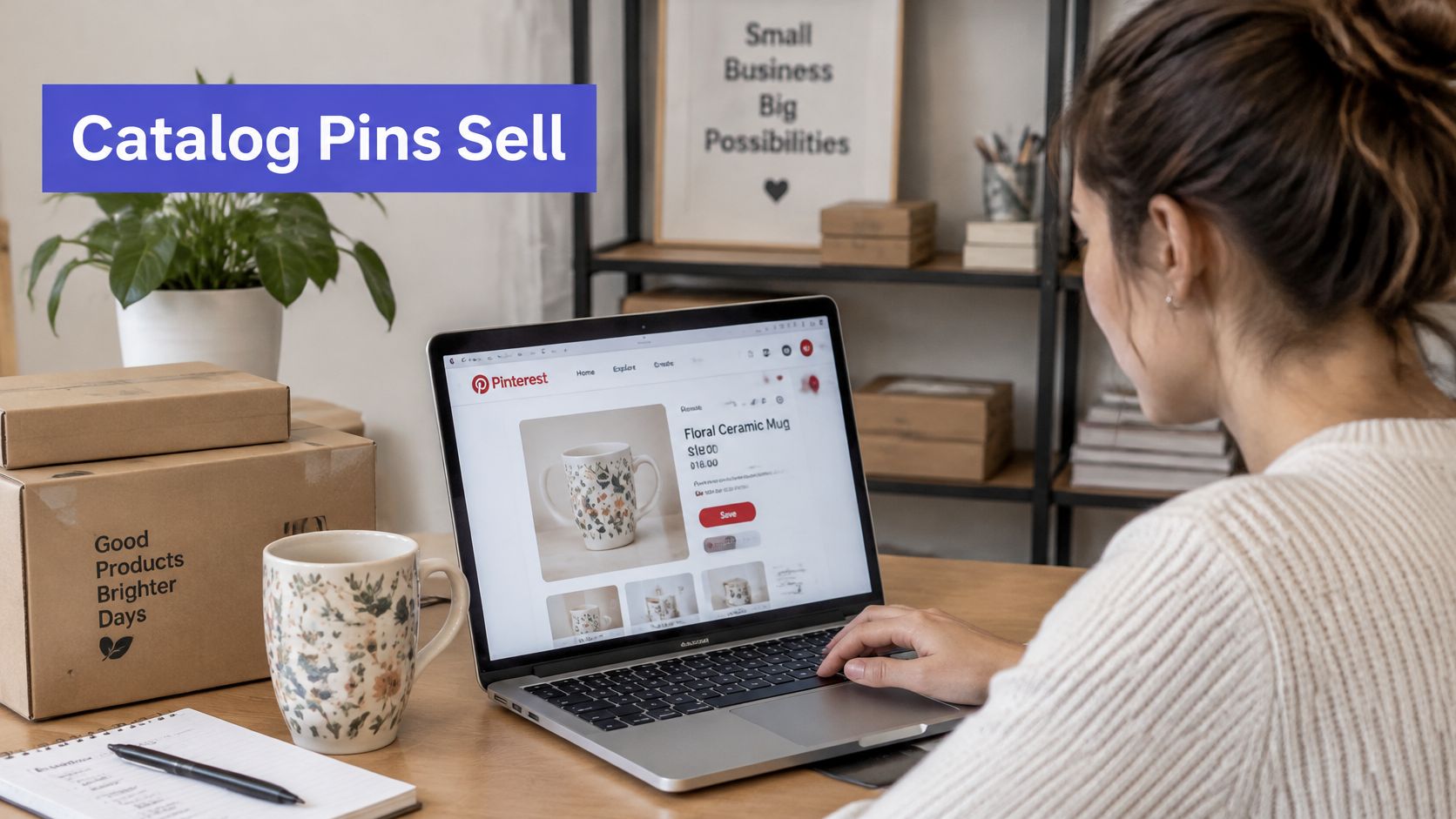
One Product Pin, built in order
Build each Product Pin around a single item.
- Theme first: Search the way a planner searches. "Reading nook candle" beats your brand name.
- Scene second: Use a vertical lifestyle image with the product in use. Crop it with a Pinterest photo resizer so the frame isn't a leftover square from your site.
- Headline third: Name the use case, not the logo. For that candle shop, the Pin is a reading-nook scene titled "cozy reading nook candle," linked to the 8 oz amber variant and nothing else.
- Group fourth: Drop it into a commercial set such as Top Sellers, New Arrivals, or a seasonal collection.
- Test fifth: Run static, video, and personalized-collection versions of the same item so you can see which frame earns the click.
Skip generic flat-lays that never show the product doing a job, and never let the Pin price differ from the page. If you want a wider pass on framing, keywords, and descriptions, it helps to optimise your Pins for better performance before you duplicate a weak layout across the whole catalog.
Once the still image is approved in the feed, a short demo is the next test, not a replacement for the catalog link.
Checkout and Fulfillment Options
A Product Pin doesn't take the payment. The click lands on your product page, or the checkout that page opens, and that is where the buyer pays. The price, the variant, and the stock on that page have to match the catalog, and the buyer has to be able to pay without being forced to create an account first.
Two ways to connect the catalog
Use a native ecommerce connection when your platform has one. Shopify, BigCommerce, and Magento have long been able to push product data into Pinterest commerce, which keeps variants and URLs from being retyped by hand. If your platform has no native route, upload and refresh a product feed yourself, and check current merchant documentation for the path your stack supports. A manual feed is fine. An unattended manual feed is how prices drift.
Who ships, and who owns the complaint
Ship from your own stock or through a third-party fulfillment partner. Either way, the shipping cost, the delivery window, and the return window on the policy page have to be the ones checkout applies. If you sell made-to-order goods, a written pick-pack-ship checklist is what helps you reduce custom apparel fulfillment errors before a Pin sends a rush of orders you can't match.
Fulfillment, customer service, complaints, and disputes stay with you. Pinterest's merchant rules don't take those over because the discovery happened on a Pin.
Place one test order from a phone
- Open a live Product Pin on a phone, not a desktop preview.
- Confirm the price, shipping, and stock match the catalog row for that variant.
- Complete a low-value order without being pushed into account creation.
- Confirm the order confirmation page loads and the Pinterest Tag fires on that page.
If any of those four fail, pause promotion on that SKU until the page and the feed agree.
Tracking Sales and Reading Discovery Metrics
A Pin can earn saves and product-page visits before it earns a checkout. Keep discovery metrics separate from revenue metrics so you can see whether people found the Pin, considered the product, and eventually bought it.
Pinterest's shopping guidance describes shopping ads that use product-feed data to match products with people browsing Product Pins. Track impressions, saves, and outbound clicks as discovery signals. Track add-to-cart rate, checkout rate, purchase conversion rate, and return on ad spend as revenue signals.
Four events that map the funnel
Install the Pinterest Tag on every page, including the confirmation page, and map each event to a decision.
- Page visit: Shows whether a Pin brought someone to a product page. Impressions without visits can mean the visitor did not click through or the URL is wrong.
- Add to cart: Shows which products prompt a closer look. Traffic without carts points to a product-match or product-page problem.
- Checkout: Shows how many buyers reach payment and where they stall. A drop here calls for a checkout review.
- Purchase: Connects a Pin visit to an order and its revenue.
Place a test order and confirm each event fires exactly once. Duplicate purchase events inflate reported conversions and can make a Pin look more profitable than it is. For a view across channels, use a consistent approach to tracking social media analytics, rather than keeping Pinterest results in a separate spreadsheet.
| Metric | Measures | Use it to |
|---|---|---|
| Impressions | Reach in search and feeds | Judge creative visibility |
| Saves | Interest and planning intent | Spot ideas worth reusing |
| Outbound clicks | Visits sent to your site | Compare which Pins send traffic |
| Add-to-cart rate | Products attracting buying intent | Find product page gaps |
| Checkout rate | Buyers reaching payment | Diagnose checkout friction |
| Purchase conversion rate | Share of visits that buy | Judge product fit |
| Return on ad spend | Revenue per ad dollar | Decide what to scale |
Read both columns on one product
A bakery's seasonal cinnamon Pin gains impressions and saves over two weeks, followed by more outbound clicks, but add-to-cart stays flat. That points to a product-match issue or a page that does not deliver what the Pin promised. The Pin generated interest; the page or offer failed to carry it forward.
If add-to-cart is healthy but checkout rate falls, inspect payment friction, unexpected shipping costs, and account requirements. Compare Pinterest-reported purchases with store orders each week. A gap can point to a Tag, feed, or attribution-window issue.
Use Pinterest's own measurement as your benchmark, not an unsupported headline about how many shoppers are influenced by Pins. Saves indicate planning interest, not completed sales, and checkout data still needs to reconcile with store orders.
Common measurement traps include counting saves as sales, letting duplicate events inflate conversion, sending shoppers to a page with a price or stock mismatch, and using creative that leaves the product's use case unclear.
Fixing Common Problems and Deciding What to Scale
Many Pins create attention and consideration, not a same-session sale. Judging them over hours will make you kill the planning work and keep only the accidental checkout.
A merchant statistics roundup at XtendedView reports that more than 90% of searches were unbranded in 2025, that 93% of users plan future purchases, and that 55% research products they intend to buy. People often start with a need, a style, or a category, not your brand. Saves, repeat visits, outbound clicks, and assisted conversions can matter before anyone pays.
Split the campaigns, then label the Pins
Run discovery, consideration, and conversion as separate efforts. Use non-brand keywords and short product education in the first two. Retarget visitors only where the law and your consent setup allow it. Each week, put Pinterest-assisted revenue next to direct last-click revenue. If you only keep last-click winners, you'll starve the Pins that started the search.
Schedule seasonal, searchable creative weeks or months ahead, and label every Pin by funnel stage so a consideration Pin isn't scored like a promo. A Pinterest scheduler such as PostSyncer can hold that four-week mix on a calendar, next to manual scheduling in Pinterest or another publishing tool. The tool doesn't fix a bad feed. The label and the date do.
I would keep a Pin that earns saves or outbound clicks while it is still in consideration. I would retire it only when it points at a sold-out item, or when it shows no engagement after 30 days. I would scale the ones that show add-to-carts and purchases, not the ones with the prettiest save count.
| Symptom | Likely cause | Fix |
|---|---|---|
| Pins get saves but no sales | Product page price or stock differs from the catalog | Resync catalog data and check the landing page |
| Products disapproved | Feed drift between catalog and site | Resync and resubmit, following setup step 4 |
| Traffic with no add-to-carts | Vague creative or weak product match | Show the product in use and tighten the catalog link |
| Sales but no Pinterest credit | Last-click attribution hides discovery | Compare assisted revenue against direct revenue |
Three habits keep the table from becoming a weekly fire drill. Recheck catalog sync after every price change, the same day, not at month end. Retire Pins that still link to sold-out items so you stop paying to disappoint. Reuse a top-saved scene with a new variant instead of inventing a new concept every time the season shifts.
A Pin earns its place by its full funnel contribution, saves and clicks included, not by a same-day sale alone.
PostSyncer is a scheduler and analytics workspace that can plan Pinterest posts alongside your other networks, so a seasonal mix doesn't live in a spreadsheet you forget to open. If you're ready to put a four-week product calendar on the board and review saves, clicks, and conversions together, start with PostSyncer.