











You've got a strong product image, a launch date approaching, and several social channels waiting for fresh content. The problem is that one static asset rarely stays one asset for long. Someone has to crop it, animate it, add text, edit the timing, create platform-specific versions, and upload each file without damaging the original message.
An AI video generator using images can remove much of that repetitive work, but only when you treat generation as one stage in a larger publishing workflow. The useful question isn't just whether a tool can make an image move. It's whether the resulting video has the right format, pacing, identity consistency, captions, and upload path for the platforms where your audience truly sees it.
The Modern Content Repurposing Challenge
A social media manager might begin the morning with one product photograph and a simple brief: create a Reel, a TikTok, a YouTube Short, and a Facebook version. By midday, the image has been resized several times, animated in an editor, placed over music, given subtitles, and exported for review. A small change to the product message can send the whole process back to the timeline.
That workflow becomes especially frustrating when the team needs variations. A product shot may need a gentle camera push for Instagram, a faster reveal for TikTok, and a wider composition for a feed placement. Manual editing can handle all of this, but it makes every additional version expensive in attention rather than just software credits.
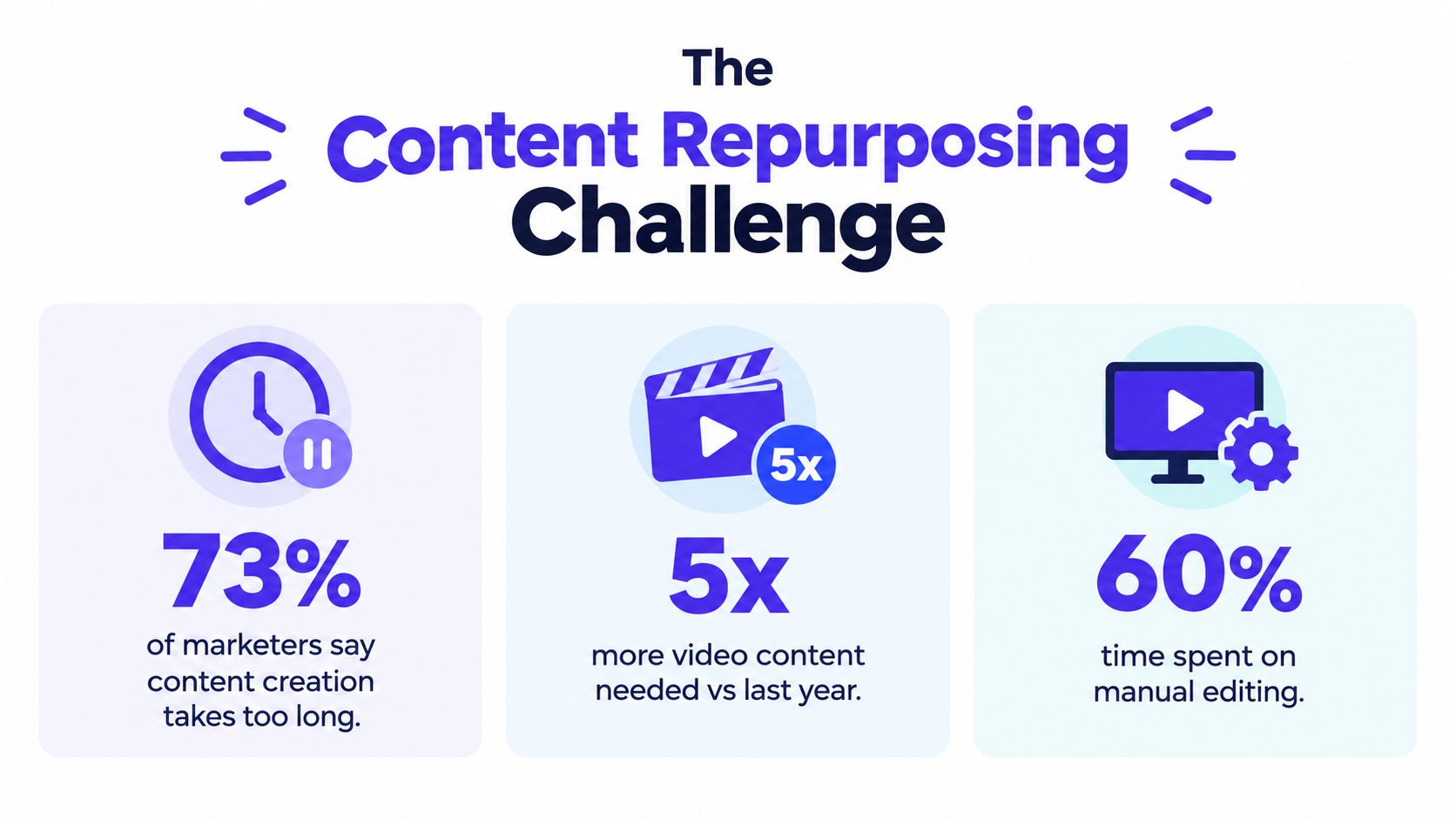
The shift toward assisted production is already visible in marketing teams. In a 2026 survey, 63% of video marketers reported using AI tools to create or edit marketing video, up from 51% the year before, according to this summary of AI video generation statistics. That figure covers creation and editing broadly, but it reflects the practical direction of social production: teams are using automation to increase output without assigning every variation to a human editor.
From static asset to usable story
The strongest workflows don't ask AI to invent the entire campaign from nothing. They start with an approved image, a clear message, and a defined destination. The generator then adds controlled movement, transitions, voiceover, subtitles, or music while the manager checks whether the result still represents the product accurately.
That distinction matters. A dramatic animation may attract attention but distort packaging, alter a person's face, or make a product feature appear different from reality. An effective clip preserves the recognizable subject and adds just enough motion to make the asset feel native to a moving feed.
For a broader workflow around turning existing assets into channel-ready posts, see this guide to AI-powered content repurposing. The time savings come from connecting creation with review and scheduling, not from generating a clip and leaving the rest of the work untouched.
Essential Input Requirements and Settings
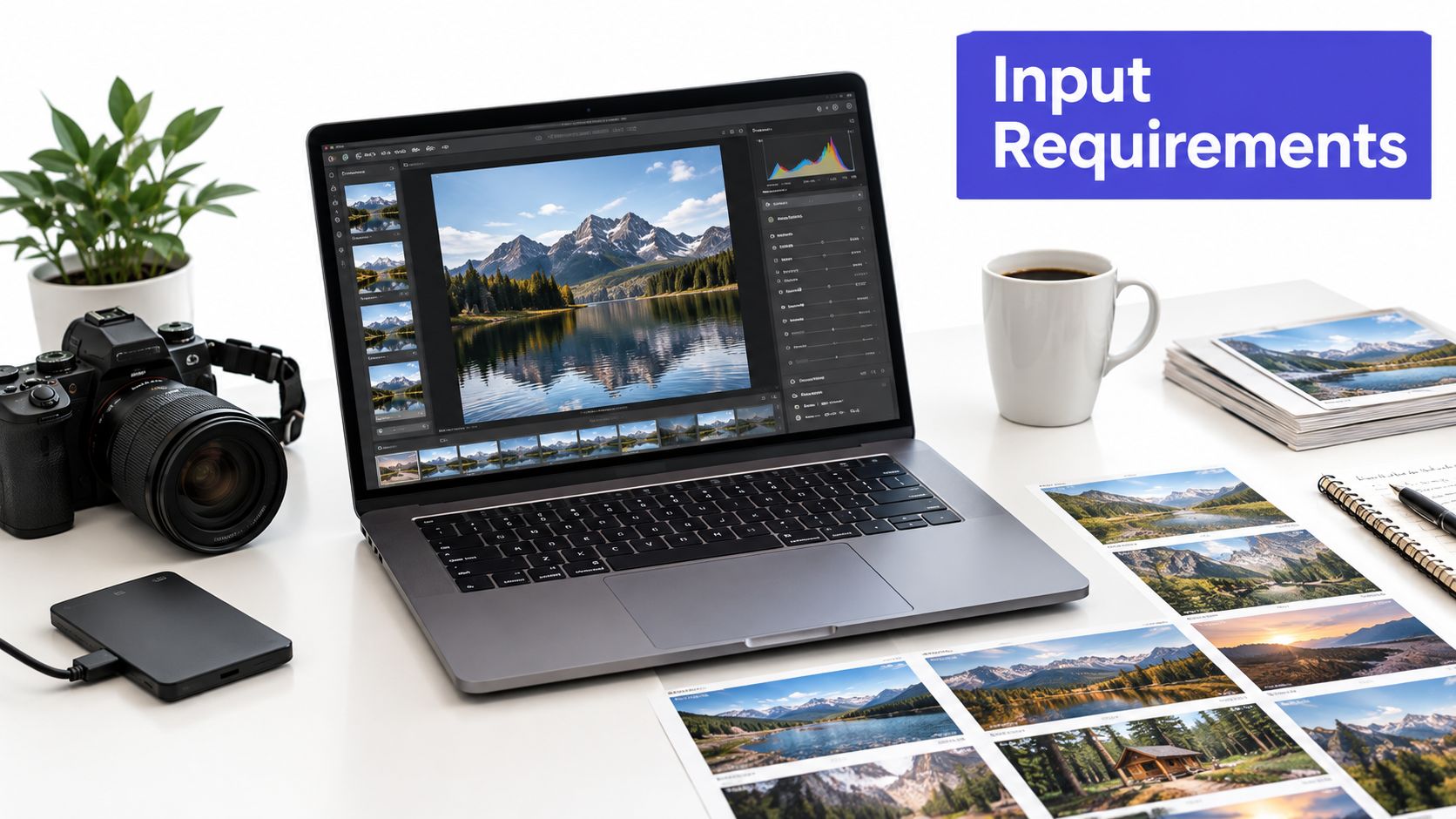
The input image sets the ceiling for the generated video. A blurry product photo, compressed screenshot, or portrait with a cluttered background gives the model less reliable visual information to preserve. Start with a clean JPG or PNG, strong subject separation, and enough resolution for the output format.
A practical evaluation workflow uses consistent source and generation settings. The Artificial Analysis video methodology describes a controlled setup using 1080p output, 24 FPS, 10-second duration, 16:9 aspect ratio, a fixed seed, and consistent inference settings, with reference images supplied as PNG at 1920×1080. Those settings aren't a universal requirement for every social post, but standardization helps you compare tools without confusing a better input or different duration with a better model.
Choose the destination before generation
Aspect ratio should be decided before you animate the image. A vertical composition gives Reels and TikTok-style placements more usable screen coverage, while a wide composition suits YouTube and other wide placements. If the source image has important details near the edges, cropping it after generation can remove the very subject the animation was meant to highlight.
Use these 16:9 resolution guidelines for social video when a horizontal export is appropriate. For vertical work, prepare the image with the subject centered inside the likely safe area, leaving room for interface elements and captions.
Control motion instead of maximizing it
Short clips are often easier to use because they can function as hooks, product reveals, or transitions inside a larger post. Many free image-to-video plans still produce clips of about 5 to 10 seconds, as noted in this comparison of AI image-to-video generators. Treat duration limits as a creative constraint. A concise motion sequence can be more effective than forcing one image to carry an entire narrative.
Start with restrained movement: a slow push-in, a small subject gesture, or a controlled camera drift. Stronger motion can work for fashion, travel, or entertainment content, but it often exposes warping and unstable edges. If the tool offers motion intensity, generate the conservative version first and increase it only when the subject remains stable.
Generating Videos with PostSyncer
PostSyncer fits the image-to-publishing workflow by placing creation inside a social media workspace. The basic process starts in the dashboard, where you open the content creation tools and select the AI Video Creator. Upload a prepared image, or add a small batch when the story requires several visual beats.
The upload stage deserves more attention than it usually gets. Name or organize the assets so reviewers can identify the campaign, product, and intended channel. If several images belong to one sequence, put them in narrative order before you begin styling. That reduces the chance of generating attractive clips that don't make sense when assembled.
Build the clip around one visual action
The AI Video Creator analyzes the uploaded visual and applies motion effects without requiring manual keyframe work. Choose a movement style or template that supports the image rather than competing with it. For a product photograph, a subtle reveal or camera movement usually keeps the object readable. For a team photo, gentle depth or environmental motion can add energy without changing facial features.
Use the prompt or direction field to describe the action precisely. “Slow camera movement toward the bottle while the label stays visible” gives the generator a clearer constraint than “make it dynamic.” If the tool supports captions, voiceovers, or music, add them after the visual motion is stable so you can judge the image integrity first.
Preview the result before exporting. Look at hands, faces, logos, text on packaging, and straight lines near the subject. These areas reveal generation errors quickly. If the animation changes the product shape or makes a person look unlike the source, try a simpler movement and a cleaner input rather than masking the problem with more effects.
Practical rule: A usable clip preserves the subject first and adds spectacle second.
After review, export the video or send it to the scheduler. That final handoff is the part many standalone tools leave to the user. In PostSyncer, the generated asset can move into a publishing workflow for connected social channels, where you can prepare the caption, select the destination, and schedule the post instead of downloading and re-uploading every variation.
The workflow is also useful when the image needs supporting content. Pair the animated asset with a concise hook, subtitles, and a platform-specific caption, then keep the original image available for a carousel or static follow-up. A single source asset can support several related posts without making every post look identical.
Watch the workflow in context before building a repeatable process:
PostSyncer is one option for teams that want an AI video generator integrated with content creation and scheduling. The important operational test is whether the tool reduces the number of handoffs between generation, approval, formatting, and publishing.
Tips for Better Styling and Pacing
A generated video can be technically clean and still feel wrong in the feed. The usual reason is pacing. Motion that starts too aggressively makes the viewer miss the product or message, while motion that barely changes the frame gives the post no useful sense of progression.
Match the animation to the role of the asset. A product detail may need a slow reveal so viewers can inspect it. A launch announcement can use a quicker entrance, but the headline still needs enough screen time to be read. If you add music, align the major visual change with a beat or transition, but don't let the soundtrack dictate movement that damages the subject.
Style for recognition
Consistency matters more than novelty when a brand publishes repeatedly. Use the same treatment for color, typography, subtitle placement, and transitions across a campaign. AI tools can introduce different lighting or visual textures from one generation to the next, so compare variations side by side before approving them.
With multiple images, order creates meaning. Start with the context, show the product or person, then use the final frame for the action you want the viewer to take. A sequence of unrelated effects feels like a slideshow with motion. A sequence built around one idea feels like a short story.
Use a review checklist
Before scheduling, check the clip against the intended platform and audience:
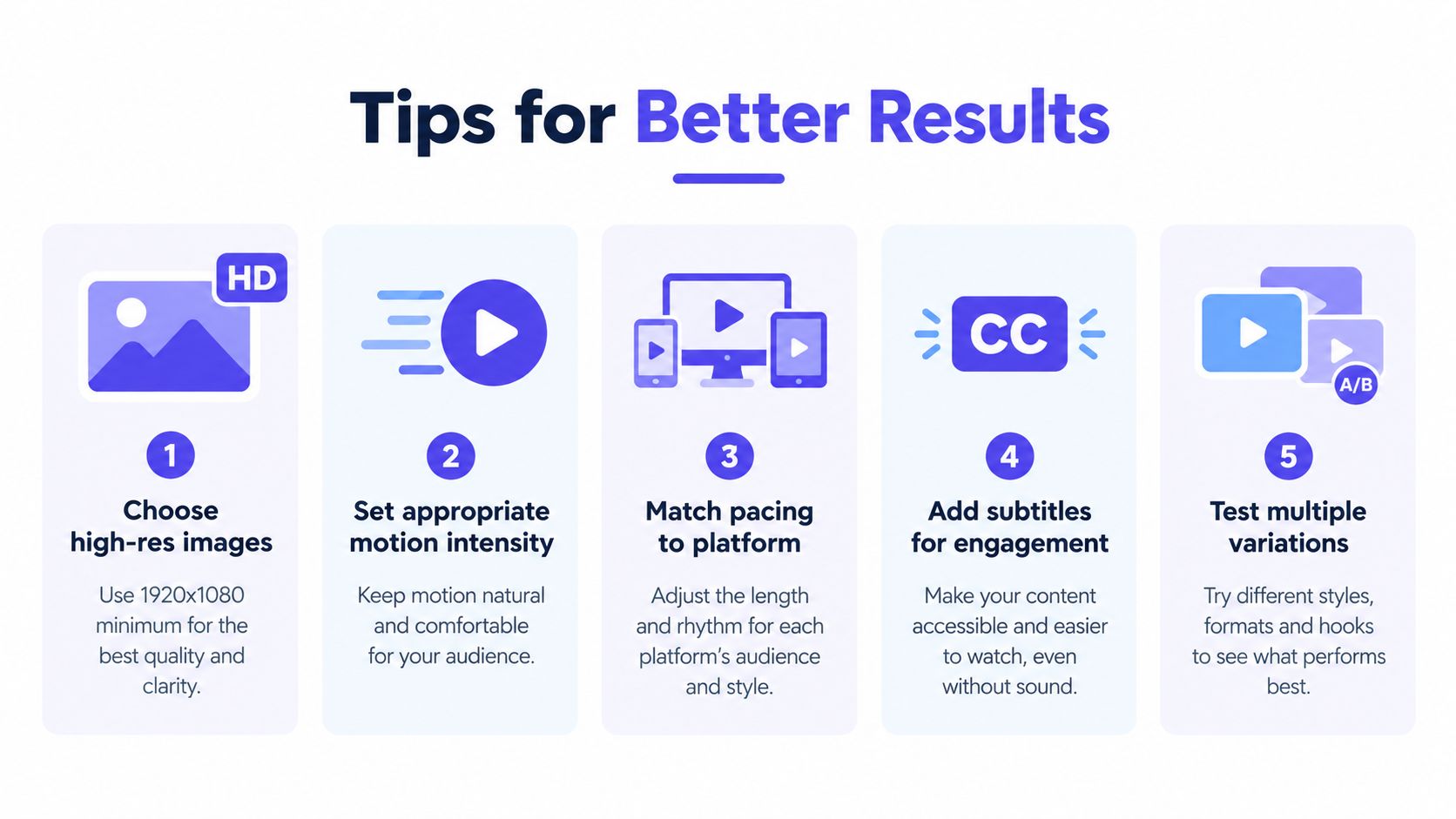
- Keep the subject readable: Make sure motion doesn't cover the product, face, logo, or essential detail.
- Set platform-appropriate pacing: A fast feed placement may need an immediate visual cue, while an explainer benefits from calmer movement.
- Add subtitles deliberately: Captions should support the spoken or written message and remain inside the safe area.
- Test more than one variation: Compare restrained and more expressive motion rather than accepting the first generation.
- Preserve brand signals: Check colors, typography, framing, and tone against existing social content.
The technical reasons for this caution are measurable. The VBench evaluation research identifies failures such as subject identity inconsistency, motion smoothness problems, temporal flickering, and spatial relationship errors in image-to-video evaluation. Realism alone isn't enough. A clip must remain coherent from its opening frame to its final frame.
Exporting and Troubleshooting Common Issues
Export is where a promising generation becomes a platform-ready post. Choose MP4 with H.264 when the tool provides codec controls, because that combination is broadly compatible with web and social playback. Keep the original generated file, then create channel-specific versions rather than repeatedly compressing the same export.
Start troubleshooting with the source image, not the prompt. If the model misreads the subject, remove busy background details, improve contrast, and use a sharper image. A simple composition gives the system fewer competing shapes to interpret and makes the intended motion easier to describe.
Fix the failures that appear most often
Identity drift changes a face, logo, package, or product shape during the clip. Reduce the movement, avoid prompts that ask for major transformations, and test whether a cleaner source preserves the subject more reliably.
Temporal flicker appears as unstable brightness, jumping edges, or rapid changes between frames. Lower the motion intensity and remove unnecessary effects. If the tool supports a fixed seed or consistent settings, use them while comparing revisions so you can identify which change helped.
Spatial errors occur when objects move in ways that contradict the image, such as a hand passing through a product or a background element shifting position. Shorter, simpler actions usually give you more control than a crowded prompt with several simultaneous instructions.
Validate the actual upload
Don't approve a file solely from the generator's preview. Play it on the mobile app or desktop environment where it will appear, check the crop, inspect subtitle placement, and confirm that the first frame communicates the post without relying on sound. Platform interfaces can cover areas that looked safe in the editor.
A reliable publishing workflow also includes a human review for brand safety, permissions, and accuracy. If the image contains a customer, employee, creator, or licensed asset, confirm that your team has the right to animate and publish it. Automation saves production time, but it doesn't replace approval responsibility.
The market now includes tools with motion controls, camera settings, multi-scene generation, audio, lip-sync, and character consistency, but those capabilities vary widely across vendors, as noted in this review of image-to-video AI options. Choose based on the complete path from source image to approved upload, not on a feature list alone.
PostSyncer combines AI video creation with captions, scheduling, platform distribution, and content management, so you can turn approved images into publishable short-form assets without rebuilding the workflow for every network. Visit PostSyncer to create image-based videos, prepare the accompanying post, and schedule the finished content from one workspace.