

The Short is finished at 11 p.m. and it needs to be live at 7 a.m. tomorrow in a city three time zones away. You won't be awake for it, a client wants one more look at the caption, and the last time you did this manually you nearly published the wrong cut to the wrong channel.
That's the job scheduling does. Not growth hacks, not a secret hour that makes the algorithm lean in. It's a reliable way to publish a vertical video at a moment you choose while you're somewhere else.
The publish step fails for boring reasons far more often than interesting ones: a file still processing, a copyright claim that lands after approval, a time zone entered as local when the tool stored it as UTC. What follows is the order of operations that prevents those failures, plus the harder question of whether the slot you picked is doing anything for you or whether the content itself is the problem.
Specs and Safe Zones to Check Before You Schedule
A Short that fails a preflight check doesn't fail at the scheduled minute. It fails earlier, and you discover it when the campaign is already late. Every value in the table below belongs to a production gate that should close before a date and time get booked.
| Check | Target | Why it matters |
|---|---|---|
| Aspect ratio | 9:16 vertical | Fills the full-screen Shorts player |
| Recommended resolution | 1080×1920 | Sharp output without oversized files |
| Maximum resolution | 1080p | The uploaded file must not exceed it |
| Duration | 3 minutes or less | Longer uploads fall outside the Shorts limit |
| Top safe zone | Top 10% | Channel info can cover text placed here |
| Bottom safe zone | Bottom 25% | Captions and engagement controls overlap this area |
| Right safe zone | Rightmost 10% | Engagement controls sit over this edge |
Those placement numbers come from Google's Shorts ads guidance, which maps where channel information, captions and engagement controls can sit over creative. The same page sets the 9:16 vertical export, the 1080×1920 recommendation, the 1080p ceiling and the three-minute limit. Treat the safe zones as production practice for organic Shorts too, with one caveat: they're documented for ad assets, so an organic Short isn't held to identical validation. An ad-safe layout is still a viewer-safe layout.
The preflight checklist
- Resolution and aspect ratio: confirm a 9:16 vertical export at 1080×1920 with nothing larger than 1080p.
- Duration: cut to three minutes or less. A four-minute edit becomes a long-form upload with a different player and different discovery.
- Rights status: clear the music and any stock footage before the slot is booked, not the morning it publishes.
- Audience designation: decide the made-for-kids setting now, because changing it later affects comments and personalization.
- Thumbnail frame: choose the frame while the file is fresh in your head.
- Target time zone: write the intended zone next to the time, inside the calendar entry itself.
- Approval sign-off: one named person confirms the six items above before anyone touches the scheduler.
Take a product launch Short booked for 9 a.m. in Berlin. At 8 a.m. the copyright check flags a claimed track, so the asset has to be re-exported with new audio and the slot moves to the next day. That's an annoying morning. The same discovery at 9:05 a.m., with the post already public, is a brand problem and a takedown.
Practical rule: upload privately, let processing finish, and only then schedule. The schedule is the last step, never the first.
If you're still confirming what the platform accepts for a vertical upload, this walkthrough of YouTube Shorts size and specs covers the file side in more depth.
How to Schedule a Short in YouTube Studio
A client's launch Short has to be live at 7 a.m. Berlin time. You're in Chicago, the copy is approved, and nobody on your team will be near a laptop when it publishes. Studio can hold that commitment, because scheduling is native publishing rather than something bolted on by a third-party tool.
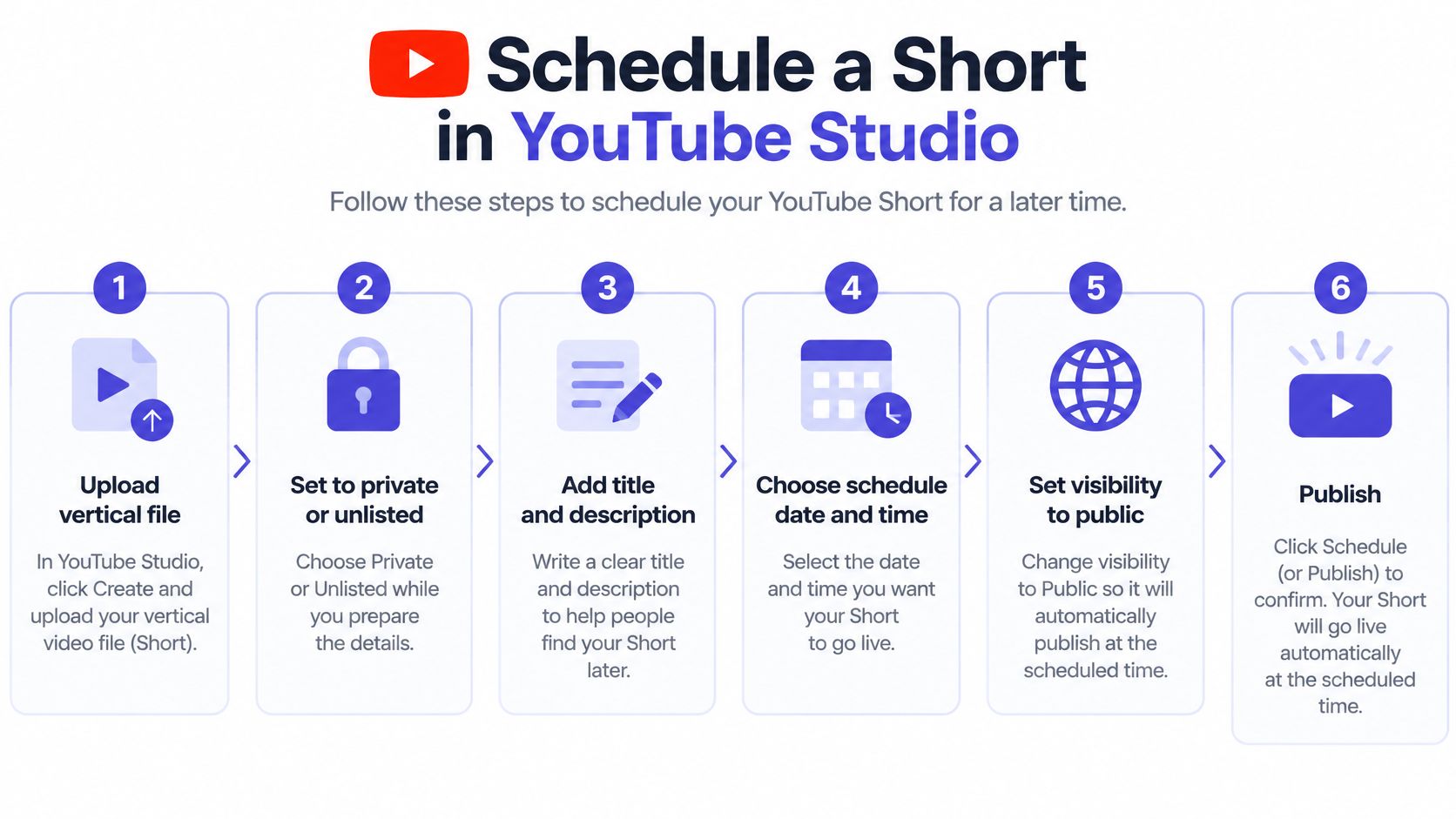
1. Upload the vertical file and leave it private or unlisted. A file still processing can't publish at the planned minute, so let the upload settle before you go near visibility.
2. Complete the title, description, audience designation and copyright checks. Do this while the video is unlisted. It's the difference between a finished asset and a draft with a broken claim.
3. Open the visibility options and choose Schedule. The other choices are Private, Unlisted and Public. Schedule is the one that creates a future publish event.
4. Pick the date, time and time zone from the calendar. The zone field is a dropdown for a reason. Typing a time without checking the zone is how a Short lands six hours early.
5. Confirm and save. Until that moment the video stays private, then it becomes public automatically, as YouTube's publishing documentation describes.
6. Keep the exit open. If an approval or a breaking event changes the plan, the same screen lets you move the time or publish immediately.
One check before you close the tab
Open the channel's content list and confirm two things: the status reads Scheduled, and the timestamp matches the time you intended in the zone you intended. A web app that never finished saving looks identical to one that did. The tab closes after both match, not before.
Teams running several channels usually want those confirmations in one place. If you're comparing tools that can hold publishing times across networks, this roundup of scheduling software picks from Mojolin lines up the main options side by side.
Time Zones and Strikes That Silently Block Releases
A Short can be ready to publish and still miss its planned release. The risk often sits outside the video itself: a time-zone mismatch, a change in approval, or an upload that never finished processing.
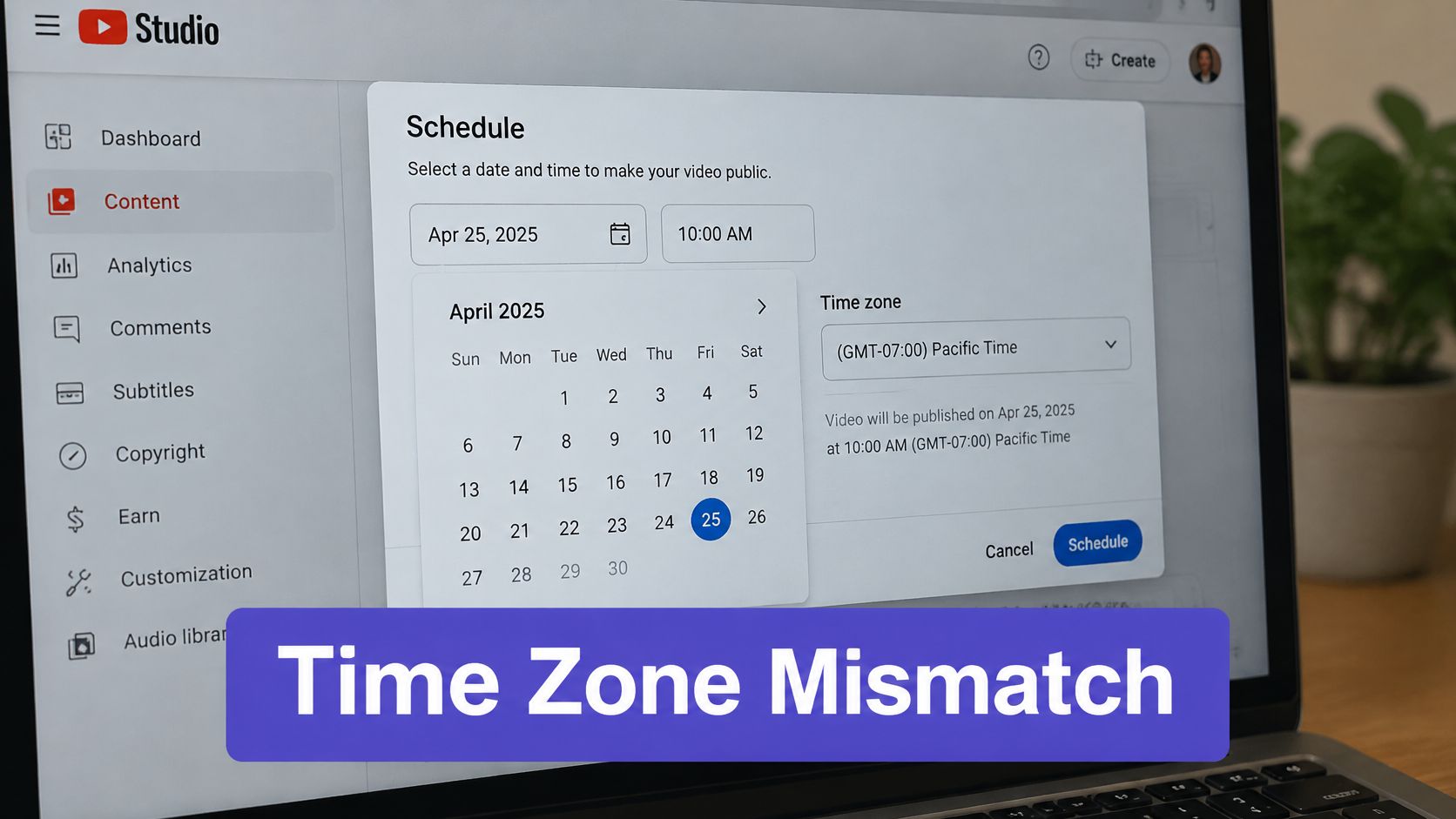
For campaigns spanning regions, record the intended audience time zone alongside the scheduled time. A single posting time may suit one market and miss another, so schedule separate releases when each audience needs a different local slot.
Before the release, check the channel and video status rather than assuming the schedule will resolve every issue. YouTube's publishing rules and account conditions can affect whether a video is available to viewers, so review any channel notices and confirm the Short is ready to play.
- Check for channel restrictions. Review channel notifications before relying on a scheduled release. If YouTube indicates an account or video restriction, resolve it or adjust the plan.
- Revisit approvals. If legal review arrives late or the event makes the creative inaccurate, change the time or publish immediately from the scheduling screen.
- Account for multiple markets. One time will not fit every audience. Use separate scheduled entries when markets require different local release times.
- Confirm processing is complete. Preview the video and make sure it plays before relying on its scheduled release.
Calendar rule: record the scheduled time with its time zone, and note the audience's local time when it differs. That makes a mismatch easier to spot during handoffs.
The scheduling interface brings these decisions together.
Assign one person to own schedule changes, and check channel notifications before a release. Shared calendars help only when someone is responsible for acting on changes.
Test Posting Times With a Four-Week Matrix
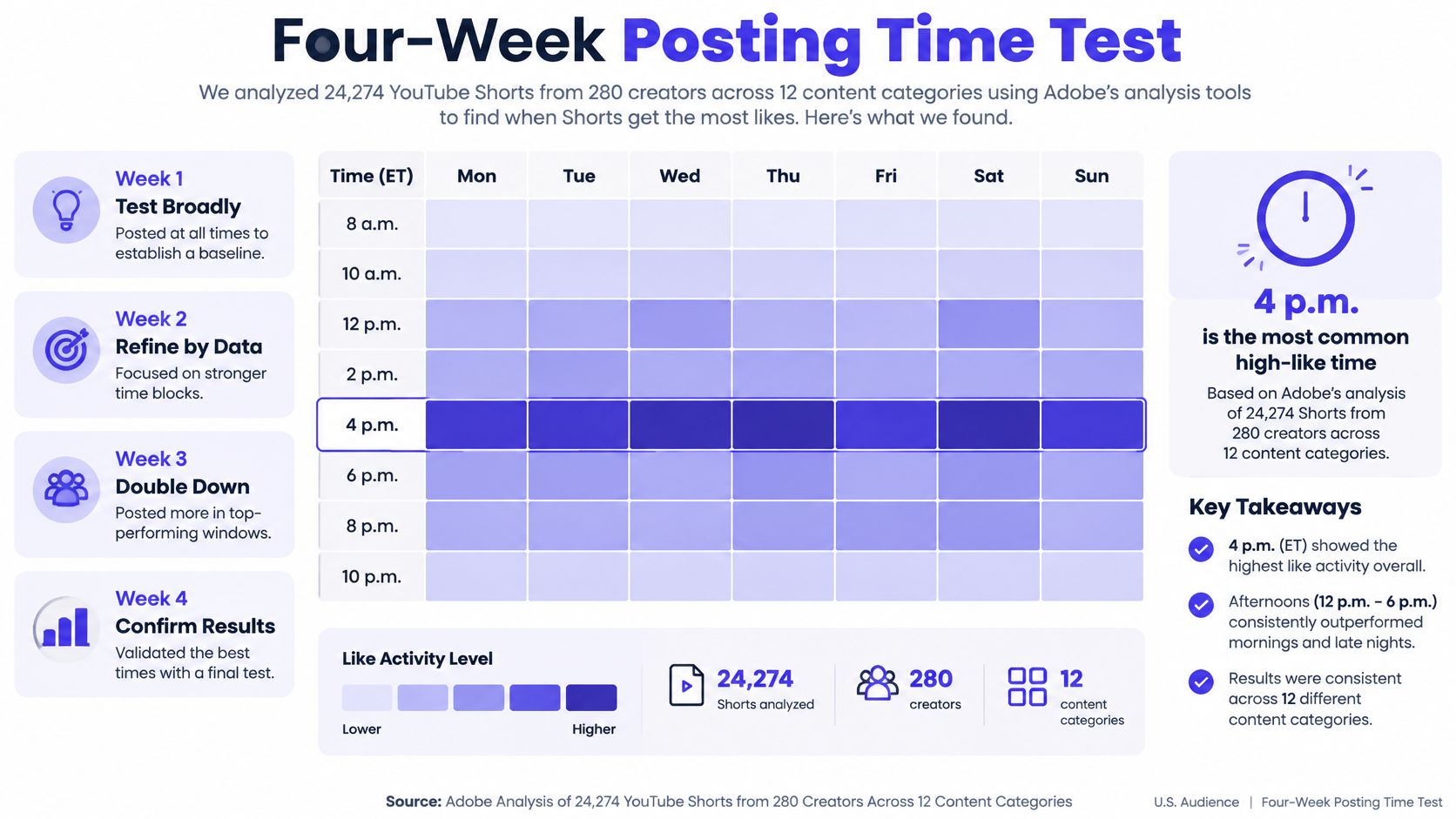
Adobe has published an analysis of Shorts timing across creators and content categories. Its results can suggest windows to test, but broad patterns cannot account for your audience's time zones, viewing habits, or upload history. Treat a published recommendation as a starting hypothesis, not a setting to copy. For more context, see this guide to the best time to upload a video on YouTube.
Run one variable at a time
Keep topic, editing style, opening hook, and approximate duration as consistent as practical. Then compare two or three posting windows in your audience's local time. If you change the creative and the schedule together, the results won't show which change mattered.
| Week | Held constant | Variable changed | Checkpoints |
|---|---|---|---|
| Week 1 | Topic, hook, editing style, duration | Morning vs. evening local time | 24 hours and 7 days |
| Week 2 | Topic, hook, editing style, duration | Weekday vs. weekend | 24 hours and 7 days |
| Week 3 | Topic, hook, editing style, duration | Two audience time zones | 24 hours and 7 days |
| Week 4 | Winning topic and hook | Repeat the best window on three comparable Shorts | 7 days |
YouTube recommends maintaining a consistent upload schedule without overwhelming viewers. Its retention reporting guidance also explains how to compare a video with recent uploads of similar length. Use your channel's comparable Shorts as the benchmark.
Three checks help separate a real scheduling effect from noise:
- Repeat before committing. Keep a slot only if the improvement appears across several comparable Shorts.
- Rotate the days. A Friday result may reflect the day, the time, or chance. Try the window on another day before drawing a conclusion.
- Review the creative fit. A single breakout can owe more to its hook or topic than its posting hour.
A slot becomes a useful decision when the result repeats. Until then, it's a test, not a rule.
Track the Right Numbers at 24 Hours and Seven Days
A Short can gain standard views without holding attention. YouTube now counts each start or replay as a view, while engaged views track the stricter measure of viewers who chose to keep watching. Use YouTube's Shorts analytics documentation to distinguish the two when comparing scheduled posts.
Raw views alone can make a time slot look stronger than it is. Compare standard and engaged views together, and avoid treating results from before and after YouTube's measurement change as directly comparable.
| Metric | Where to find it | What it tells you |
|---|---|---|
| Standard views | YouTube Analytics, Shorts reporting | Each time the Short starts or replays |
| Engaged views | YouTube Analytics | Viewers who chose to keep watching |
| Viewed vs swiped away | YouTube Analytics | Whether viewers stayed past the opening |
| Average percentage viewed | Retention reporting | How much of the Short viewers watched, compared with recent videos of similar length |
| Subscribers gained per 1,000 views | YouTube Analytics | Whether the Short turns viewers into subscribers |
Three habits that make the numbers readable
- Set fixed checkpoints. Record each Short's results at 24 hours and seven days. Consistent windows make comparisons useful.
- Compare similar videos. Check each Short against recent uploads of similar length, not the channel's all-time best.
- Track subscribers per 1,000 views. This shows whether a Short is attracting potential followers, not just accumulating views.
For example, a Short with strong standard views but weak engaged views may be getting starts and replays without keeping viewers. Check viewed-versus-swiped-away and average percentage viewed to see whether the opening or the rest of the video is losing attention. A later posting time won't fix a content problem.
Keep the measures, checkpoint times, and publish slots together in a YouTube analytics dashboard. After several weeks, compare scheduled Shorts by slot and by retention. If a slot repeatedly brings stronger engagement among similar videos, keep testing it. If engagement stays weak across slots, timing probably isn't the main issue.
Decide Whether to Schedule or Fix Audience Fit First
A Short can go live at the right minute and still lose viewers in its opening seconds. Scheduling controls when a video publishes; it cannot correct a weak hook or a mismatch between the video and its intended audience.
Timing studies offer starting points, not universal rules. Adobe's analysis reported that 4 p.m. was the most common high-like time, Saturday at 4 p.m. had the highest average likes, and posts outside the commonly used 8 to 10 a.m. window averaged 8.7 million views, compared with 6.2 million inside it. Those findings point in different directions because audience behavior varies. Treat a posting time as a test, not a guarantee.
Rule of thumb: If viewers swipe away early, revise the hook before changing the posting time.
Use the pattern in your results to choose the next move:
- High swipe-away and low average percentage viewed: Rework the opening. If the first seconds fail to hold attention, changing the calendar slot is unlikely to solve the content problem.
- Good retention, irregular posting: Set a repeatable schedule first. A consistent cadence makes it easier to compare results across similar Shorts.
- Good retention, steady posting, flat reach: Test different posting times. Keep the content format consistent enough to make the time slot a useful variable.
- Several brands in one workspace: Keep each brand's calendar and baseline distinct. One channel's stronger time slot may not suit another.
For teams publishing short-form video across channels, one calendar can keep platform-specific times, recurring posts, and approvals together. That makes a schedule easier to manage, but performance still needs to be judged separately for each audience.
Choose one channel and run the four-week matrix. Compare similar Shorts, then use the posting window that performs consistently as a starting point for the next cycle. If no slot stands out, review audience fit and content before extending the test.
PostSyncer lets users schedule Shorts alongside Reels across platforms, set specific posting times, and create recurring posts. It uses YouTube API Services to enable cross-posting to YouTube. A shared calendar can help teams coordinate publishing, while the test itself shows whether a time slot is helping or the content needs work. Start with the free trial at PostSyncer.