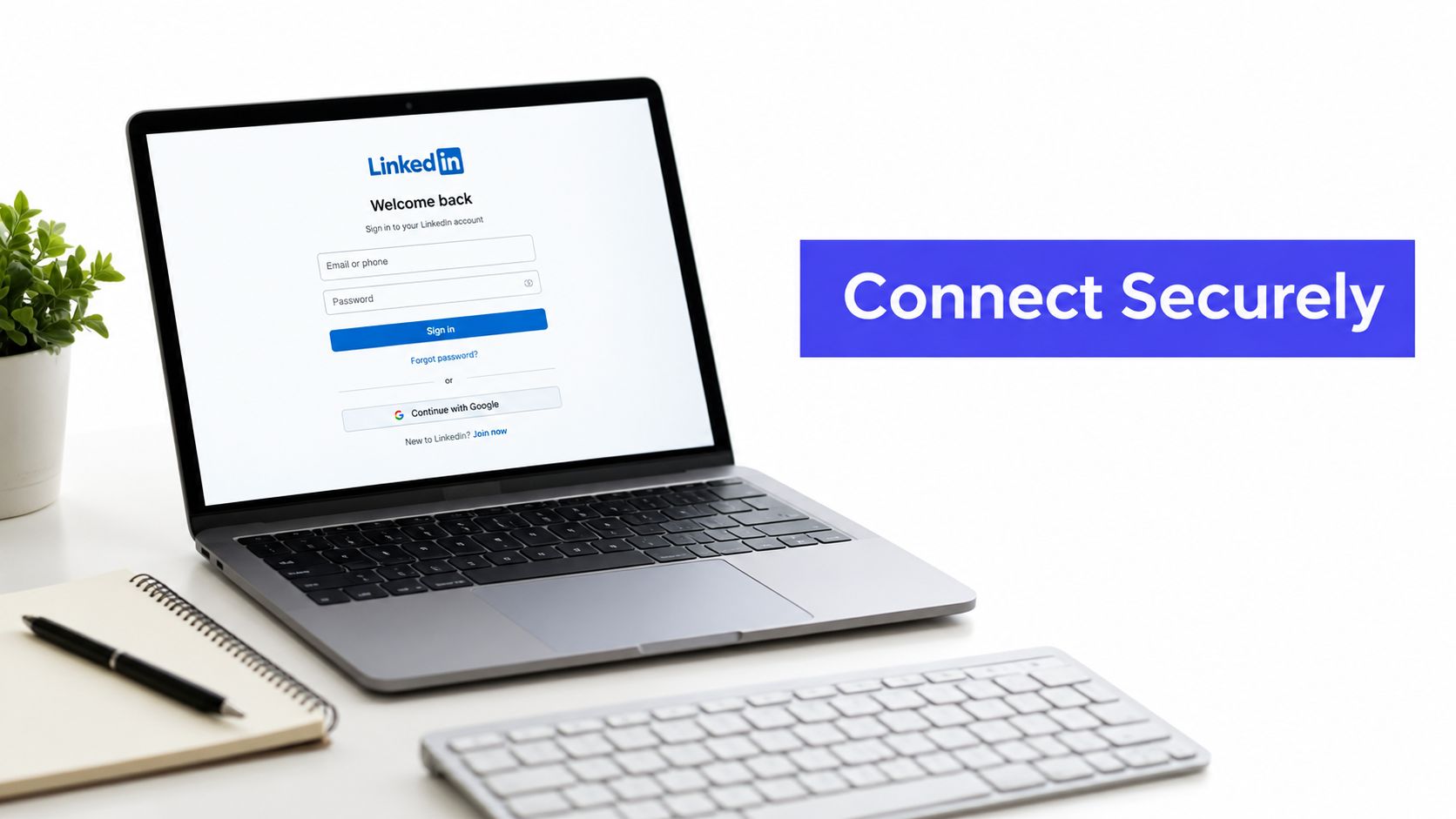










You click Connect to LinkedIn in your scheduling tool, choose the right account, and expect the job to be finished. Instead, the window closes, the company page doesn't appear, or a scheduled post later fails because the wrong permission was granted. That experience is common because connecting LinkedIn isn't just a button click. It's an OAuth authorization flow involving identity, page roles, permissions, browser sessions, security checks, and API limits.
After connecting more than 50 LinkedIn profiles and pages in PostSyncer, the pattern is clear. Most failures happen before publishing begins. A careful setup prevents the silent problems that appear when a social media manager has several clients, multiple workspaces, or a campaign ready to launch.
Why Connecting LinkedIn Correctly Matters for Scheduling
A LinkedIn connection gives a scheduling platform permission to work with an account without asking you to hand over your password. The platform sends you through LinkedIn's OAuth flow, LinkedIn authenticates you, and you approve the requested access. That authorization can support publishing, account identification, page selection, and analytics, depending on the permissions available to the integration.
The distinction between a personal profile and a company page matters immediately. A personal profile represents an individual member. A company page represents an organization, and a person can publish for that page only when LinkedIn recognizes the appropriate administrative relationship. Signing in as yourself doesn't automatically grant permission to publish as every page you can view.
LinkedIn also protects its network with connection controls. Its official help documentation states that members can have up to 30,000 first-degree connections, and new invitations stop when that limit is reached unless connections are removed. That rule affects networking and prospecting, not the OAuth handshake itself, but confusing the two types of “connection” causes unnecessary troubleshooting. LinkedIn's explanation of connection limits separates the member-network limit from application access.
What the authorization unlocks
Once the correct account is linked, a scheduling workflow can become much more than one-off publishing:
- Content planning: Schedule LinkedIn posts from a shared calendar instead of switching between client accounts.
- Team review: Route drafts through approvals before anything reaches a profile or page.
- Account organization: Keep personal profiles, company pages, brands, and workspaces separated.
- Measurement: Review available analytics alongside activity from other social networks.
The trade-off is access. A tool needs enough permission to perform the work you expect, but you shouldn't approve access casually or share credentials with teammates. PostSyncer uses OAuth-based account connections and states that its platform supports GDPR-compliant workflows, so the safer operating model is delegated access, clear workspace ownership, and controlled reconnection.
Key takeaway: A successful LinkedIn connection is the foundation for publishing. Choose the right identity, approve the right access, and verify the destination before creating a campaign.
What You Need Before You Connect to LinkedIn
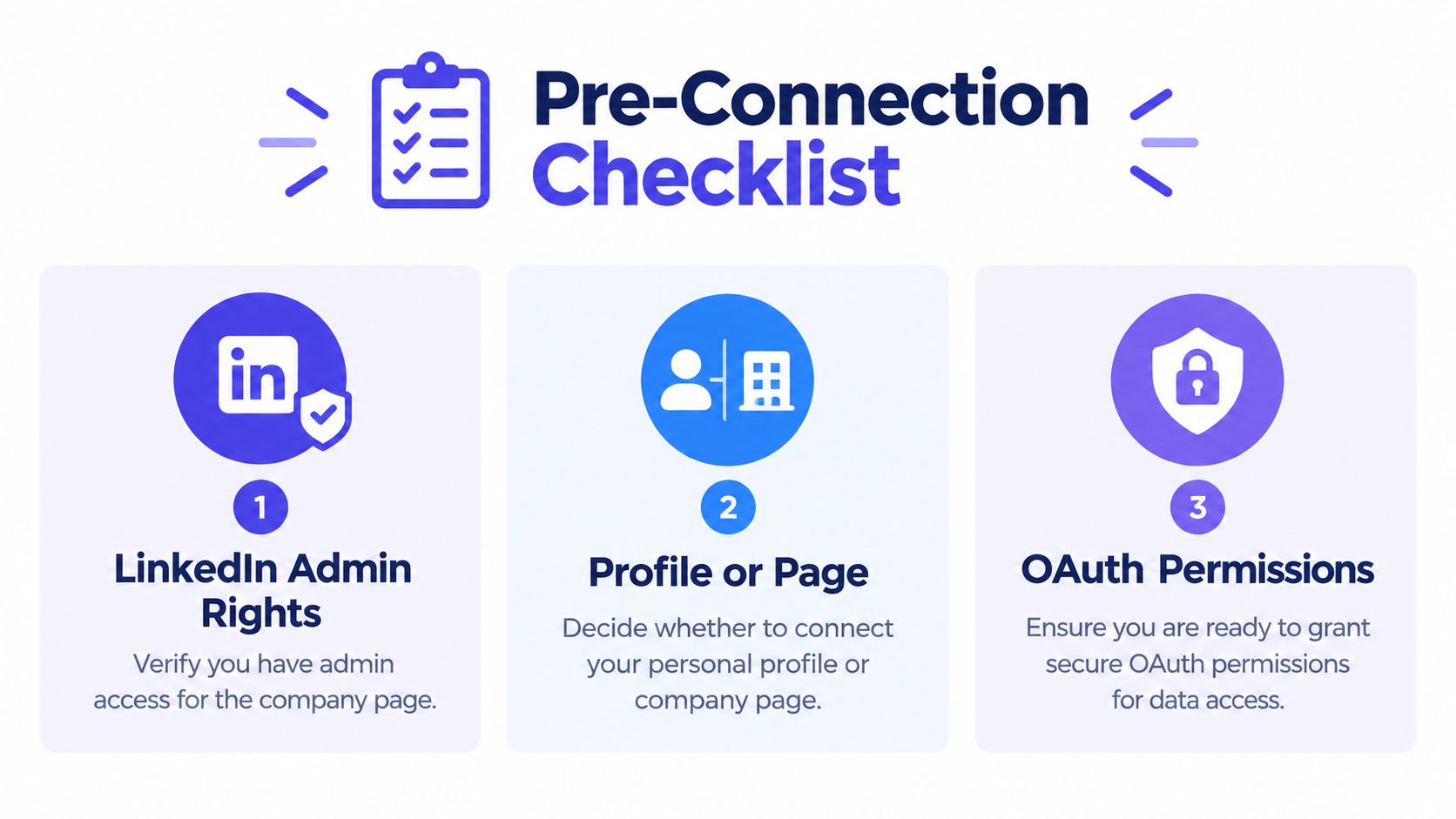
A few minutes of preparation can save repeated OAuth attempts. Start by deciding what you need to connect. If you're scheduling thought-leadership content, you may need a personal profile. If you're managing a brand account, identify the exact company page and confirm that your LinkedIn role allows publishing for it.
Complete the permission check
Open the target LinkedIn company page and inspect your page-admin access. You need an administrative role that supports the actions your scheduler is requesting. A person who can view a page, follow it, or interact with it as a member may still lack permission to publish on the organization's behalf.
If you're working with a client, ask the client to verify your role before you begin. Don't rely on an old invitation or assume that access to Business Manager, a personal profile, or a shared password transfers to the company page. Your personal LinkedIn account is the identity used to authorize the connection, but the page role determines which company destinations become available.
Prepare the browser and workspace
Use a current browser, sign in to the intended LinkedIn account, and make sure cookies and pop-ups aren't blocked for the authorization flow. Cached sessions can send the OAuth window to the wrong account, especially when several clients use the same computer. If the window loops or closes unexpectedly, clear the relevant cache and cookies, review trusted-site settings, then start again.
You also need access to the correct PostSyncer workspace and permission to add social accounts there. Agencies should confirm which workspace belongs to which client before authorizing anything. A connection placed in the wrong workspace can look like a LinkedIn failure when the issue is account organization.
For a clearer explanation of delegated access and why it's safer than sharing credentials, review PostSyncer's OAuth delegation guidance before authorizing the account. Treat the OAuth screen as a permission review, not a routine interruption. Read the account and page names carefully, then approve only the access required for the workflow.
How to Connect Your LinkedIn Profile and Company Page in PostSyncer
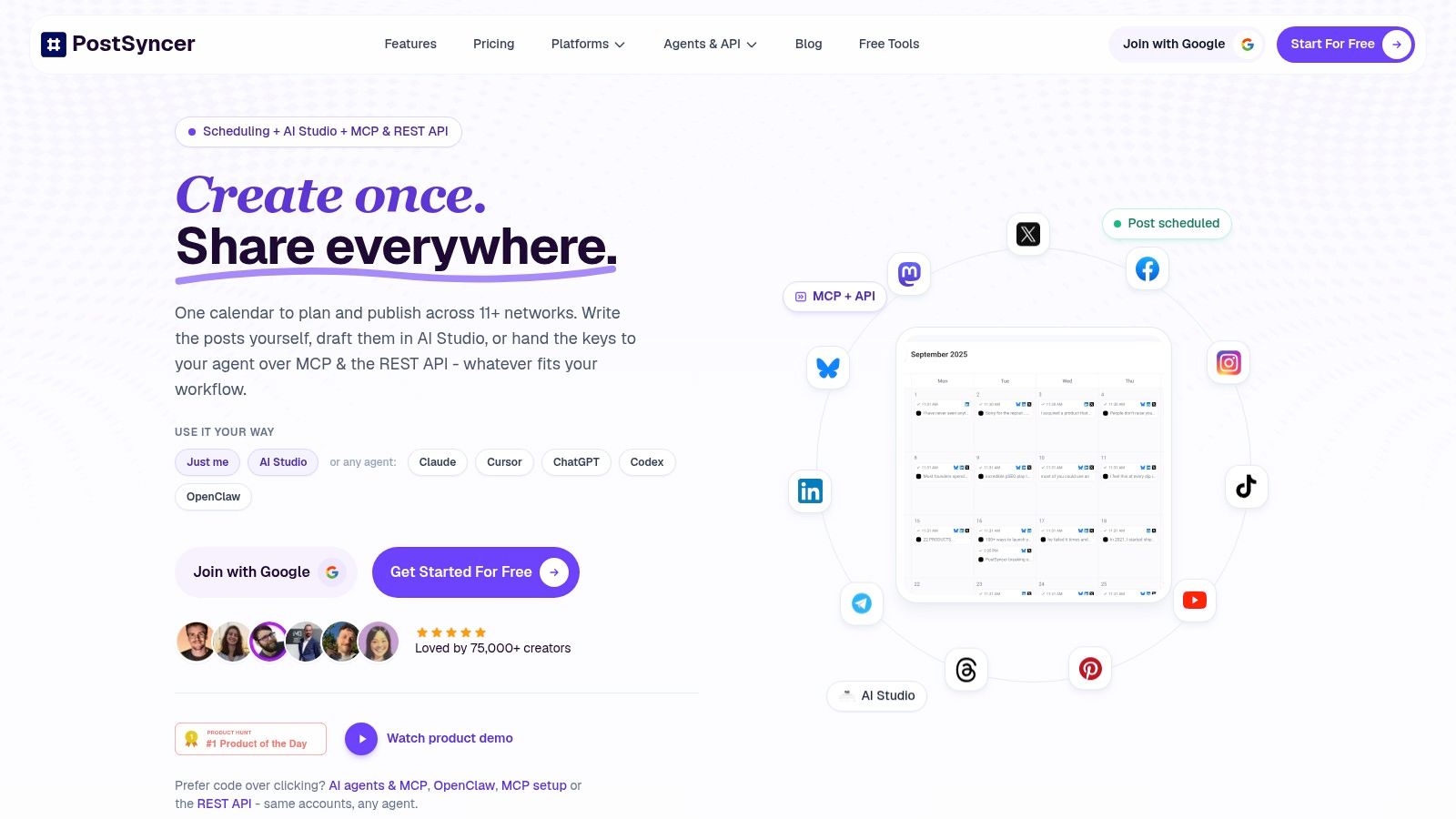
Open your PostSyncer workspace and go to the area for connected social accounts or social account settings. Select Connect to LinkedIn. The action should open LinkedIn's authorization page, where you sign in with the account that owns the profile or administers the company page.
Follow the OAuth flow carefully
LinkedIn returns you to the scheduler after authentication. Behind that simple transition, the application should validate the authorization response before exchanging the code for tokens. LinkedIn's authorization-code documentation requires strict state validation. If the returned state doesn't match the original request, LinkedIn says the application should treat it as a potential CSRF attack and return 401 Unauthorized. LinkedIn's OAuth authorization-code guidance also notes that TLS 1.0 isn't supported, which can affect outdated client stacks.
From a user's perspective, the practical rules are straightforward:
- Start from the correct workspace. Confirm the client or brand before opening the connection screen.
- Use the intended LinkedIn login. Sign out of unrelated LinkedIn sessions if the browser keeps selecting the wrong identity.
- Review every requested permission. Publishing and analytics access serve different purposes, and declining a required scope can create a connection that looks complete but can't perform the expected action.
- Return to PostSyncer without interrupting the callback. Don't close the authorization window while LinkedIn is redirecting back.
- Check the account list. Confirm that the profile and any available company pages appear under the connected accounts.
Select the right destination
A social media manager handling three clients may see a personal profile plus several company pages after one LinkedIn login. Select only the destinations that belong in the current workspace. Keeping every available page in every workspace creates avoidable publishing risk, particularly when the page names are similar.
If a page doesn't appear, stop instead of authorizing repeatedly. Verify the LinkedIn admin role, confirm that you're using the account with that role, and check whether the page is active and accessible. Repeating the OAuth flow won't create permissions that LinkedIn hasn't granted.
Exact redirect-URI matching is another important safeguard. The application must return to the redirect address registered for the integration. If a development, staging, or production address is mixed up, the authorization can fail even when the LinkedIn credentials and page role are correct. PostSyncer handles the integration details, but the user's responsibility is to begin from the right workspace and complete the flow without switching contexts.
After the connection appears, create a low-risk draft or test post according to your team's process. Confirm the author identity, destination page, media preview, and approval path before scheduling a public campaign. A visible account in the settings screen is useful, but successful destination verification is what makes the connection operational.
Common Connection Problems and How to Fix Them
Connection failures usually fall into three categories: LinkedIn doesn't show the expected action, the account lacks page authority, or the authorization and API layers reject a request. Diagnose the category first. Otherwise, you'll keep changing browser settings when the problem is an admin role.
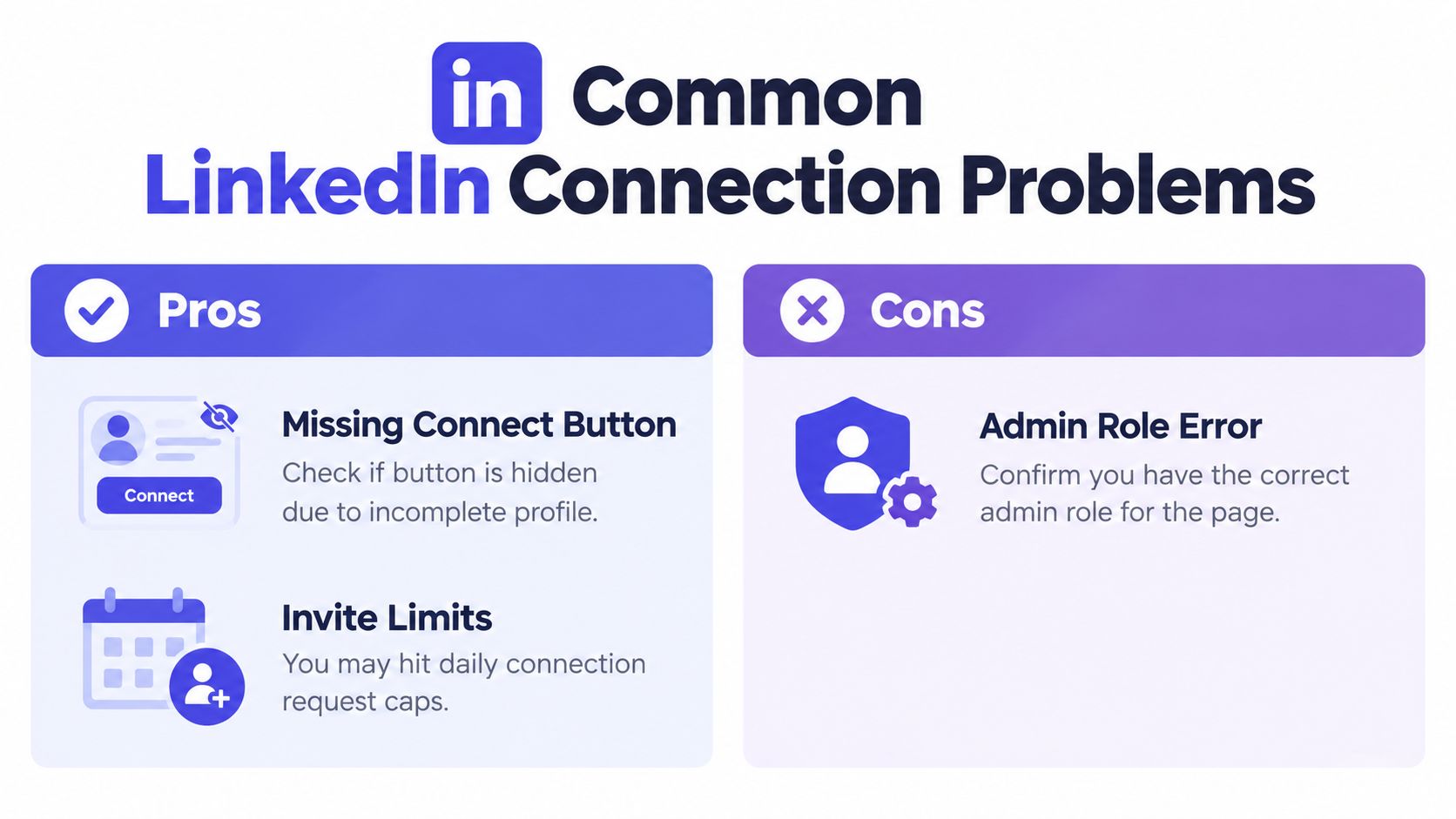
The Connect button may be missing because the member is already connected, incoming invitations are disabled, or the sender has restrictions, as described in LinkedIn's help for missing Connect buttons. Those conditions relate to member networking. They don't mean that OAuth access to a scheduling tool is broken.
LinkedIn's member network has a hard ceiling of 30,000 first-degree connections, and publicly reported guidance describes roughly 100 connection requests per week for many accounts, with account-dependent limits sometimes described closer to 100 to 200 and daily soft throttles around 20 to 25. Because these figures can vary by account and guidance source, use LinkedIn's own controls as the authority. Pending invitations can also consume available invitation capacity, so sending more requests isn't always the fix.
Match the symptom to the fix
| Limit Type | What Happens | Fix |
|---|---|---|
| Member connection limit | New first-degree connections stop at 30,000. | Remove stale connections before adding more. |
| Invitation capacity | Requests may be restricted, and pending invitations can count against capacity. | Review pending invites and pause outreach until LinkedIn allows new requests. |
| API rate limit | Requests are limited within a 24-hour window, and excess traffic can produce HTTP 429 errors. | Add throttling, retry carefully, and inspect endpoint quotas. |
| Page administration | A personal login doesn't expose a company page without the required role. | Ask a page administrator to grant the correct access, then reconnect. |
Separate OAuth errors from API errors
LinkedIn's API guidance says requests are rate-limited in a 24-hour window that resets at midnight UTC, with separate application and member limits. The exact numeric cap is endpoint-specific and isn't publicly published. It becomes visible in the Developer Portal after at least one request has been made to that endpoint. LinkedIn's API rate-limit documentation recommends treating application and member usage separately rather than assuming one global quota.
For a scheduler, HTTP 429 responses often appear as delayed syncs, failed account refreshes, or publishing errors. The practical fix is per-member and per-application throttling, endpoint-level quota caching, and a controlled retry strategy. One user's activity shouldn't consume the entire daily budget for every workspace sharing an integration.
If the authorization window loops, re-authenticate after clearing the relevant browser session. If the connection succeeds but publishing fails, inspect permissions, page role, destination selection, and API activity separately. A clean OAuth login can't compensate for a missing admin role, and a valid page role can't prevent a rate-limit response.
Tips for Secure Scheduling and Analytics After Connecting
A connected account should have an operating routine, not just a successful setup screen. Store access through OAuth rather than sharing LinkedIn passwords, limit workspace access to people who need it, and remove accounts when a client relationship ends. Reconnection is appropriate when a token expires, permissions change, a team member leaves, or the destination no longer appears correctly.
Use labels and separate workspaces for agencies managing several brands. Give contributors drafting access and keep final approval with the person responsible for the LinkedIn profile or page. A visual calendar helps the team spot duplicate posts, missing campaign assets, and an incorrect destination before publication. PostSyncer's LinkedIn scheduler is designed for scheduling and managing LinkedIn content within a broader social publishing workflow.
Build a safer publishing loop
Batch related content, but keep a human review step for client posts, executive profiles, regulated topics, and announcements. Before scheduling, check the author identity, link preview, image or carousel, accessibility text, and approval status. After reconnecting an account, test with a draft or controlled post before loading the full campaign.
Analytics should answer a practical question. Which topic, format, or publishing window deserves more attention? Review performance by platform and content type, then use those observations to adjust the next batch. Don't treat a single result as a permanent rule.
For technical integrations, apply both per-member and per-application throttling. Probe each required endpoint, cache its quota information, and monitor failures before a large campaign reaches production. This prevents one busy workspace from exhausting a shared daily budget and gives the team time to reconnect or reschedule without panic.
Keep Your LinkedIn Connection Healthy and Ready to Publish
A LinkedIn connection stays dependable when someone owns its maintenance. Recheck the relevant page-admin roles during account reviews, confirm the workspace still belongs to the right client, and reauthorize before an important campaign rather than during its launch window. After reconnecting, verify the destination and test a draft before scheduling the full sequence.
Use a short operating checklist:
- Access: Confirm the profile and company page permissions still match the person's job.
- Security: Keep OAuth access controlled and avoid password sharing.
- Publishing: Review the author, destination, media, and approval status.
- Reliability: Watch for authorization failures, delayed syncs, and rate-limit responses.
- Learning: Use analytics to repeat content patterns that perform well for the intended audience.
For broader guidance on permissions, account handling, and responsible workflows, consult PostSyncer's data security best practices. PostSyncer can help teams create content once, schedule it across LinkedIn and other networks, manage approvals, organize multiple workspaces, and review analytics from one platform. Its stated product offering also includes AI content tools, a unified inbox, OAuth connections, GDPR compliance, and support for unlimited team members.
Set up the correct LinkedIn profile or company page in PostSyncer, verify the permissions before scheduling, and run a controlled test post first. Visit PostSyncer to start a free trial and build a safer publishing workflow around your connected accounts.