











You open one folder and it turns into six. Event selects on your desktop. Phone shots in iCloud. Edited JPEGs in a rush-export folder. A client asking if the gallery will be live tonight. That's the moment Facebook stops feeling like a simple social app and starts feeling like a bottleneck.
If you're trying to figure out how to upload lots of photos to Facebook, the basic “click Photo/Video and post” advice falls apart fast. It works for a quick update. It doesn't work well when you're moving hundreds of images, trying to preserve order, avoid failed batches, and keep the Page from looking like a spam cannon. The trick is picking the right upload path before you start, not after Facebook stalls halfway through.
The Moment You Realize the Default Upload Won't Cut It
The pain usually starts with a normal-looking job. A school event. A product shoot. A conference recap. Nothing unusual until you realize the folder you need to upload is too big for the casual posting flow Facebook was clearly built to make feel easy.
On paper, Facebook has handled photo volume at massive scale for a long time. In 2012, the company reported 219 billion photos currently on the site and estimated 265 billion photos ever uploaded, and by 2013 it said users were adding more than 350 million photos per day, roughly 4,000 photos per second according to Facebook company stats. That scale matters because Facebook's photo system has always leaned toward albums and batches, not careful one-by-one publishing.
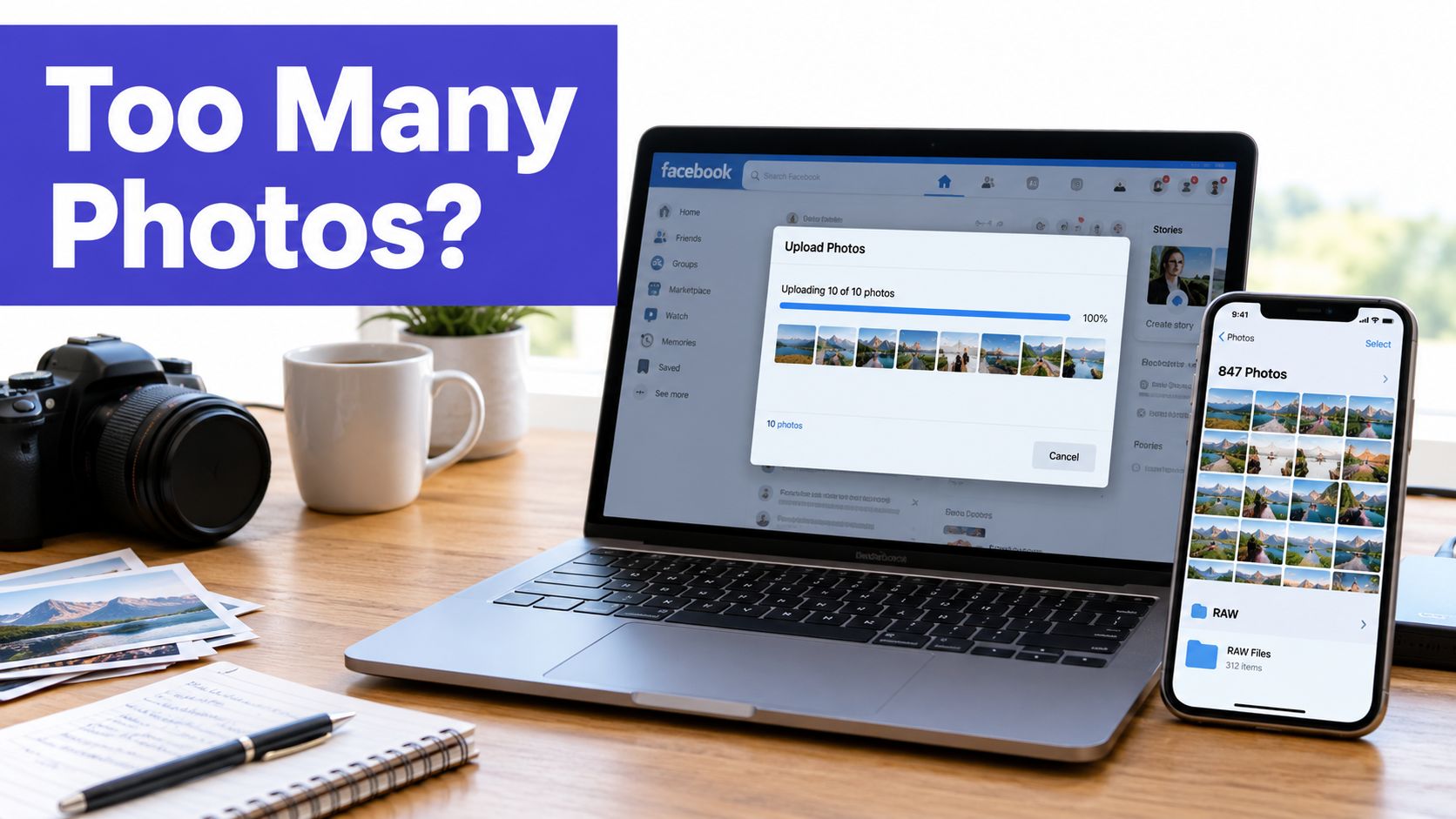
If you manage several brands at once, this gets worse. The upload friction isn't just about one folder. It's about repeating the same clumsy process across Pages, teams, and campaigns, which is why a centralized workflow matters once you're handling volume across multiple social media accounts.
What breaks first
Mobile is usually the first thing to give up. The gallery picker makes small batches tolerable, but selecting a large set with your thumb is slow, easy to mis-order, and annoying to fix. Desktop is better, but even there, the file picker can drag when thumbnails load in chunks or when the folder structure is messy.
Then the problems show up:
- Partial uploads: Facebook starts processing, then leaves some images behind.
- Weak progress feedback: When a batch hangs, you often don't get much clarity on what failed.
- Ordering problems: Mid-upload album creation and last-minute reshuffling can scramble sequence.
- Surface mismatch: What works in a feed post doesn't always work the same way in an album.
Practical rule: If the batch is big enough that order matters, captions matter, and deadline matters, treat it like a publishing job, not a casual post.
That's the shift. Once you hit that wall, the goal isn't “how do I upload photos.” It's “which Facebook surface will waste the least time for this batch.”
Fastest Ways to Push Photos From Desktop and Mobile
You feel the difference fast with a real batch. Upload 12 polished photos from a phone and it's manageable. Try 180 event shots with sequence-sensitive highlights, and mobile turns into a sorting tax.
Desktop is the faster tool for volume because it gives you proper multi-select, drag-and-drop, and better control over file order before Facebook starts processing anything. Mobile is still useful, but mostly for smaller sets that already live on the device. Facebook's upload guidance also notes that keeping photos under 15 MB helps avoid upload problems in the app, which matters once a big batch starts stalling for no clear reason, as noted in Facebook's Android photo upload help.

Fastest desktop workflow
For native Facebook uploading, desktop is the closest thing you get to bulk handling.
- Open Facebook in a full desktop browser.
- Start from Photo/Video or go straight into the album flow if the batch belongs together.
- In Finder or File Explorer, sort the folder first so filenames reflect the order you want published.
- Multi-select the whole set, then drag it in or add it through the file picker.
- Leave the browser tab open and active until Facebook finishes processing.
That last step matters more than people expect. Facebook will often accept the batch, start processing, then hang on a handful of files if the tab gets interrupted, the connection dips, or the files arrived in a messy order.
My rule is simple. If the photos need to appear in a specific sequence, fix that sequence before upload, not during upload. Facebook is decent at receiving a prepared batch. It is slow at helping you clean one up.
When mobile still makes sense
Mobile works for quick recaps, on-site posting, and small curated sets pulled straight from the phone camera roll. It also makes sense when the goal is speed to publish, not tight control over order.
It stops being efficient once you're dealing with a large folder, edited assets from a desktop workflow, or a client batch where missing three photos creates rework. Selecting a lot of files on a phone is slower, reordering is clumsy, and it's easier to miss duplicates or leave out key shots.
If the photos were edited on a computer, keep the upload on the computer. Sending them to your phone first usually adds one extra transfer step and one extra place for things to go wrong.
There's also a format split across devices and post types. If your Facebook workflow includes short-form video as well as photo posts, this guide to posting Reels from any device is a useful reference for how those publishing paths differ.
A quick visual walkthrough helps if you want to compare the interface before you start:
The honest trade-off
Desktop is better for batch speed, file order, and fewer mistakes. Mobile is better for convenience.
Use desktop for anything that feels like production work. Use mobile for light posting when the batch is small and the stakes are low. That split saves time because the two workflows are not built for the same job.
Understanding Facebook's Album and Per-Post Limits
The point where Facebook starts wasting time is usually not the upload itself. It is the mismatch between what an album can hold and what a single posting surface will let you add in one go.
That distinction matters. A Page manager can build a large album over time, but the feed composer, mobile app, and some web upload screens can still limit how many photos move in one batch.
Facebook photo upload limits at a glance
| Limit Type | Current Value | Practical Impact |
|---|---|---|
| Album size | Up to 1,000 photos in an album, according to Facebook's album help | Album structure matters once a shoot or event starts getting large |
| Some computer posting surfaces | Up to 10 photos/videos on some multi-photo post flows, per Facebook posting help | Standard feed posts hit a ceiling fast |
| File size guidance | Large files are more likely to slow processing or fail in bigger batches, as noted earlier | Heavy exports create problems before you hit any formal cap |
| Web batch behavior | Some web upload flows still report a practical batch ceiling around 80 photos, based on independent testing from Publer | Interface limits can block a large upload even when the album itself has room |
What these limits actually mean
Album capacity is storage. Posting capacity is workflow.
That sounds obvious until you are halfway through a 300-photo upload and realize Facebook is treating your job as several smaller jobs. I have seen this catch teams on event recaps, product catalogs, and conference galleries. They plan around the album limit, then get slowed down by the composer limit, browser lag, or a web screen that stops accepting files long before the album is full.
The practical rule is simple. If the goal is a gallery people can browse later, build albums with the album limit in mind. If the goal is a feed post, assume a much smaller ceiling and more friction.
That is why large batches usually need to be split by purpose, not just by folder size. One set may belong in an album. Another may need to be broken into several timeline posts. Once the volume gets high enough, manual uploading turns into queue management.
Scheduling and Queuing Large Photo Drops With Pro Tools
Native Facebook uploads are fine until they stop being fine. The breaking point usually isn't one dramatic error. It's death by repetition. Too many tabs, too many manual album fills, too much waiting around for uploads to finish before you can move on.
What Meta's own tools do well
For Pages, Meta Business Suite is the first upgrade because it gives you scheduling and a more structured publishing flow than posting directly from the Page. It's better when you need to space out photo sets instead of flooding the timeline all at once.
The weak spot is that it still feels like a platform tool, not a bulk operations tool. It helps with planning. It doesn't magically turn Facebook into a photo asset manager.
Where third-party schedulers earn their keep
Queue-based schedulers become practical. Tools like Hootsuite, Later, and PostSyncer change the job from “sit here and babysit uploads” to “load the batches, schedule them, and move on.” If you're managing a Page photo campaign over several days, that difference matters a lot.
One useful fit here is a Facebook scheduling tool that lets you line up multiple posts instead of publishing every batch manually as soon as it finishes processing. That matters more than people think, because large galleries often perform better when broken into themed drops rather than shoved live in one messy session.
What these tools solve and what they don't
What they solve:
- Queueing: You can stack multiple photo posts and spread them out.
- Background workflow: You're not chained to one browser tab the whole time.
- Cross-account management: Helpful if you're handling more than one brand or location.
What they don't solve:
- Facebook's own limits: A scheduler still has to work within Facebook's publishing rules.
- Token issues: Connected accounts can need re-authentication.
- Profile restrictions: These workflows are much stronger for Pages than for personal profiles.
The biggest win isn't raw upload speed. It's preserving your time and your sanity. When the batch gets big, the sane workflow is usually to break the photos into planned chunks, queue them, and let the platform publish on schedule instead of trying to brute-force everything live from one browser session.
Preparing Your Files So Uploads Don't Stall
Most upload problems start before Facebook ever sees the files. They start with lazy exports, bad filenames, mixed formats, and folders full of images nobody bothered to prep.
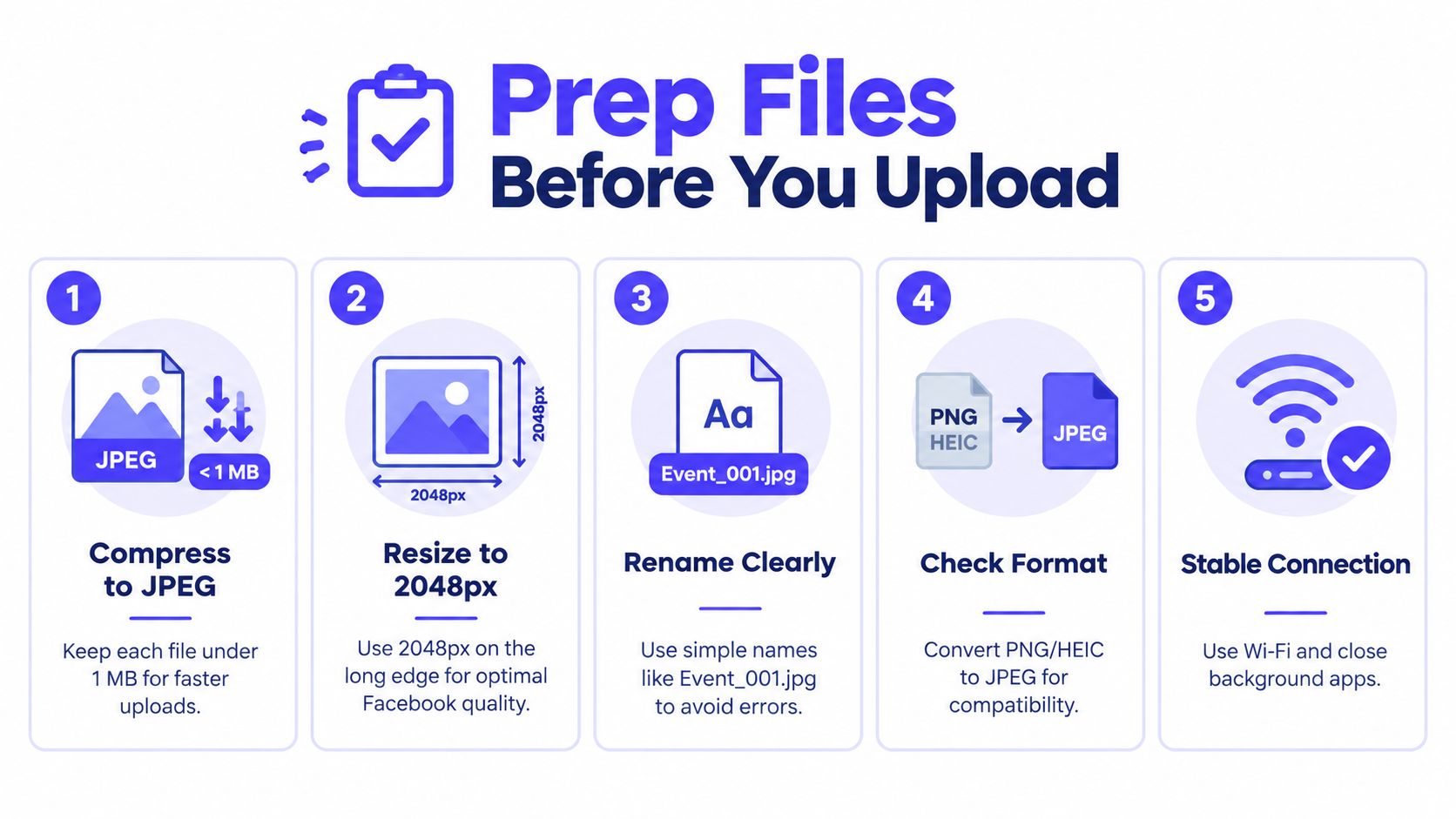
Facebook's own guidance is simple on the file side: upload the original file when possible, use supported formats, and keep photos under 15 MB according to Facebook iPad upload troubleshooting help. That doesn't tell you much about a real production workflow, but it does tell you what not to ignore.
Prep files before you upload
The checklist that saves the most time
- Rename in sequence: Use simple names like
Event_001.jpg,Event_002.jpg, and so on. This is the easiest way to keep album order from turning into chaos. - Stick to web-friendly formats: JPEG is the safe default for big Facebook uploads. Mixed file types tend to create unnecessary friction.
- Split by event or theme: Don't upload one giant folder if the photos obviously belong in separate albums.
- Trim bloated exports: Massive originals create more stalls than benefits on Facebook.
- Check before you drag: Scan for duplicates, screenshots, rejects, and oddball files before they join the batch.
What I would and wouldn't upload
I wouldn't upload RAW files, giant archival exports, or a folder that contains a mix of final selects and half-edited leftovers. I also wouldn't rely on camera-generated filenames if post order matters.
I would create a clean upload folder, rename everything in the intended sequence, and run the images through a light optimization pass if the exports are chunky. If you need a practical file prep baseline before you start, this guide on resizing photos for Facebook is a good companion to the upload workflow.
Cleaner folders upload faster not because Facebook rewards neatness, but because you make fewer avoidable mistakes before the first file leaves your machine.
Fixing Failed and Stuck Uploads at Scale
Most guides act like failed uploads are user error. That's not usually true. A batch can fail even when you did most things right. The problem is that Facebook often gives you poor feedback, and repeated retries can make the situation worse.
Don't hammer the same broken batch
If a large upload stalls, don't instantly slam the same files back into the same browser session. That often leads to the same result, plus more confusion about which images made it through.
Start with the obvious checks first:
- Look for oversized files: One or two bad files can hold up a bigger batch.
- Check the browser state: If the session feels glitchy, open a fresh private window or different browser profile.
- Confirm the network: A shaky connection can corrupt a long batch without giving you a useful error.
The recovery order that usually works
When a set partially uploads, use a calmer sequence:
- Pause and identify what posted.
- Remove the missing files from the original folder into a separate retry folder.
- Re-upload only the missing images, not the whole batch again.
- Cut the next batch size down.
- If the browser keeps acting strange, switch sessions before you retry.
This sounds slower than brute force, but it's usually faster than repeatedly failing with the same giant folder.
Upload failures are often batch-specific, not account-ending. Isolate the bad files and the workflow usually starts moving again.
One more practical move: if the content is important, upload into an album first and publish once you know the set is complete. That reduces the chance of leaving a half-finished public post on the timeline while you troubleshoot.
Matching the Right Upload Method to Your Batch Size
The best method depends less on preference and more on how many photos you're moving and how organized they need to be.
Upload method by batch size
| Batch Size | Recommended Method | Why It Works |
|---|---|---|
| Small batch | Native desktop upload to a post or album | Fastest when you just need a quick set live |
| Medium batch | Desktop album workflow, split by theme | Keeps order cleaner and avoids composer friction |
| Large batch | Business Suite or a scheduler with queued posts | Better for pacing, organization, and less tab babysitting |
| Very large archive | Multiple albums plus scheduled batches | Prevents timeline flooding and reduces retry pain |
Here's the short version.
If you've got a small set, native Facebook is fine. If you've got a medium set, use albums early and be deliberate about folder structure. If you've got a large set, stop trying to do it all manually in one sitting. Queue it, split it, and publish it in stages.
That's the answer to how to upload lots of photos to Facebook. Not one magic button. Just the right method for the size of the job.
If you regularly upload large photo batches to Facebook Pages, PostSyncer gives you a cleaner way to queue, schedule, and organize those posts without babysitting every upload in a browser tab. It's useful when one album turns into a campaign and you need a more repeatable workflow across clients or brands. Take a look at PostSyncer if you want a more controlled way to handle photo-heavy publishing.