











You've opened Facebook with a finished product clip, a useful announcement, or a behind-the-scenes photo ready to publish. Then the familiar problem appears: the file looks fine on your computer, but the Story editor crops the subject, hides the headline, or gives you no obvious way to publish from the browser. The right workflow depends on where your asset lives, which account you're managing, and whether the content was designed for a vertical screen.
Learning how to post a Story on Facebook is therefore more than memorizing a few taps. You need a publishing routine that combines the native app, professional asset preparation, audience controls, and a practical scheduling process for repeatable team output.
Why Facebook Stories Demand Your Attention
A blank Story canvas can feel like a daily obligation, especially when your team is already producing feed posts, Reels, newsletters, and campaign assets. Stories deserve a place in that workflow because they're built around short, mobile-first updates that disappear after a day, creating a different publishing rhythm from permanent feed content.
Meta introduced Facebook Stories on March 28, 2017, positioning the format around short photo and video collections, in-app camera effects, stickers, and geotags. The original format was designed to disappear after 24 hours, which is still the central distinction between a Story and a regular post. You can review the launch context in Meta's introduction to Facebook Stories.
That temporary window changes the creative brief. A feed post needs to remain useful after publication, while a Story can promote today's stock, a live event, a quick answer, or a limited-time reminder. The content can be lighter and more immediate, but it still needs a clear purpose.
Reach is only useful when the format fits
Industry summaries reported that more than 500 million people use Facebook Stories every day by the 2024 to 2026 period, while another summary reported more than 1 billion Stories shared daily across Facebook's family of apps. The same source reported that more than 4 million advertisers use Story ads monthly, which shows how the format serves both personal communication and commercial distribution. These figures come from SocialBee's Facebook statistics summary.
That scale doesn't mean every Story will perform well. It means the placement is too significant to treat as an afterthought. A poorly framed image can waste the opportunity just as quickly as a strong vertical asset can make a message easy to consume.
Practical rule: Publish a Story because it has a job to do, not because the calendar has an empty slot.
For a business, that job might be prompting replies, sending visitors to a landing page, showing product use, or keeping an audience informed between larger campaigns. Define the action first, then choose the media and native elements that support it.
Publishing from the Mobile App with Correct Specs
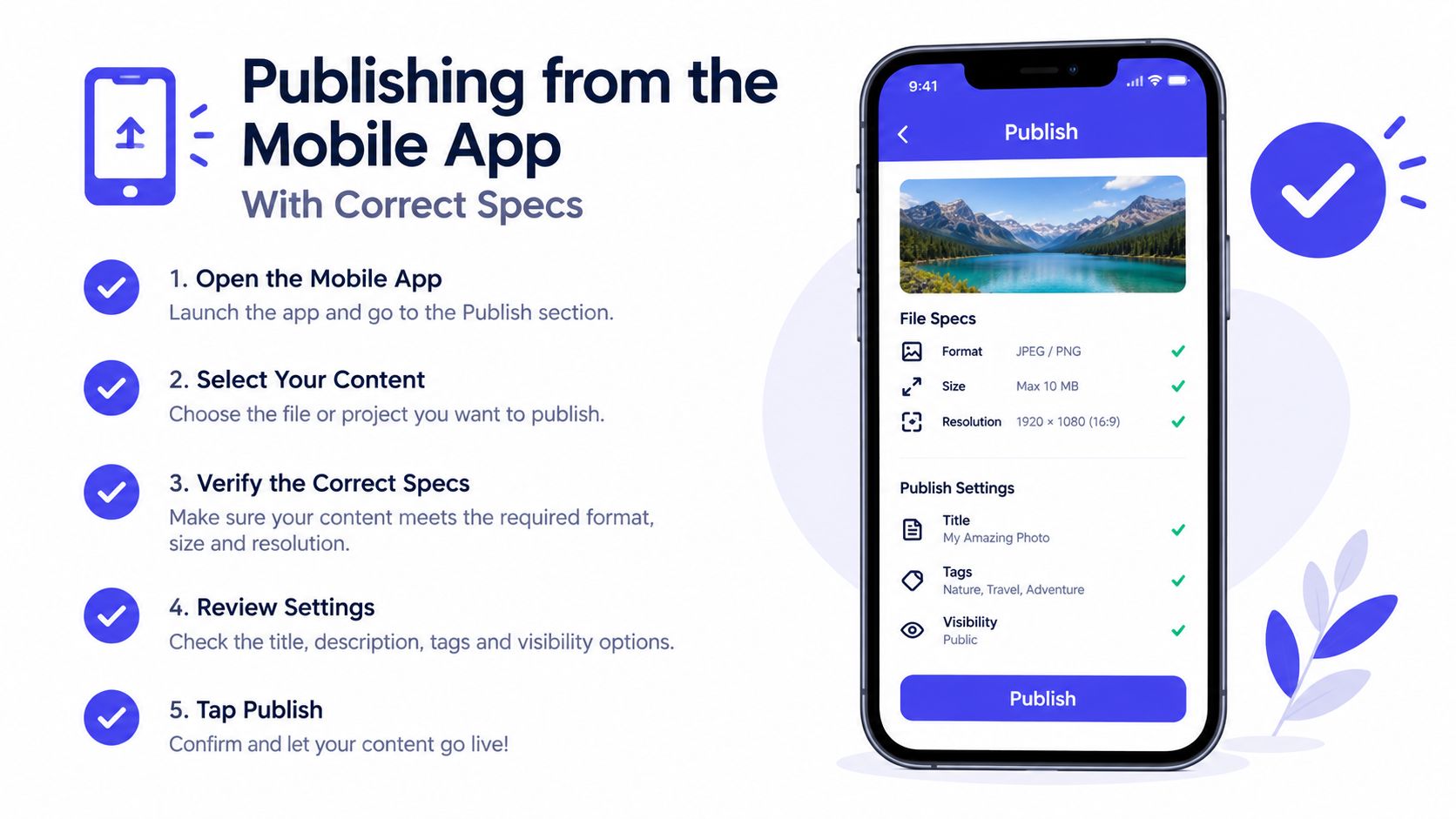
The Facebook mobile app remains the most predictable place to create a Story. Before opening it, prepare the asset in a design or editing tool rather than relying on the app to repair a horizontal or square file.
The mobile click path
- Open the Facebook app and switch to the profile or Page that should publish the Story.
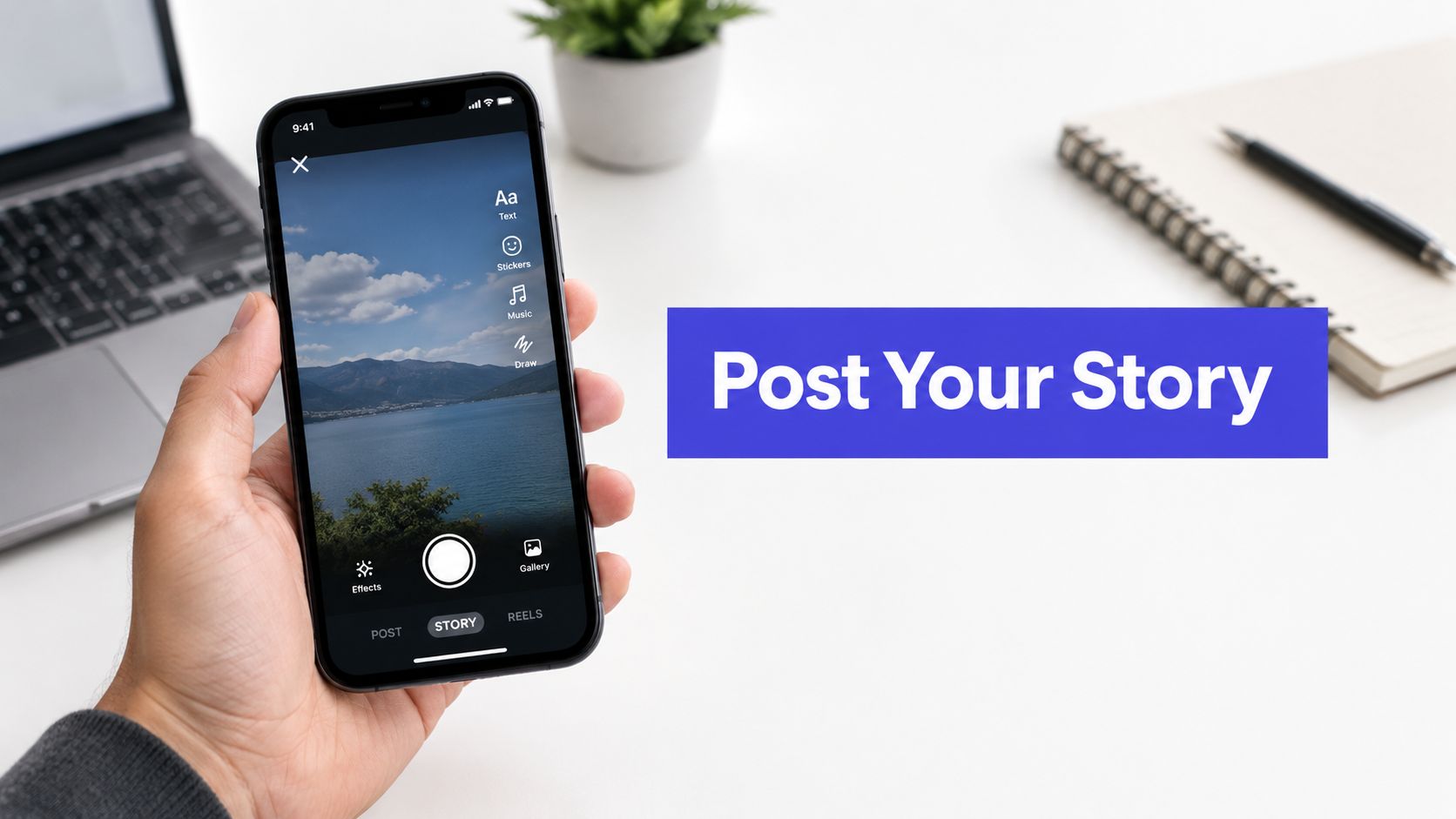
- Tap Create story from the Story area near the top of the app.
- Choose an existing photo or video from your camera roll, or use the in-app camera to capture new media.
- Add text, stickers, music, or other available creative layers. Keep important copy away from the edges, where interface controls can cover it.
- Review the audience and preview. Check that the subject, headline, logo, and call to action remain visible.
- Tap Share to story or the equivalent publishing button shown by your account type.
The exact labels can vary between personal profiles, Pages, and app versions, but the sequence stays familiar: select the publishing identity, choose or capture media, edit it, set visibility, and publish.
Prepare the file before uploading
Meta's Page Stories documentation recommends a 9:16 aspect ratio and 1080 × 1920 pixels for the strongest full-screen presentation. The minimum listed resolution is 540 × 960 pixels. For video, the supported frame rate is 24 to 60 fps. Meta's technical guidance is available in the Page Stories API asset requirements.
Use JPG or PNG for images and MP4 for video when exporting. Keep images at or below 4 MB, and aim to keep PNG files below 1 MB to reduce the risk of pixelation. Video files can be as large as 4 GB, although a Page Story reel can't exceed 60 seconds under Meta's documentation.
The practical choice is simple: design at 1080 × 1920, export a clean vertical file, and test it on a phone before uploading. For a deeper reference on video dimensions and related Facebook formats, use this guide to Facebook video size requirements.
A vertical canvas gives your footage room to breathe. A product demonstration should keep the product near the center, while text should sit inside a comfortable inner margin rather than touching the top or bottom interface areas.
Publishing from the Desktop Browser

A desktop workflow saves time when finished creative sits in a shared drive, a designer has supplied approved files, or an agency needs to review content before publishing. It also exposes a common limitation: Facebook may show the feed composer without displaying an obvious Story control.
Find the publishing entry point
Open Facebook in a current desktop browser, then select the correct profile or Page. Check the Story area and the regular post composer for Create a Story. If the option is missing, select the plus icon near your account name, then choose Story from the dropdown menu. Business Insider's Facebook Story instructions document this route.
Upload the approved image or video, apply any available text or creative treatments, and inspect the preview before publishing. Confirm the identity shown in the composer. A personal profile and a Page may present different controls because permissions, account type, browser updates, and Facebook interface tests can change the available options.
For agency work, keep the source file, approval status, and publishing identity together in the team's shared folder. That reduces the risk of uploading a client asset to the wrong Page or publishing an unapproved revision.
Choose desktop or mobile deliberately
The browser is better for finished assets, shared files, and approval workflows. The mobile app usually provides more camera effects, music choices, and capture tools, so it suits spontaneous footage and edits made inside Facebook.
Facebook has changed where it places creation tools, including music and friend-tagging features. An older tutorial may show a control that has moved or disappeared. If Story is unavailable, check the account switcher, the plus menu, and the selected Page identity before repeatedly refreshing the browser.
Teams should record the current browser path in their internal playbook and maintain a mobile fallback. For queued content, the guide to finding scheduled posts on Facebook helps staff distinguish published items from posts still awaiting approval. That separation matters when several people handle creation, review, and publishing across client accounts.
Maximizing Reach with Native Edits and Privacy Controls
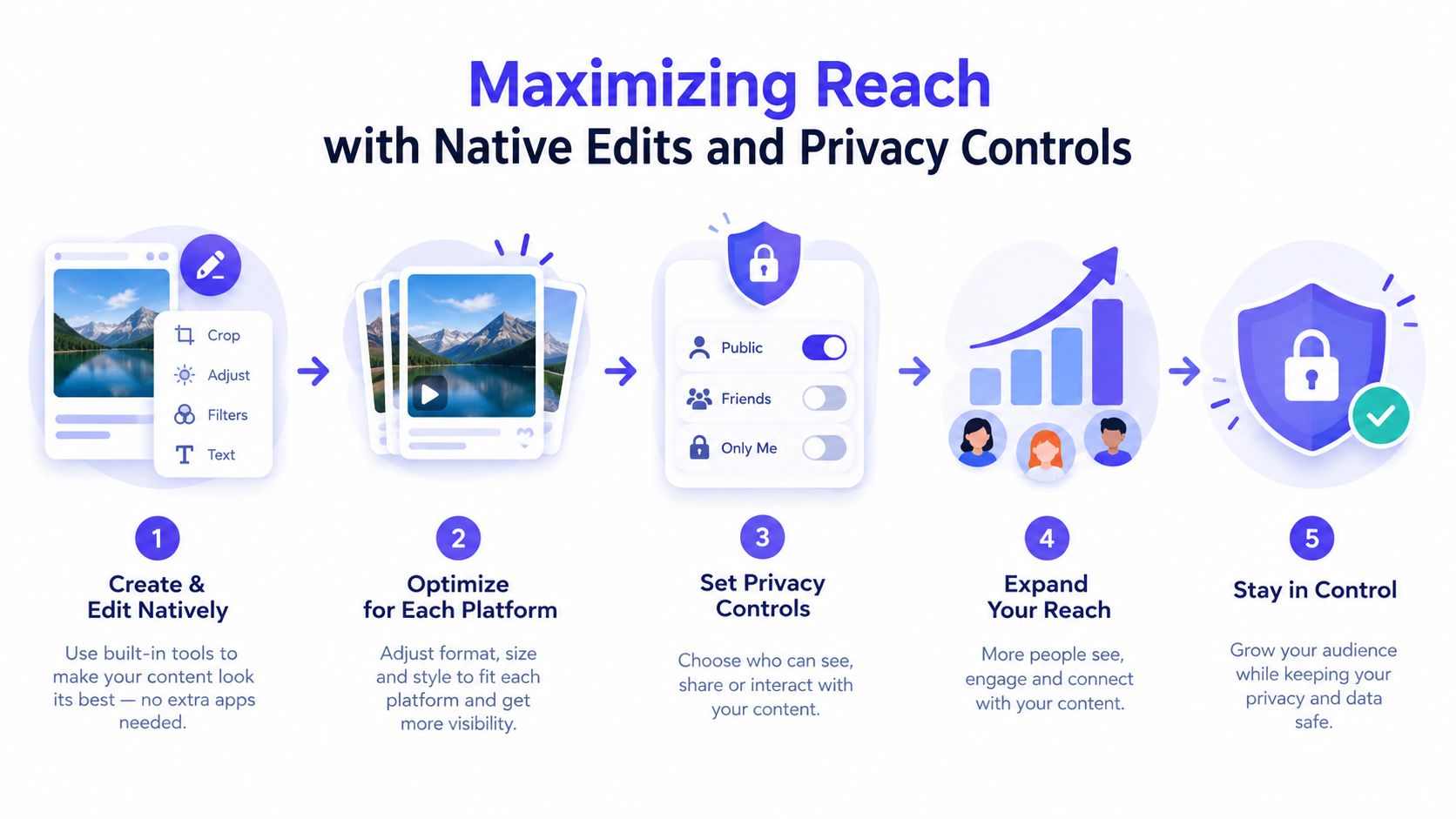
Uploading the right file doesn't guarantee that the right people will see it. A Story becomes more useful when the creative layer, interaction prompt, link, and audience setting all support the same action.
Begin with one message. If the objective is a product click, keep the visual focused on the product and use a short instruction such as “See the new collection.” If the objective is conversation, ask a question and use a reply-friendly sticker or poll when the account has that option. Too many stickers compete for attention and make the frame look like a collection of unrelated prompts.
Place interaction where people can use it
Keep headlines, prices, faces, and product details away from the top and bottom edges. A viewer should understand the frame before interacting with it, so put the primary message on the media itself and use native elements as a secondary prompt.
- Text: Use short lines with strong contrast. Don't place essential copy over busy footage.
- Stickers: Add one relevant interaction rather than covering the subject with decorative elements.
- Music: Match the track to the mood and confirm that it doesn't overpower spoken audio.
- Links: Give the click a reason. “Shop now” is weaker than a specific benefit tied to the Story.
- Mentions: Tag collaborators only when the relationship adds context or distribution value.
If your brand produces many visual assets, a consistent editing system helps more than adding effects at random. Teams that need a repeatable look can use Instagram photo presets as a starting point for color treatment, then adapt the finished images to Facebook's vertical canvas.
Set visibility before you publish
Personal profiles may offer audience choices such as Public, Friends, or a Custom audience. Choose Public when the Story supports broad discovery, Friends when the content is personal, and Custom when a defined group needs access. Review the setting every time you publish from a personal account because the last-used audience may not match the current message.
A Page Story follows a business publishing context rather than a personal friend list. That distinction matters for agencies managing several identities. Check the selected Page before adding the final creative layer, especially when the app remembers the account used in the previous session.
Privacy isn't a minor checkbox. It determines whether an excellent Story reaches the intended audience, a restricted group, or nobody relevant at all.
Scaling Output with PostSyncer Automation
Manual Story publishing works for occasional updates, but it becomes a bottleneck when several brands need daily coverage. A manager has to find the asset, confirm the account, write the overlay, upload the file, check the preview, and repeat the process across workspaces. That routine also makes approval difficult because the final version may exist only inside one person's phone.
A scheduling platform changes the operating model. The team can prepare a batch of vertical assets, label each item by campaign or account, place them on a visual calendar, and route them through review before publication. The trade-off is that automation requires more preparation up front. Native camera effects, spontaneous footage, and some interactive treatments still work better when a person publishes directly in Facebook.
Manual posting versus a managed queue
| Manual workflow | Managed team workflow |
|---|---|
| Assets remain scattered across phones and chats | Approved files sit in an organized content calendar |
| One person carries the daily publishing task | Team members can prepare, review, and manage content together |
| Account switching creates publishing risk | Workspaces and labels clarify which brand owns each asset |
| Repurposing happens at the last minute | A long-form asset can be adapted into vertical creative before launch |
| Reporting requires separate platform checks | Cross-platform analytics can support post-publishing review |
PostSyncer supports a shared workspace for planning and publishing social content, including Facebook formats described in its product materials. Its visual calendar, approval workflows, labels, multi-workspace management, and AI Content Agent can support a process where a team turns a blog post, PDF, image, video, or text brief into draft social assets. Use the Facebook scheduling tool workflow to evaluate whether its queue fits your publishing process.
A sensible agency process starts with an asset folder containing approved vertical files, captions, destination links, and audience notes. One person drafts, another checks the crop and brand details, and the account owner confirms the publishing identity. Keep a small reserve of spontaneous content for moments that need native capture, but use scheduled material for recurring education, product reminders, event promotion, and repurposed content.
The useful shortcut isn't “automate everything.” It's separating repeatable production from moments that need real-time judgment.
Troubleshooting Common Formatting and Visibility Errors
A Story can look polished in the editor and still fail after publishing. The source file may have been built for a feed post, square placement, or widescreen video. Facebook can reframe, crop, or add empty space around that creative, reducing readability and weakening the composition.
Run this diagnostic sequence before blaming reach or the scheduling tool:
- The subject is cropped: Reopen the original project and export a dedicated vertical version. Zooming out inside Facebook rarely restores the intended framing.
- Text is hidden: Keep headlines and calls to action clear of the interface areas at the top and bottom. Preview the finished frame on a phone, because a desktop design window does not show the full viewing context.
- The image looks soft: Re-export from the original source instead of enlarging a smaller file. Keep PNG files under 1 MB, and check the export settings against Meta's technical Story documentation linked in the specs section above.
- The video stops unexpectedly: Confirm that the file fits the Page Story reel limit and uses a supported MP4 export. Divide a longer idea into purposeful frames when one clip becomes crowded or difficult to follow.
- Audio feels wrong: Preview with sound enabled. Check that music has not covered spoken narration, and include the final audio in the video export rather than depending on a separate editing handoff.
- The Story isn't visible: Verify the selected profile or Page, inspect the audience setting, and confirm that publishing completed instead of leaving the item in a queue.
Low completion can point to a delivery or creative problem. A slow opening, unclear first frame, tiny text, or an obstructed subject may cause viewers to leave before the message appears. Start by checking the first frame and source file, then verify the audience and publishing identity.
PostSyncer gives creators, teams, and agencies one workspace to plan, approve, schedule, and analyze content across major networks. Its calendars, collaboration features, AI-assisted repurposing, and cross-platform tools can support a repeatable Facebook Story workflow. Visit PostSyncer to organize approved vertical assets and keep scheduled publishing consistent.