

You set six product Pins on Sunday, closed the laptop, and assumed the week would publish itself. By Wednesday one Pin never appeared, another went live at 3 a.m. for the people who shop, and a third landed on the wrong board. That is what happens when you schedule Pinterest Pins and then stop looking.
Pinterest had 619 million monthly active users at the end of 2025, up 12% from 553 million at the end of 2024, according to Pinterest, Inc., as compiled by Statistics Global. A single clever hour will not carry an account that size. A queue you can inspect, correct, and test will. I would rather run a small checked batch than copy a chart built for someone else's audience.
Choosing Between Native, Bulk and Queue Scheduling
If you can name your next four Pins today, native Pinterest scheduling is enough. If you are lining up a campaign across several weeks, use a CSV or Excel upload plus a queue you can reorder.
| Option | Best for | Batch capacity | Where to check |
|---|---|---|---|
| Native Pinterest scheduling | Single Pins set to a specific day and time | One Pin per set-up | Scheduled Pins list on your profile |
| Bulk upload with CSV or Excel | Planning a month of Pins at once | Up to 30 days of content in one file | File preview, then the scheduled list |
| Post queue with reorder and shuffle | Steady weekly publishing rhythm | An ordered list you can reorder, shuffle, or auto-schedule | Queue view before anything goes live |
| Recurring posts | Evergreen Pins that should repeat | One Pin on a repeating cadence | Recurring entries on the content calendar |
Native scheduling leaves Pinterest's own record of each Pin. That is the record you want when a client asks what is queued. A separate scheduler shows every network on one calendar and lets someone approve a Pin before it publishes. The second view pays off once more than one person touches the account. It is a poor trade when you only have four Pins and no approval step, because you add a login for almost no gain.
Bulk scheduling is the file route. You upload a CSV or Excel sheet and schedule up to 30 days of content, then review it in a bulk scheduling workspace before it leaves the queue. Post Queue lets you build that list and reorder, shuffle, or auto-schedule it. Recurring posts suit a how-to or a product that should come back, not a sale that ends on Friday. Open your own account and confirm the batch limit you see there before you plan a month around it.
Schedule a Pin in Pinterest Step by Step
Say a shop owner has six product photos ready on Sunday night and wants them to publish across the week, not all at once. Native scheduling uses the same creation flow as publishing now. The extra step is choosing a day and time.
Pinterest's business help says you publish a Pin later by selecting the day and time, then review scheduled Pins from your profile. Scheduled content may take a few minutes to appear. Creator guidance calls this putting uploads "on autopilot," which only helps if the Pin is finished before it enters the queue. Pins can keep showing up in search, recommendations, and board activity long after that date, so a sloppy link stays sloppy for a long time.
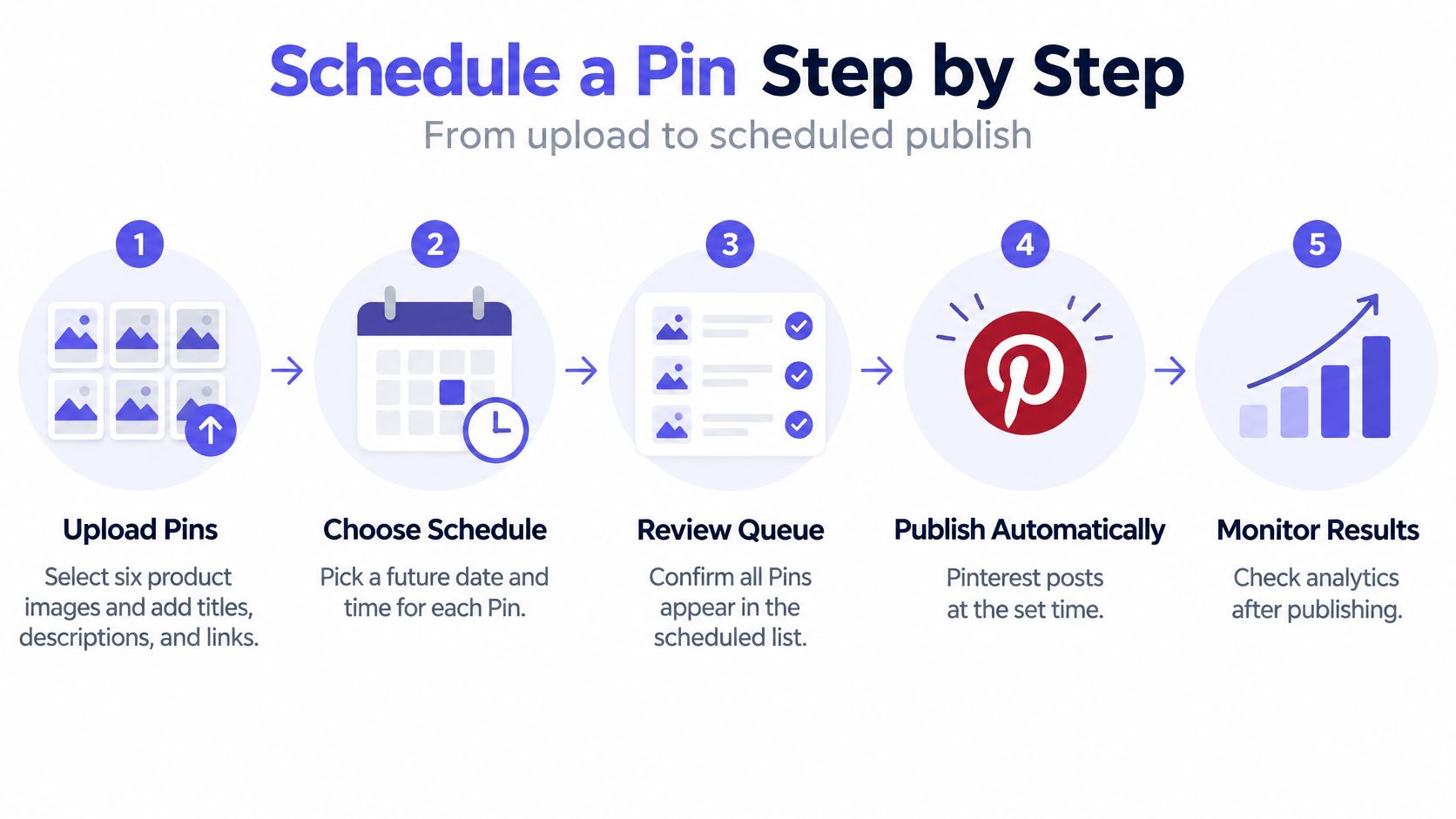
- Open Create and upload the file. Use a vertical 2:3 image for a standard feed Pin so the crop does not cut off the product.
- Write the title and description in search language. Use the words a shopper would type. An internal SKU will not match those searches.
- Add the destination link. A save that cannot reach the product page is a dead end.
- Choose the board that matches the topic. The busiest board is the wrong home when the Pin is about linen, not "all products."
- Pick the day and time in the audience's time zone. Read the date back before you leave the screen.
- Open the scheduled list on your profile. The Pin should show the time you set.
For the first few Pins, look again at least ten minutes after the set time. A short delay is normal. A missing Pin is not.
Practical rule: Before every batch, the link loads, the board matches the topic, and the time zone matches the audience. I would not queue a Pin that fails any one of those three.
Editing, Rescheduling and Deleting Scheduled Pins
A scheduled Pin sits on the scheduled list on your profile. Open it there and read the title, board, link, and time before it goes live. Pinterest changes menu labels, so match the words in your account rather than a screenshot from last year.
Change the time. Reopen the Pin, set the new date and time in the audience's time zone, and save. Return to the list. If the old slot is still there, you saved a second copy instead of a replacement.
Cancel it. Delete the Pin from the scheduled list. Do not publish a stand-in and delete the original later. The leftover becomes a duplicate, and the two near-copies split saves.
Correct a live Pin. Once it has published, edit the live title, description, or link. Posting it again creates a second Pin and throws away whatever distribution the first one already started.
Change one field per edit. If you rewrite the title and move the board in the same save, you will not know which change moved the saves.
Building a Weekly Pin Plan That Stays Consistent
In 2025, Hootsuite put the recommended Pinterest publishing frequency at at least 1 Pin per week. That is a floor. A quiet consultancy can live near it. A retail brand should not.
HubSpot's 2025 data found that 19.7% of marketers posted on social media multiple times per day and 30.9% posted multiple times per week, and that B2C marketers generally pin more frequently on Pinterest than B2B marketers. Build the shop's grid heavier than the consultancy's.
A two-board grid
Use one row per board and one column per weekday. Each cell holds a title, a link, and a publish date. A home décor shop might plan three Pins a week across two boards, rotating a seasonal collection with an evergreen care guide. That is an example cadence, not a quota you owe the platform.
- Create original Pins on a set day. Fresh creative beats another copy of last month's graphic.
- Assign each Pin to a relevant board. One idea per board keeps the grid readable.
- Put a descriptive title and a destination link in the cell. A blank cell means the Pin is not planned.
- Add the topic keywords while the grid is open. Doing it after publish is how descriptions stay empty.
Load the batch a week or two ahead on a content calendar you can drag and drop, so a slipped launch does not leave a hole. You can lay out weeks of posts in minutes once the cells are filled. The plan is working when no week is empty and each active board gets at least one Pin that week.
Testing Publish Times Instead of Copying Best-Time Charts
Most scheduling posts still sell a fixed evening window or a magic weekday. That advice is too generic to run an account on.
A Tailwind scheduling guide points to the strongest recent dataset in this area: about 1.2 million organic Pins from more than 17,000 creator and business accounts across 2023 to 2024. Averages that large still are not a rule for a niche shop, a seasonal product, or a profile that launched last month. Audience geography, seasonality, and Pin format can each move the result.

Run one variable at a time
Keep the landing page, the audience, and the topic fixed. Change only the publish day, or only the hour, across three or four weekly cycles. Compare saves and outbound clicks, not impressions in the first hour. Early activity is not the whole story when discovery keeps going after the slot you picked.
For a brand with buyers in several countries, test a local morning in each major market instead of one headquarters clock. A historical "best time" chart will not transfer cleanly to a new profile. Keep a control period so you can see whether the new hour beat the old one. Scheduling optimization is that comparison, not a hunt for a universal slot.
The walkthrough below shows what a publish-time test looks like once you stop copying a generic chart.
If saves and clicks stay flat across every slot you tried, stop hunting the hour. Consistency and the creative are doing more work than the timestamp.
Running the Scheduled Queue and Fixing Failed Pins
A scheduled queue fails without warning. A Pin that never publishes leaves an empty slot you only notice if you go looking for it. Pinterest's developer guidelines require that, when an app supports scheduled publishing, the end user must choose each Pin to be published. The same guidance expects the connection to be authenticated, the board and media checked first, failures retried, and a hard failure shown to a person. Pinterest Analytics lets you review Pin performance over custom date ranges, which makes a weekly review the place to catch whatever the queue missed.
Pinterest's create guidance states that Pin engagement can occur hours, days, months, or even years after publication, with distribution shaped by language, location, seasonality, holidays, format, and trends. The same guidance flags irregular publishing, duplicated low-value creative, irrelevant boards, a missing destination link, and judging only impressions. A Pin can publish on time and still underperform for weeks before anyone reads the numbers, so the check below covers both sides: did it go out, and did it earn anything.
The Monday check
- Confirm the business account is still connected. An expired connection is the usual reason a Pin never appears.
- Check that you selected each Pin yourself before it entered the queue.
- Validate the board, image or video, title, description, and link.
- Set the time in the audience's time zone.
- After the set time, confirm the Pin is on the profile and note the status in your calendar.
- Review saves, outbound clicks, and top boards. Impressions alone will not tell you whether the queue earned anything.
| Symptom | Likely cause | Fix |
|---|---|---|
| Pin missing from profile after set time | Account connection expired | Reconnect the business account and re-queue the Pin |
| Pin appears at the wrong hour | Time zone set to your location, not the audience's | Reset the time in the audience's time zone and recheck |
| Pin fails to upload | Image or video not reachable or wrong format | Re-upload the media in the correct format and preflight-check it |
| Two identical Pins published | Retry created a duplicate | Delete the copy and keep one entry per Pin |
| Pins publish but get few saves | Irrelevant board or missing destination link | Move the Pin to a relevant board and add a working link |
| Strong impressions, weak clicks | Judging only impressions | Track saves and outbound clicks over a longer window |
Open the profile list every Monday. Reconnect when the account prompts you, re-upload any file that will not load, and put a failed Pin back on the calendar the same day. A failed Pin found weeks later in analytics is how a quiet week becomes a quiet month.
When a retry creates a duplicate, delete the extra and keep one entry per Pin. Two copies confuse distribution and split your saves and clicks between them, so neither number reflects what the Pin earned. Score the queue on saves and outbound clicks across the window the test ran. That weekly check is what turns scheduling from a set-and-forget timestamp into a publishing process you can measure.
Start Your First Scheduled Pin Batch This Week
Pick five to seven Pins, existing or new, around one topic people search without typing a brand. Compilations citing Pinterest and independent measurement sources report more than half of Pinterest searches are commercial, and that 96% of top searches are unbranded, according to Market Intelligence Tools. A gift guide, a room style, or a clear product use beats a logo Pin for this first batch.
Schedule those Pins across the next two weeks. Use the native steps if the set is small. Use a CSV or Excel upload if the rows are already in a sheet.
- Confirm each Pin on the profile after its set time.
- Log saves and outbound clicks for that Pin.
- Mark any Pin that never published and fix it that day.
Change one thing only, the day or the board, so the result means something. At the end of the two weeks, decide. If the batch published cleanly and earned saves, add a second board and another week. If Pins stalled or clicks stayed near zero, fix the link, the board, or the connection before you add volume.
The first batch is a test, not a campaign. Judge it across the full two weeks, not on the morning after the first Pin.
PostSyncer lets you plan and publish Pins with the rest of your social schedule across 11+ networks, including Pinterest, from one calendar, and bulk scheduling can load a CSV or Excel file for up to 30 days of content. If you want the queue, approvals, and publish-time comparisons in the same place you already run client work, start with PostSyncer.