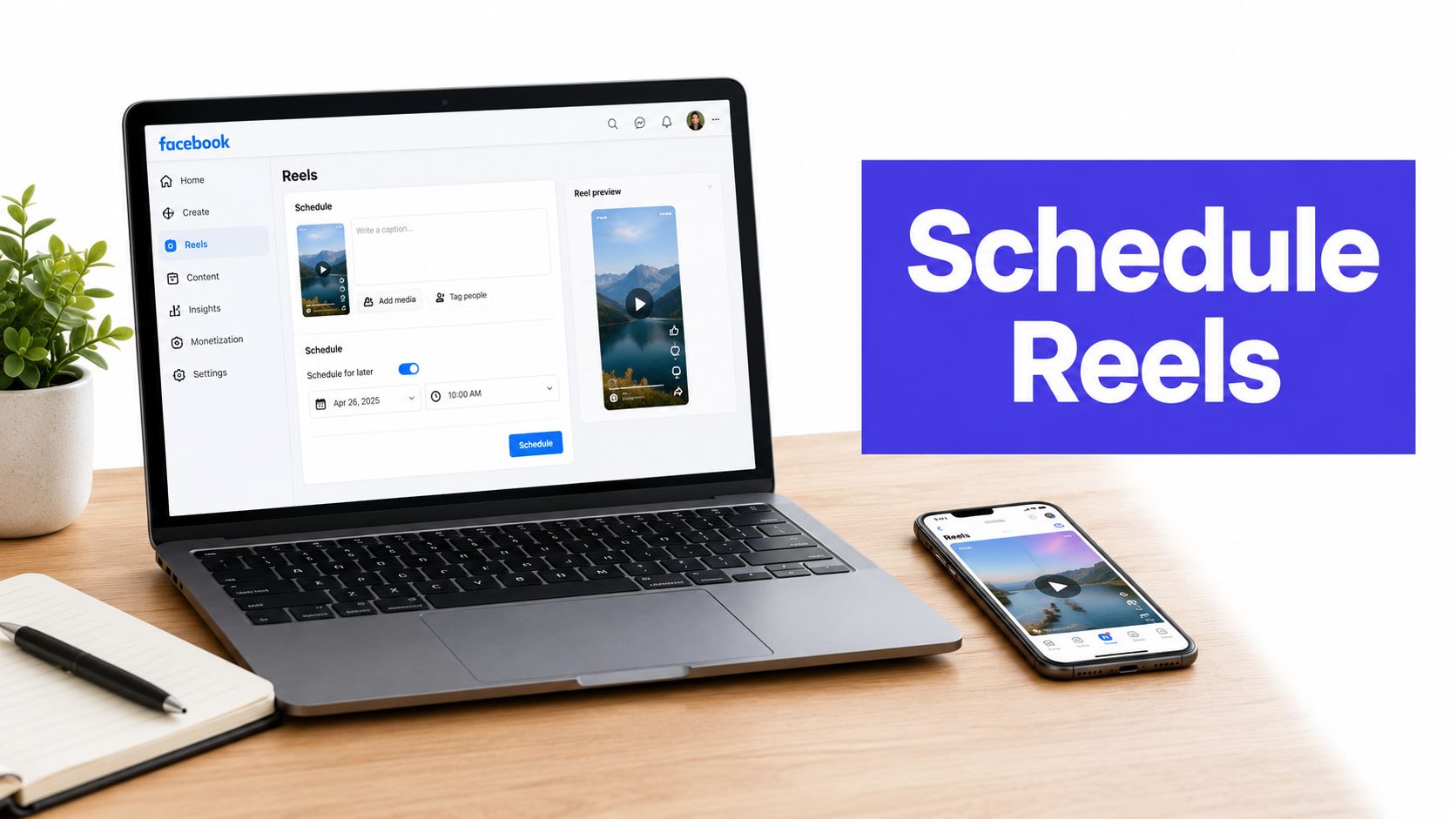












Meta Business Suite lets you choose a specific date and time to publish a Facebook Reel, so you don't have to post manually while your audience is online. You can create the Reel, select Facebook or both Facebook and Instagram, and confirm “Schedule for later” from the publishing flow.
You've probably experienced the frustrating alternative. A Reel is edited, captioned, and ready to go, but the right posting window arrives while you're in a meeting, travelling, or asleep. By the time you remember it, the content feels late and your carefully planned calendar has slipped.
That problem becomes harder when you manage several Pages, brands, or networks. Meta says people share 3.5 billion Reels every day across Facebook and Instagram, according to industry coverage of Meta's creator reporting. Scheduling isn't a substitute for strong creative, but it separates production from publishing, which makes consistent short-form video much easier to operate.
The Challenge of Consistent Reels Publishing
A product demonstration filmed in the afternoon can still miss its intended audience window by evening. Editing runs over, the caption needs approval, or the person responsible for publishing becomes unavailable. Manual posting turns an evergreen Reel into a deadline.
That pressure affects the workflow, not just convenience. Teams rush approvals, publish inconsistently, or leave finished videos in a camera roll because nobody can release them at the planned time. A scheduled queue separates creative production from publishing, giving the team time to review assets and make deliberate distribution decisions.

Why manual posting breaks down
Facebook Reels support frequent discovery and sharing. Industry coverage has reported 2 billion daily reshares in one 2024 estimate and more than 140 billion daily views in another, as summarized in Facebook marketing statistics coverage. The estimates differ, but the workflow implication is consistent: a high-volume format creates avoidable friction when every post depends on someone being online.
A business with one Page may handle that friction through Facebook or Meta Business Suite. An agency managing several clients faces more handoffs. Each account requires the correct permissions, destination, caption, review status, and publishing owner. A broken handoff can delay a Reel or send it to the wrong Page.
A content calendar workflow for social media records the asset, caption, destination, owner, review status, and intended time before anyone opens a publishing tool. That simple checkpoint prevents teams from uploading first and deciding the distribution plan afterward.
Practical rule: Schedule routine, evergreen Reels. Keep timely reactions and trend-dependent posts flexible until you confirm which creative features the chosen publishing route supports.
Scheduling also protects production quality. Batch filming several related clips, review covers on a larger screen, confirm destinations, and queue approved assets in one work block. Native Meta tools suit a Facebook-first queue, while a cross-platform scheduler such as PostSyncer can fit teams coordinating several networks. The trade-off is checking whether the external workflow preserves the editing and publishing features the Reel requires.
Audience consistency improves when publishing no longer interrupts the rest of the workday.
Scheduling Reels via Meta Business Suite
Meta Business Suite is the most direct option when Facebook is the main destination and you want to stay inside Meta's own publishing environment. The desktop planner and mobile app use slightly different layouts, but the essential path is consistent: create a Reel, prepare its presentation, choose the destination, set the time, and confirm the schedule.
The desktop workflow
- Open Meta Business Suite. Select the Facebook Page you manage, then open the content creation area or planner.
- Choose Create Reel. Upload the finished vertical video rather than starting with a regular post if the intended format is a Reel.
- Select the destination. Choose Facebook Reels only, or select both Facebook and Instagram when the connected accounts and creative are suitable for both platforms.
- Prepare the presentation. Add the caption and thumbnail. Use the edit screen for available cropping, text, or audio adjustments.
- Choose the publishing option. On the final screen, select “Schedule for later”, then pick the date and time.
- Confirm Schedule. Review the preview and destination before confirming, especially when both platforms are selected.
The scheduling window generally runs from 20 minutes to 29 days, as described in Meta Business Suite scheduling guidance. That range is long enough for a working campaign calendar, but it isn't a replacement for a longer-term planning system. Store future ideas and approved assets separately, then move them into Meta when they enter the available scheduling window.
Finding and managing scheduled Reels
To locate scheduled content, open Content, then Posts & Reels, and filter for Scheduled. From there, you can inspect the queue and make permitted changes before publication. If the creative needs a substantial rewrite, deleting the scheduled item and creating a corrected Reel is often cleaner than trying to modify every element inside the existing draft.
The mobile route follows the same logic. Open the Meta Business Suite app, tap the create control, select Reel, upload the video, choose “Schedule for later”, and confirm the date and time. Use the app when you're approving a finished asset on the move, but use the desktop planner when you need to compare several queued posts or coordinate a team review.
Here's a short visual walkthrough of a scheduler-based approach to the same publishing task:
Native Tools vs. Cross-Platform Schedulers
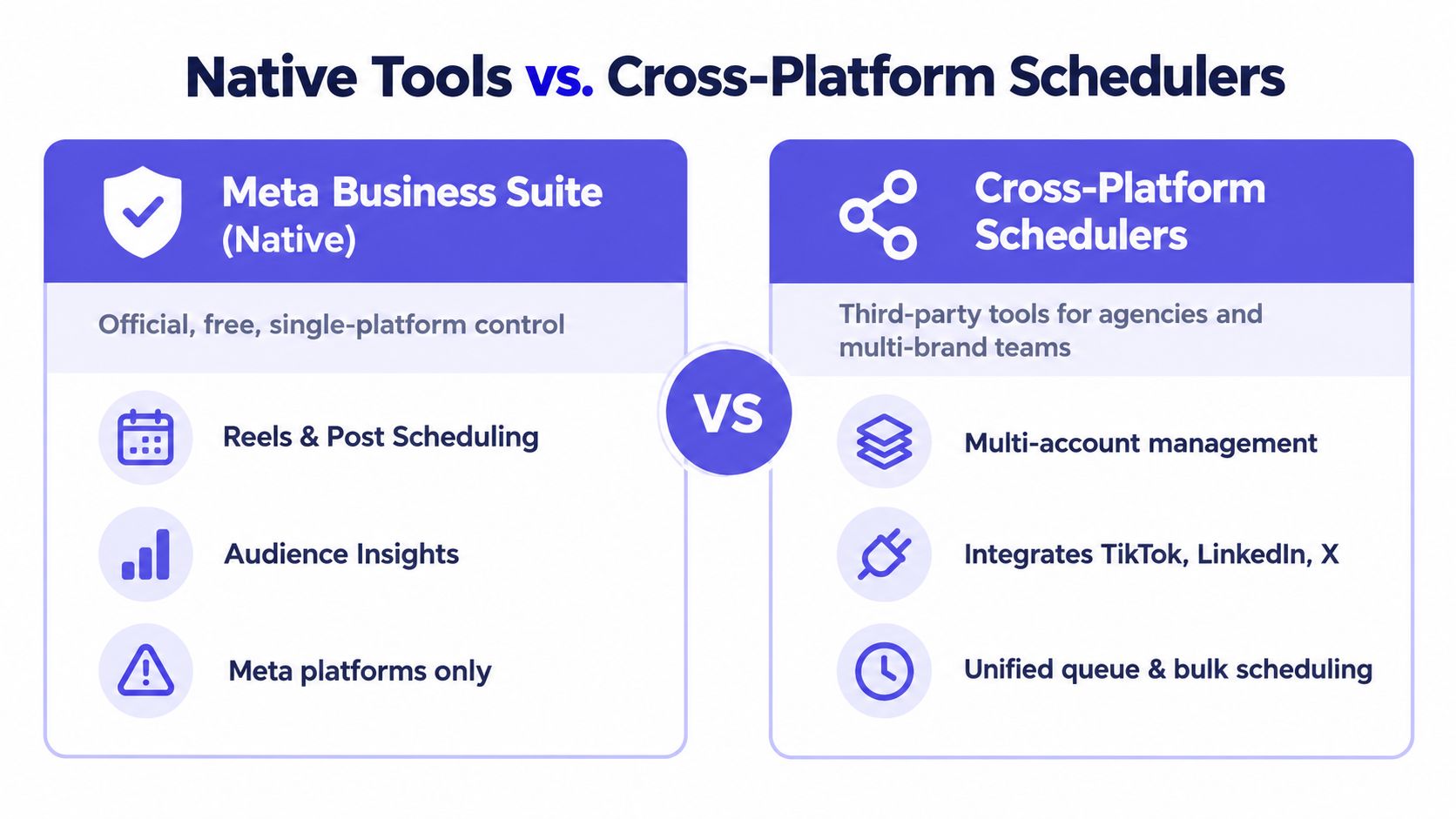
Meta Business Suite works well when the publishing problem is limited to Facebook and connected Instagram accounts. It gives you an official route, a native content queue, and access to Meta's account context without requiring another dashboard.
The trade-off appears when the team manages several networks or brands. A native tool keeps Facebook tasks close to Facebook, but it can force the operator to switch between calendars, approval channels, account selectors, and publishing screens. That creates room for destination errors, especially when a Reel is intended for Facebook only but the connected Instagram account is selected by default.
Choose the tool around the workflow
| Need | Meta Business Suite | Cross-platform scheduler |
|---|---|---|
| Facebook-only publishing | Direct and native | Useful, but adds another connection |
| Several Pages or brands | Possible, with account switching | Centralized workspace |
| Cross-network planning | Limited to Meta destinations | Can coordinate networks in one calendar |
| Approvals and ownership | Basic workflow | Often designed around team review |
| Native creative features | Closest to Meta's own options | May not expose every in-app feature |
For a solo creator with one Page, the native option is usually the sensible starting point. It avoids unnecessary setup and keeps the Reel close to the platform where it will appear.
For an agency or in-house team, a cross-network calendar can be more practical. PostSyncer is one option that combines Facebook Reel scheduling with multi-account management, approval workflows, labeling, content calendars, analytics, and a unified comments inbox. Its AI tools can also help repurpose source material into captions or short-form concepts, but the team should still review each platform version rather than publish identical copy everywhere.
The right comparison isn't “free versus paid.” It's native capability versus operational control. If a scheduled Reel needs an interactive sticker or a specific music feature, publishing directly in Meta may preserve more creative flexibility. If the bigger risk is a missed approval or a disconnected client account, a centralized workflow may reduce more friction.
For teams also planning Instagram-specific content, the guide to scheduling Instagram Reels is useful for mapping the shared workflow without assuming that every Facebook and Instagram feature behaves identically.
Essential File Formats and Technical Specs
A scheduling failure often starts before the calendar. The video may look fine on a phone but still fail validation because its dimensions, duration, file size, or encoding don't match the direct-publishing requirements.
For Facebook Reels, prepare a vertical 9:16 file, between 4 and 90 seconds, at least 540 × 960 resolution, under 512 MB, and saved as .MP4 or .MOV. These requirements are summarized in Facebook Reel file guidance.
Pre-upload checklist
- Frame: Export at 9:16 so the video fills the vertical Reel placement without awkward cropping.
- Duration: Keep the file within the 4 to 90-second requirement.
- Resolution: Use at least 540 × 960. Higher-quality source footage can still be compressed by Facebook.
- Container: Choose MP4 or MOV, and test the final export rather than the editing-project file.
- Size: Check that the file stays below 512 MB before uploading.
- Video encoding: H.264 or H.265 compression, square pixels, fixed frame rate, and progressive scan are recommended.
- Audio: Use AAC audio at 128 kbps or higher where audio is part of the creative.
A technical export checklist also protects scheduling time. If a file is rejected after a caption, thumbnail, and destination have already been prepared, the team has to repeat part of the workflow. Exporting a platform-ready master first keeps the publishing stage predictable.
Audio deserves its own review. If you create original sound or need music that fits the Reel's mood, Vocuno for content creators is a relevant resource for exploring AI music workflows. Confirm that the resulting track is cleared for the account and intended use before adding it to a scheduled file.
For a broader reference on dimensions and export choices, use this Facebook video size guide. Then upload a short test asset when connecting a new account or changing your export process, rather than discovering a compatibility issue on a campaign deadline.
Navigating Feature Limitations and Pitfalls
A scheduled Reel isn't always identical to one published immediately from the Facebook or Instagram app. The main difference is that scheduling routes the asset through a publishing workflow, and some native creative options may not be available at that stage.
Industry guides specifically flag limitations around interactive stickers and certain music features when Reels are scheduled through Meta Business Suite or third-party interfaces. That doesn't make scheduling unusable. It means the creative plan should account for the publishing method before the editor builds the entire concept around an effect or audio track that the scheduler can't carry through.
Separate the two publishing paths
Use native publishing when the Reel depends on an in-app element that the scheduling interface doesn't expose. Uploading at the time of publication takes more coordination, but it lets the publisher make final creative choices inside the platform.
Use scheduled publishing for assets whose core creative is already complete. Product demonstrations, educational clips, behind-the-scenes edits, and evergreen announcements usually work better in a queue because the team can check the file, caption, cover, and destination in advance.
Account access creates a second class of failure. A Page may be visible in one workspace but unavailable to the person who is trying to publish, or an Instagram connection may need to be reauthorized. Guidance on scheduling and publishing Facebook Reels highlights account reconnection and placement selection as practical friction points.
A simple preflight prevents most surprises:
- Verify Page access: Confirm the publisher still has the required role.
- Check connections: Reconnect the Instagram account if the cross-posting option disappears.
- Confirm placement: Select Facebook only when Instagram isn't part of the plan.
- Review creative dependencies: Remove or redesign features the scheduler can't preserve.
- Inspect the queue: Check the scheduled item after saving it, not only before submission.
Before a launch: Test the exact destination, account, file, and creative format in a low-risk post. A successful upload doesn't prove that every connected placement is configured correctly.
Optimizing Your Reels Scheduling Strategy
Scheduling works best as a control system, not as an excuse to disappear after pressing the button. The strongest workflow combines batch production, deliberate timing, a destination check, and human engagement after the Reel goes live.
Start with audience behavior inside Meta's own insights. Look for periods when followers are active, then use those windows as hypotheses rather than permanent rules. A good schedule is an informed starting point, but the audience can change, and a Reel's subject may perform differently from a promotional announcement.
Build a queue you can maintain
Separate the calendar into three layers:
- Evergreen Reels: Tutorials, demonstrations, FAQs, and repeatable educational material can fill planned slots.
- Campaign Reels: Product launches, events, and coordinated announcements need extra approval and destination checks.
- Timely Reels: Trend responses and current commentary should stay flexible until the final creative and audio choices are known.
This structure stops the calendar from becoming a storage bin for every finished video. It also makes review easier. Someone can scan the queue and identify which posts can stay scheduled, which need a current-event check, and which should be published manually.
Batching helps, but don't batch without variation. Record a group of related clips, then give each one a distinct opening, caption angle, cover, or audience question. Reusing the same edit with minor changes can make a calendar feel repetitive even when the publishing rhythm is reliable.
Human follow-through matters: Automation gets the Reel onto Facebook. Replies, moderation, and useful follow-up turn that publication into a conversation.
Review performance after publication, but avoid changing several variables at once. If you change the posting window, opening hook, caption style, and topic together, you won't know which adjustment affected the result. Keep a simple record of the destination, subject, format, scheduled time, and audience response, then use the pattern to plan the next batch.
For a single Facebook Page, Meta Business Suite is usually enough. For several accounts, approval stages, and cross-network campaigns, use a centralized scheduler when the workflow savings justify the added connection and feature trade-offs. In either case, keep a manual publishing path available for Reels that depend on native audio, stickers, or last-minute context.
PostSyncer lets you plan and publish Facebook Reels alongside content for other major networks from one workspace, with a visual calendar, account management, approvals, analytics, and engagement tools. If switching between brand accounts is creating broken publishing flows, visit PostSyncer to review whether its cross-platform workflow fits your team.