

You've got the images, the caption is nearly approved, and the post needs to go live while you're in a meeting. You schedule it, close the tab, and assume the job's done. Then publication time arrives, and the carousel never appears.
Learning how to schedule Instagram posts is straightforward. Building a calendar you can trust takes more care. Treat scheduling as a publishing process with asset checks, clear ownership, and a timing test, not as a shortcut to more reach.
Scheduling Options and Limits Compared
Instagram scheduling methods and limits
| Method | Formats | Limits | Watch for |
|---|---|---|---|
| Meta Business Suite | Feed posts, carousels, Reels | Native scheduling window and daily cap shown for your account | Unsupported features such as product tags |
| Instagram app | Feed posts, carousels, Reels | Check the available date range and daily allowance in your account | Eligible public accounts only |
| Third-party scheduler | Feed posts, carousels, Reels, plus Shorts on supported networks | Subscription allowance and Instagram publishing rules both apply | Keep the Instagram connection authorized |
| Graph API | Single JPEG images, carousels with images or videos | Rolling account-level publishing quota | Media URL must be publicly reachable |
The first decision isn't which tool has the longest feature list. It's where you need to manage the work. Meta Business Suite makes sense when you prepare Instagram content on a desktop. The Instagram app suits a creator who finishes content on a phone and doesn't need another workspace.
A third-party scheduler becomes useful when the calendar includes other networks or another person must approve posts. Connect through the platform's authorization flow rather than sharing an Instagram password with teammates. Shorts belong to other supported networks, not Instagram, so don't mistake multi-network format support for Instagram compatibility.
Separate planning limits from publishing limits
An advance-scheduling window controls how far into the future you can reserve publication. A daily scheduling cap controls how much native scheduled content you can place on a date. An API publishing quota is a separate restriction on automated publishing.
Those distinctions matter during launches. A tool may let you build a long queue without guaranteeing that every item can publish at the chosen time. Keep campaign ideas in your planning calendar even when they're outside the date range available in the publishing interface.
Practical rule: A calendar entry proves that you saved a publishing instruction. It doesn't prove the account and media will pass every check at release time.
For image-heavy campaigns, decide the carousel structure before uploading. This guide to how many pictures you can post on Instagram helps distinguish a carousel's capacity from the number of posts you're scheduling.
Find the row that matches your actual setup: an account managed on desktop, several networks from a shared calendar, or a developer pipeline. Choose the simplest route that supports your review and publishing requirements.
How to Schedule Feed Posts and Carousels in Meta Business Suite
Start with the finished post, not a folder full of near-final exports. Keep the approved caption beside the final media so you don't accidentally combine yesterday's copy with today's slides.
Meta's scheduling guide describes selecting a content type, adding text and media, choosing Schedule for later, and managing the item in Planner; its Active times suggestions use follower activity from the previous 7 days. Treat those suggestions as candidate slots, not a promise of better performance.
This visual summarizes the publishing sequence.
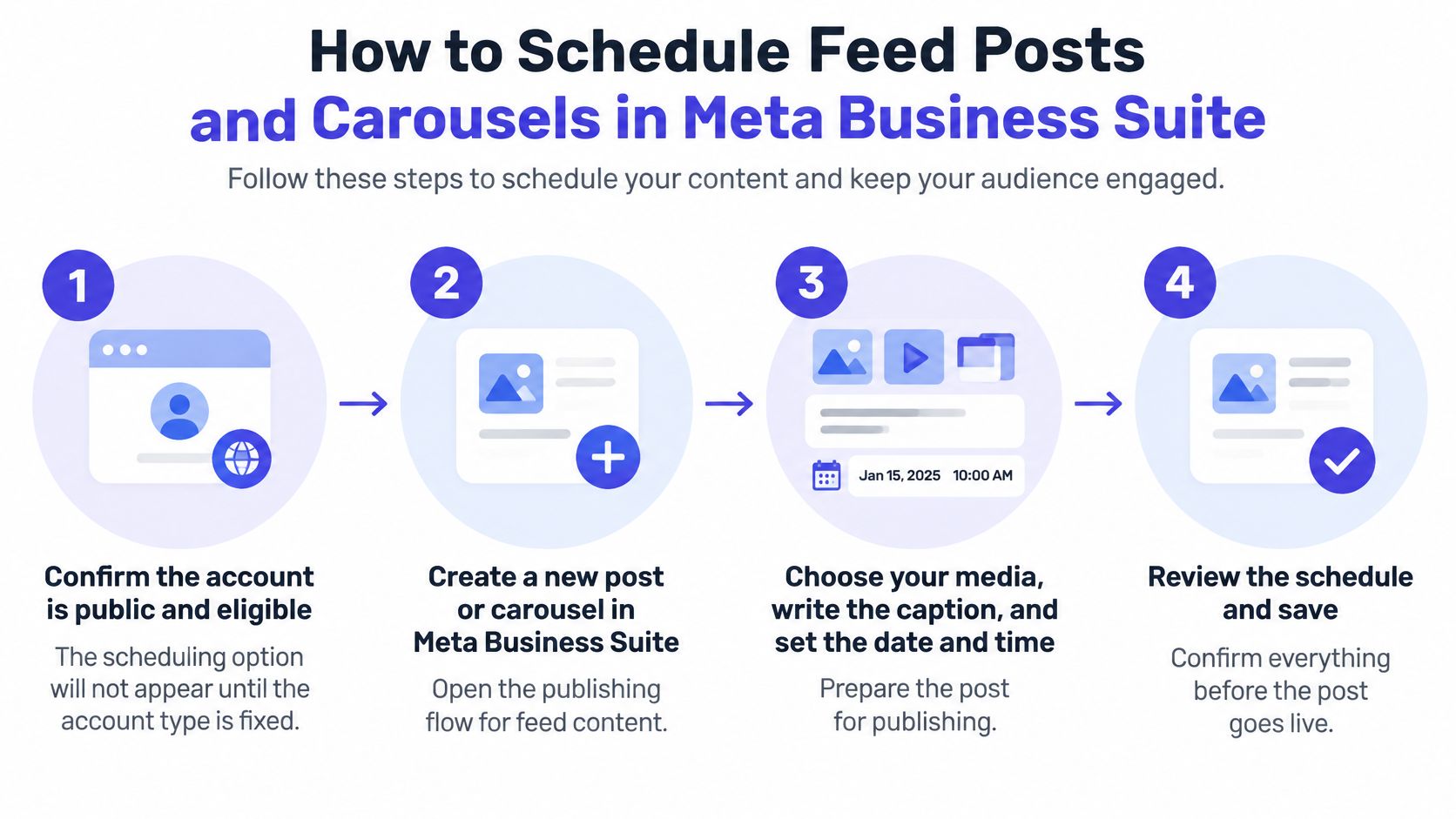
Prepare and schedule the post
Confirm account eligibility. Check that the Instagram account is public and eligible for scheduling before troubleshooting the composer. If scheduling isn't available, inspect account settings and access permissions rather than repeatedly rebuilding the draft.
Open Meta Business Suite, select the intended Instagram account, and choose Create post for feed content. Check the destination before uploading, especially if you also manage Facebook or several brands.
Upload the final media in reading order. Use finished JPEG exports for a photo workflow, then inspect each carousel slide in the preview. Filenames such as “opening,” “details,” and “closing” are safer than relying on the order files happen to appear in a folder.
Add the caption, location, and available audience settings. Read the caption in the composer, not just in your copy document, because pasted text can contain internal notes, broken spacing, or an outdated offer.
Choose Schedule for later, then select an available date and time. Check the displayed time zone against the audience's location, particularly when your computer, business account, and client operate in different cities.
Confirm the schedule and open Planner. Find the actual calendar entry and inspect its status rather than relying only on a confirmation notification. Reopen the item to verify the destination, preview, and saved caption.
Review the saved version
The saved post is the version that matters. If someone sends a revised graphic after scheduling, replace the asset in the queued item and inspect the preview again. Updating a file in your shared drive doesn't mean you've updated the scheduled post.
For a carousel, read through it as a follower would. The opening slide should introduce the topic, middle slides should make sense in sequence, and the closing slide should match the caption's call to action.
Before leaving Planner, confirm:
- Placement: The post sits on the intended day and belongs to the correct Instagram account.
- Presentation: Crops, slide order, and readable text match the approved creative.
- Copy: No draft labels, approval requests, or placeholder wording remain.
- Ownership: Someone knows they're responsible for checking publication and handling replies.
A correct setup ends with a clean, scheduled item in Planner, not merely an uploaded asset or an unfinished draft.
Reels and Carousels That Fail to Publish
Check feature eligibility before spending time on export settings. A post built around a collaboration or product tag needs a different publishing decision from an ordinary feed update.
Instagram's scheduling guidance states that eligible public accounts can schedule photos, carousels, and Reels up to 30 days ahead, with 25 scheduled posts per day, and excludes product tags, collaborative posts, sponsored posts, and fundraisers from scheduled content. It also describes JPEG image publishing, carousels of up to 20 items, and a limit of 100 API-published posts per account in a rolling 24-hour period, with each carousel counted as one post.
Use this checklist to catch blockers before booking the slot.
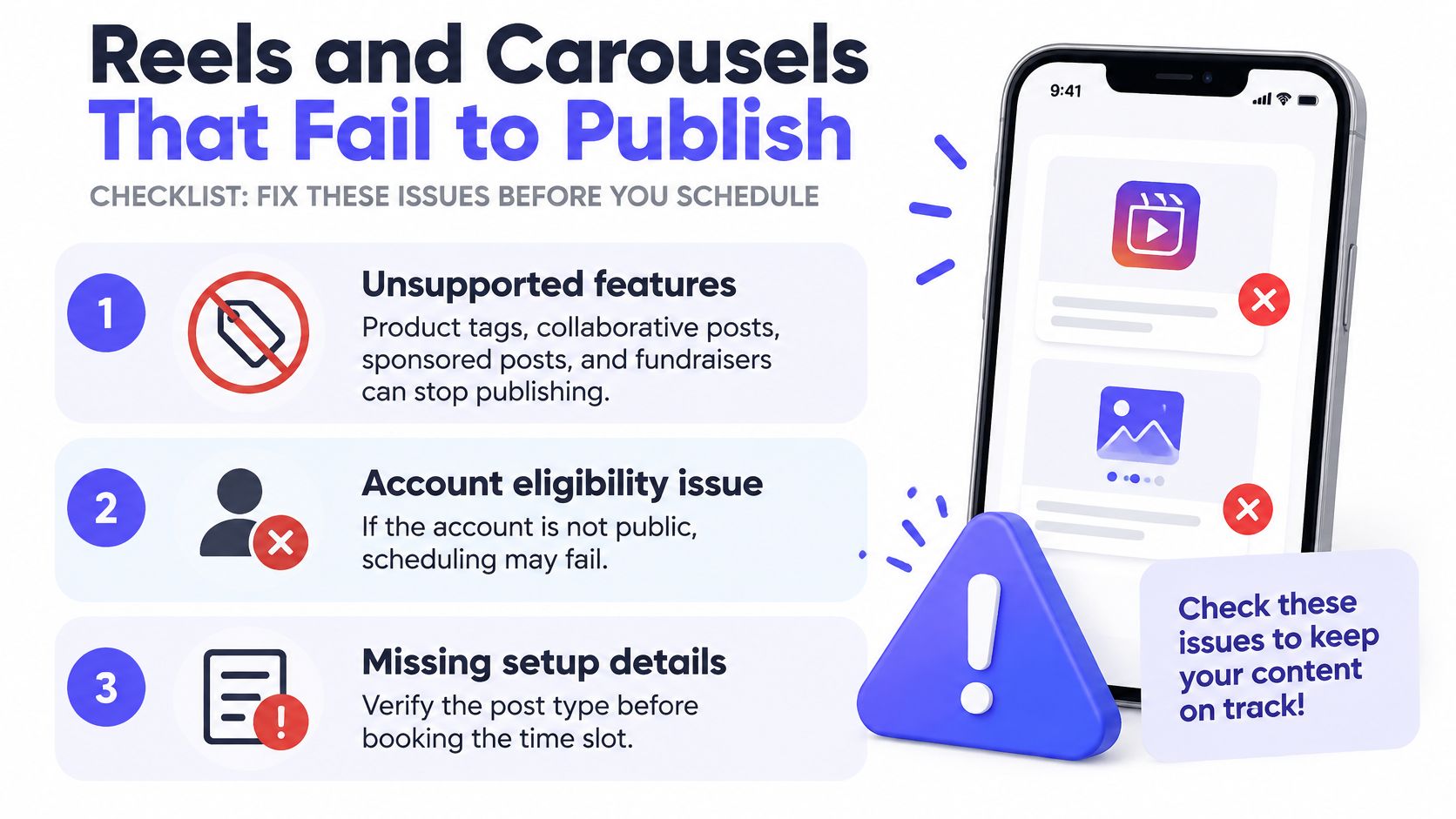
Run the preflight checks
Remove unsupported features. Inspect the post for the excluded features before scheduling. If the feature is central to the campaign, keep the approved content ready and publish through an appropriate manual workflow instead.
Open the actual asset. Play the final Reel with sound and swipe through every carousel item. For API publishing, test the media URL in a signed-out browser so a private drive link doesn't masquerade as an accessible file.
Check format and processing. Confirm that the export matches the publishing route, not merely that it opens on your laptop. In a custom integration, create the media container, validate its processing status, and only then call the publish endpoint.
Verify account access. Inspect the connected account after a role change, reconnection, or permissions update. Confirm that the person or integration doing the publishing still has the required access.
Inspect the publishing queue. For automated campaigns, track quota usage per Instagram account rather than across the agency workspace. Investigate uncertain publish responses before retrying so you don't create duplicate publications or unnecessary requests.
Diagnose before retrying
A useful failure log records the account, scheduled time, asset, error message, and current publishing status. That gives the person fixing the problem something more actionable than “Instagram didn't work.”
Don't rebuild the whole campaign when a media fetch failed. Correct the inaccessible asset, confirm processing, and check whether anything published before issuing another publish request.
For a video walkthrough alongside the checklist:
Choosing a Third-Party Scheduler for Your Team
Which scheduling option fits which situation
| Situation | Best option | Reason |
|---|---|---|
| One Instagram account, feed and Reels only | Meta Business Suite | Native, with no extra tool to maintain |
| Several networks from one calendar | Third-party scheduler | One queue across Instagram and other networks |
| Team that needs review before posting | Third-party scheduler | Shared calendar and collaboration |
| Bulk publishing or custom pipeline | Graph API | Programmatic control, with a rolling publishing quota |
Pay for coordination when coordination is the problem. If your process is preparing an Instagram post and selecting a time, another dashboard may add more administration than value.
The calculation changes when a designer, copywriter, account manager, and client all touch the same post. A shared calendar can make the approved version and publishing owner visible without passing screenshots through separate conversations.
Evaluate the handoff, not just the composer
Test the awkward parts of your process during a trial. Ask a reviewer to request a change, replace an asset after approval, move a campaign, and identify who can authorize publication. A polished upload screen doesn't tell you whether those handoffs work.
Silver Spoon Agency's guide can help you coordinate content across social platforms before you turn campaign plans into scheduled posts. Establish campaign themes and ownership first, then adapt captions and release times for each network.
Our Instagram scheduler guide offers another way to assess that workflow. PostSyncer supports planning and publishing across 11+ networks, including Instagram, TikTok, LinkedIn, YouTube, and the other supported channels; users can reorder or auto-schedule a queue, set platform-specific times, create recurring posts, and automatically publish a first comment when content goes live.
Account for the maintenance cost
Every additional tool creates another connection to maintain. Choose someone to own authorization problems, failed-post alerts, and access changes when a teammate leaves.
Buy a scheduler to reduce coordination work, not to avoid responsibility for publication.
Before moving the team over, use the free trial with an account that has ordinary, low-risk content. Check that the post publishes correctly, the first comment behaves as expected, and reviewers understand which status means approved versus merely drafted.
Keep recurring posts under editorial review. An evergreen tip can remain useful, while a repeated promotion can become inaccurate after a price, offer, or landing page changes. Automation should repeat approved instructions, not preserve outdated information indefinitely.
Picking Post Times From Your Own Data
Reported Instagram peak posting windows
| Source | Year | Reported peak window |
|---|---|---|
| Hootsuite and Critical Truth, over 1 million social posts | 2025 | Instagram engagement strongest Mondays, 3 p.m. to 9 p.m. |
| SocialPilot, 7 million Instagram posts | 2026 | 7 a.m. to 9 a.m. |
| Brandwatch, summarizing studies published in 2024 and 2025 | 2026 | 7 a.m. to 9 a.m. and 11 a.m. to 1 p.m. |
| Sprinklr | 2025 | 9 a.m. to 11 a.m. and 6 p.m. to 8 p.m., users' local time |
| Mubert's comparison, reporting Buffer's analysis of 9.6 million Instagram posts | 2026 | Thursday at 9 a.m. |
These windows disagree. Different samples, audiences, formats, and time-zone conventions make a universal posting rule a poor substitute for your account's results.
Timing is still worth testing. A 2024 Web Science study found that 75% of Instagram likes arrived within the first 13.1 hours after upload. That makes early response a useful measurement window, but it doesn't mean later distribution has no value.
Build a controlled timing test
Export several weeks of Instagram Insights and group posts by local publication hour, weekday, format, and audience time zone. Compare rates rather than raw totals: reach relative to followers, saves per reach, shares per reach, and meaningful comments per reach.
Use a four-to-six-week controlled schedule, keeping creative quality, calls to action, hashtag policy, and posting frequency reasonably consistent while rotating the time window; Buffer's benchmarking guidance also reports a 4.3% median Instagram engagement rate from more than 2 million posts, which is context rather than an account-level target.
Give Reels, carousels, and single images comparable opportunities in each candidate window. Exclude giveaways and unusual viral reposts from the main comparison, since they answer a different question from ordinary campaign content.
Turn results into calendar decisions
Keep a simple measurement sheet with the format, audience segment, publication time, reach, saves, shares, and meaningful comments. Use the same observation interval for comparable posts.
Watch for these errors:
- Wrong clock: Recording your office time instead of the audience's local time.
- Unequal comparisons: Judging a Reel against a carousel using raw likes alone.
- Too many changes: Testing a new topic, creative style, and time simultaneously.
- Premature conclusions: Calling a post unsuccessful before its usual distribution cycle finishes.
Use the best time to post on Instagram guide to shortlist possible windows, then rank your own results by audience segment and format. Refresh that working schedule monthly instead of treating the winning slot as permanent.
Whether Scheduling Hurts Instagram Reach
Scheduling isn't an algorithmic growth tactic, and it shouldn't be treated as an automatic reach penalty. The useful distinction is between how a post is published and whether people want to watch, save, share, or respond to it.
Instagram's scheduling help documents scheduled publishing without claiming preferential or reduced distribution. That supports using scheduling as a normal workflow, but the existence of a feature isn't proof that every scheduled and manually published post will perform identically.
Separate distribution from execution
A scheduled post and a manual post can have different results for reasons unrelated to scheduling. The creative may differ, the audience may be available at another time, or a topical event may change what people care about.
A small scheduled-versus-manual comparison can't isolate those factors unless the formats, audience, creative quality, and observation windows are comparable. Don't turn an isolated result into a claim about platform-wide treatment.
Scheduling changes your workflow. It doesn't make weak content more relevant to the audience.
The operational benefit is more concrete: you can finish review before publication and reserve attention for what happens afterward. Assign someone to inspect the live post, answer useful questions, and note repeated objections or confusion.
Measure what the audience does
Track watch time where relevant, plus saves, shares, and meaningful replies. Read the comments as well as counting them. A caption that generates the same unanswered question repeatedly may need clearer information.
If you want to compare publishing methods, keep the content and audience conditions as similar as practical. Use the result to improve your process, not to declare that scheduling itself caused a reach increase or decline.
Schedule Your First Post This Week
Choose an approved feed post or carousel you already have. Don't make your first scheduling test depend on finishing a complicated new Reel or resolving a campaign-wide approval dispute.
Make the first release easy to verify
- Prepare: Confirm eligibility, run the preflight checks, and identify the person responsible for publication.
- Schedule: Save the post in Meta Business Suite and inspect its calendar entry in Planner.
- Recheck: Review the saved item before release, especially if the offer or creative has changed.
- Observe: Inspect the live post, respond to comments promptly, and record the outcomes using your timing-test sheet.
Keep your test calendar separate from your publishing queue. The calendar holds the experiment's plan; the queue holds content that's ready to release.
If you manage several networks or need approvals, trial a shared scheduler with a limited account rollout before migrating client work. Setup doesn't need code: connect the accounts and start posting, then verify the complete workflow.
At your first review checkpoint, decide which time windows deserve more testing and which process problems need fixing. A clean publication and a usable measurement record are better starting points than a full calendar you haven't checked.
PostSyncer brings Instagram posts, carousels, and Reels into a shared scheduling workflow alongside your other social channels. Visit PostSyncer to try scheduling an approved post, verify its publication, and build a calendar your team can manage without daily manual posting.