

To find scheduled posts on LinkedIn, follow the three-click personal-profile path: select Start a post, choose the clock icon in the composer, then select View all scheduled posts. For a company Page, enter the Page's admin view, open Page posts, and select the Start a post field to access scheduled content.
You've probably already checked your profile, opened Activity, and wondered whether the announcement you prepared saved. Before you recreate it, confirm where you scheduled it and which account you're viewing. A personal profile, a company Page, and a scheduling tool don't share the same queue.
Where Scheduled Posts Live by Account Type
Scheduled posts aren't in the normal feed. Your first job is to identify the publishing account and the system you used to schedule the post, not to search more LinkedIn menus.
That distinction matters when you manage a founder's profile alongside a company Page. You can be signed into the correct LinkedIn account while still looking at the wrong publishing identity.
Where to find scheduled posts by account type
| Account type | Starting point | Where the list appears | Who can manage |
|---|---|---|---|
| Personal profile | Start a post, then the clock icon | View all scheduled posts page | The account owner |
| Company Page, super admin or content admin | Page admin view, Page posts, Start a post field | Scheduled posts for the Page | Super admins and content admins, including other admins' scheduled posts |
| Company Page, other admin roles | Page admin view, Page posts, Start a post field | Scheduled posts the role is authorized to see | Authorized admins can view, edit, reschedule, and delete other admins' scheduled posts |
| Third-party scheduling tool | The tool's own calendar or queue | The tool's calendar, not LinkedIn | Users of that tool's workspace |
Choose the right starting point
For a solo creator, begin with the personal-profile composer. For a Page administrator, enter the organization's admin environment rather than opening your personal composer from the homepage.
An agency manager should confirm the client Page name before checking its queue. Someone who scheduled through an external tool should open that tool first, even if LinkedIn is the eventual destination.
Don't assume a limited Page role provides the same publishing access as a super admin or content admin. If you can view the Page but can't reach its scheduling controls, investigate your role before treating the missing controls as a technical fault.
Practical rule: Find the publishing identity before you look for the post.
The profile timeline and Activity feed are useful for checking published content. They're poor starting points for locating something that's still waiting to go live.
How to Find Scheduled Posts on a Personal Profile
Start on desktop or the web app. It's easier to inspect the copy, attached media, and publication details together before making a change.
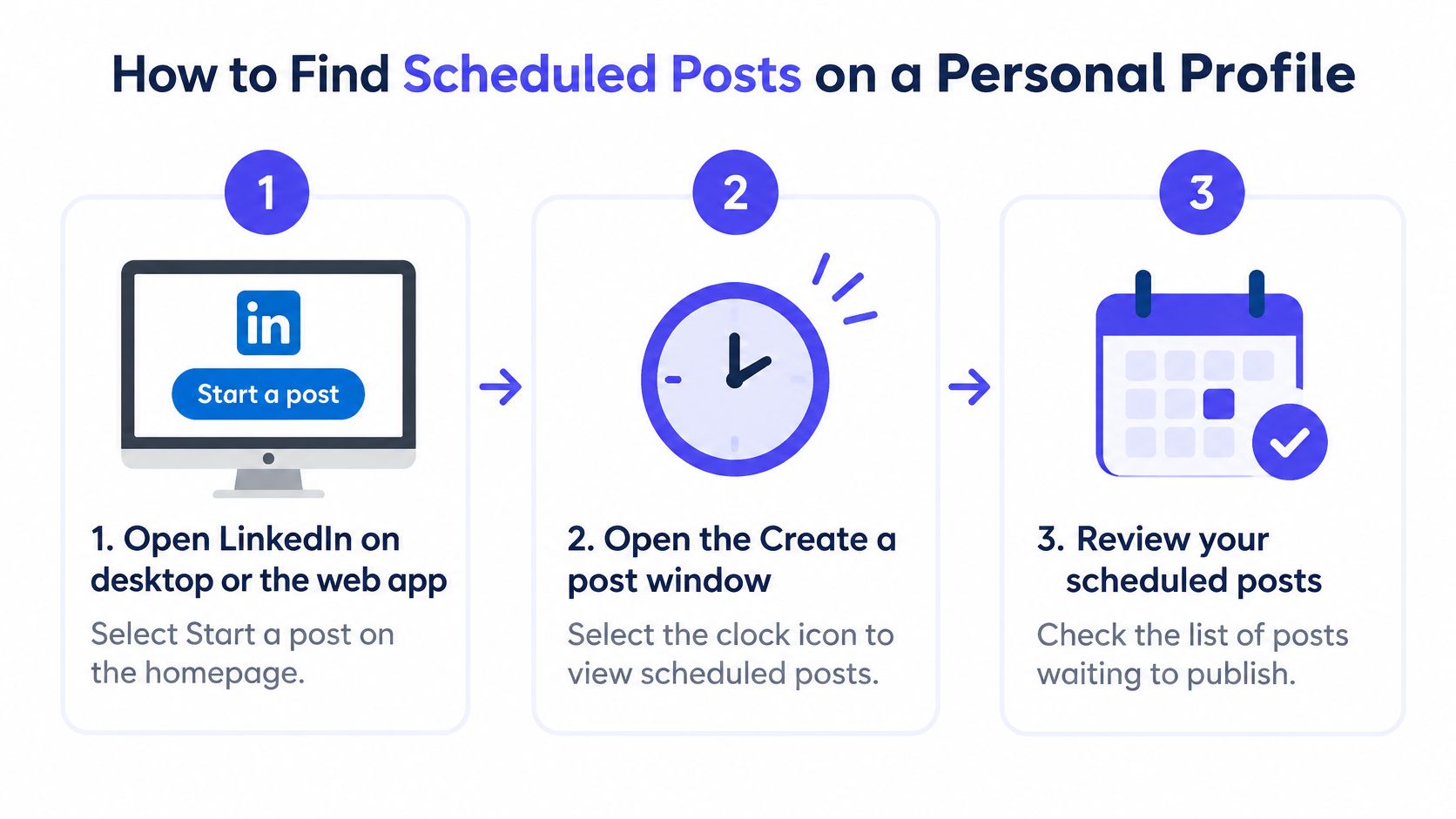
The LinkedIn Help Center's personal-post scheduling instructions document the three-action discovery path through the composer: Start a post, the clock icon, and View all scheduled posts.
Use this visual to recognize the composer-to-queue route before opening the controls.
Open and inspect the queue
Open LinkedIn and select Start a post. Use the homepage while signed into the personal account that scheduled the content. You don't need to write a new post just to inspect the queue.
Select the clock icon. Look in the lower-left corner of the Create a post window. This opens the scheduling dialog rather than your published-post history.
Choose View all scheduled posts. LinkedIn opens the Scheduled posts page with previews of content waiting for publication. Look for the opening lines of the post you need, not just a familiar image.
Open the matching post. Check its text, media, and publication time before touching any management controls. Similar drafts or reused creative can make the wrong item look convincing at a glance.
Choose the appropriate management action. Open More and select Edit post for content changes or Modify schedule for timing changes. Use the delete control only when you intend to cancel the item.
Reopen the preview after saving. Confirm that the revised copy or intended publication time appears in the saved item. Closing the editor isn't a substitute for verifying the result.
The LinkedIn scheduled-post management guide also describes opening individual previews and using the management controls. Keep a copy of the text and media details before deleting anything, particularly when the scheduled version contains edits that aren't saved elsewhere.
Check mobile without getting stuck
In the LinkedIn app, start a post and look for the clock control in the composer. Use it to reach the scheduled-content view if your interface provides that option.
If you can't see the control, switch to desktop instead of repeatedly searching your profile tabs. Desktop is also the better choice when you need to compare a scheduled post against an approved document or campaign brief.
This video provides a visual walkthrough of the navigation.
A successful check ends with the correct post visible in the scheduled list, showing the expected publication date and time. Finding the copy in an old document or remembering that you clicked Schedule isn't enough.
How to Find Scheduled Posts on a Company Page
A company post belongs to the Page's administrative context, not to the personal publishing queue of the person managing it. For an agency, the simplest useful check is the Page name at the top of the admin view.
Say you manage several organizations with similar campaign creative. Before searching for the announcement, confirm the organization's name and logo, then inspect its content controls.
Enter the Page's publishing controls
- Confirm the Page. Open the organization that should publish the post, not merely the organization whose content you last edited.
- Enter the appropriate admin view. Use your super-admin or content-admin access.
- Open Page posts. Find it in the left navigation.
- Select Start a post. Use the Page composer's scheduling controls to reach the pending content, then inspect the item before rescheduling or deleting it.
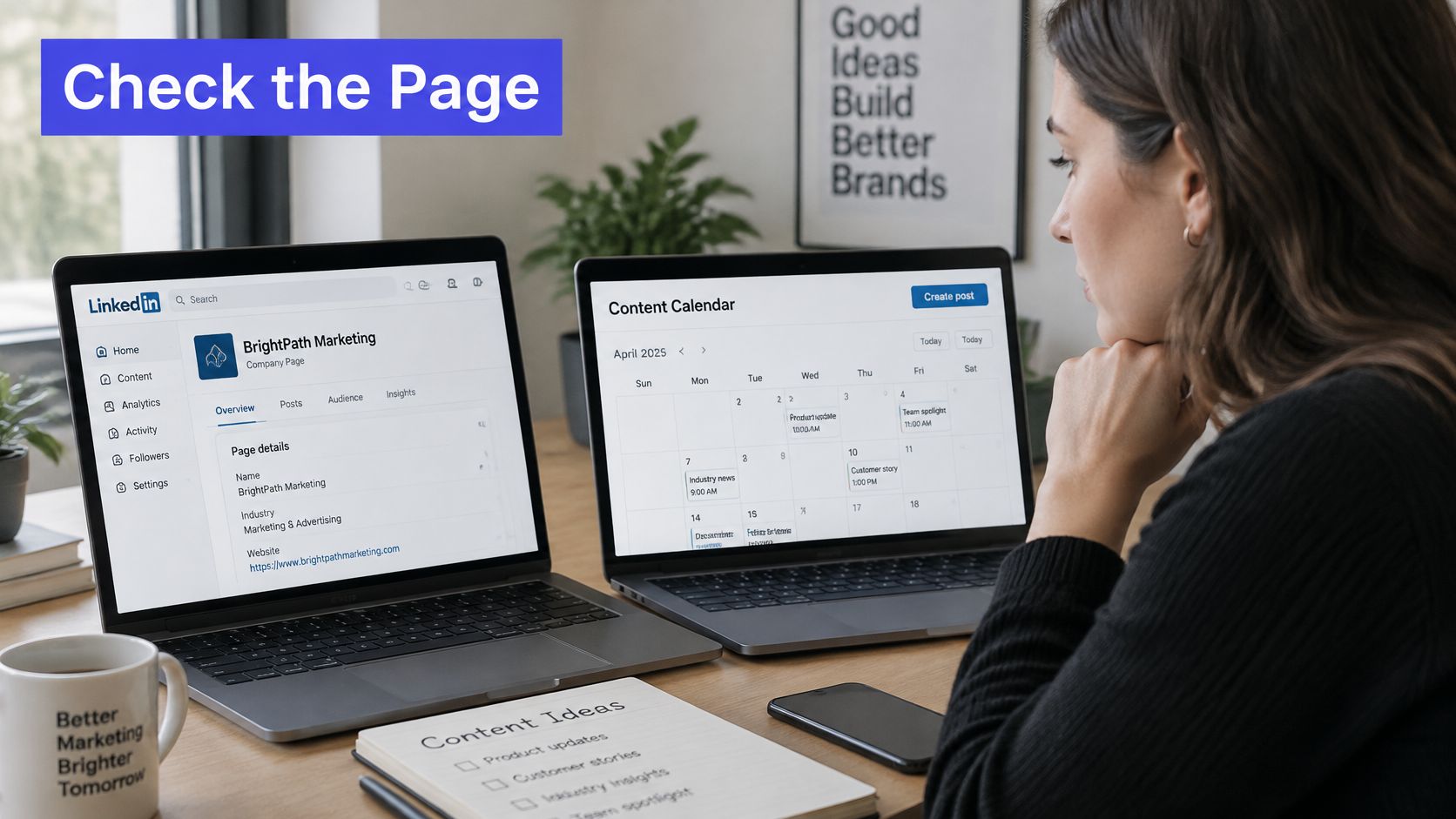
A laptop-based review makes it easier to compare the Page identity, post preview, and campaign plan.
Respect the Page scheduling window
According to LinkedIn's Page scheduling documentation, super admins and content admins can schedule a Page post or newsletter article from one hour ahead of the current time up to three months in advance.
That boundary affects what could have entered the native queue. If a campaign plan contains a launch far beyond the available scheduling window, its presence in the plan doesn't prove that LinkedIn accepted it.
Conversely, once the scheduled publication time arrives, LinkedIn publishes the Page post automatically. If you're checking after that time, inspect the live Page feed before assuming the item disappeared.
For an external publishing connection, verify the destination Page during setup too. The guide to connecting LinkedIn accounts is useful when you need to check the account connection rather than the native queue.
Who Can See and Change Scheduled Posts
Page content isn't managed under a single ownership rule. Scheduled posts, saved drafts, and posts inherited after an administrator leaves require different checks.
LinkedIn's scheduling guidance distinguishes personal-profile scheduling from Page management, identifies super admins and content admins as Page scheduling roles, and explains the transfer of scheduled posts when an admin is removed.
Separate access from ownership
Scheduling requires the appropriate role. Super admins and content admins can schedule Page content. Authorized Page administrators can also manage scheduled items created by other admins, so the original author isn't necessarily the only person who can correct a publication time.
Drafts are personal to their creator. Don't treat a colleague's unfinished draft as a shared scheduled item. Ask its creator to inspect it rather than asking everyone on the team to search for something they can't access.
Removal triggers a specific handoff. When an administrator is removed from a Page, their scheduled posts transfer to the administrator who removed them. They don't become ownerless items assigned to the team.
Make the handoff explicit
Say a content manager leaves the company and an operations manager removes their Page access. The operations manager should inspect the pending posts, even if they don't normally handle publishing.
Keep a shared handoff record with:
- Publishing destination. Name the exact Page.
- Post identity. Include the opening copy or campaign label.
- Timing and responsibility. Record the intended publication time and the person responsible for final review.
A team approval workflow helps distinguish approval responsibility from the person who clicked Schedule. Those aren't always the same person.
Removing access isn't the end of the publishing handoff. Someone still needs to review what's waiting to go live.
When a scheduled post seems to have vanished after a staff change, ask the question that identifies the next person to contact: Who removed the previous owner?
Finding Posts Scheduled in a Third-Party Tool
Open the scheduling tool's own calendar or queue first. Don't use an empty LinkedIn scheduled-post list as proof that externally queued content has been lost.
External schedulers maintain their own publishing workflow. A post waiting there should be inspected and edited there, rather than recreated inside LinkedIn and potentially published twice.
Check destination, status, and publication evidence
- Filter by account. Select the connected LinkedIn profile or company Page. A workspace-wide calendar can hide the distinction between similarly named accounts.
- Read the status. A queued, paused, or failed item needs a different response from an item marked published. Check the tool's explanation before changing the publication time.
- Inspect the published result. If the tool reports success, follow its published-post reference when available and compare the destination with the LinkedIn account you're viewing.
- Edit at the scheduling source. Don't assume changing content in one system synchronizes an independently stored version elsewhere.
A failed item calls for checking the failure message and connection state. A paused item calls for checking whether someone intentionally stopped publishing. Neither is a reason to immediately rebuild the post.
For broader planning context, Boocoo's guide to social media marketing is a useful companion when reviewing how LinkedIn fits into the rest of your publishing activity.
For a centralized option, our LinkedIn scheduler provides a calendar for viewing and managing scheduled LinkedIn content and drafts. The operational benefit is a clear place to check, provided your team agrees to use that workspace as its scheduling source.
Fixing a Scheduled Post That Seems Missing
Don't recreate a post just because you can't find it in Activity. First distinguish a navigation problem from a permissions issue, a private draft, or content that has already published.
Use the symptom to choose the next check. Randomly switching between the feed, drafts, and admin screens makes it harder to remember what you've verified.
Scheduled post symptoms, causes and fixes
| Symptom | Likely cause | Fix |
|---|---|---|
| Post missing from Activity | Scheduled posts are kept apart from published content | Open Start a post, then the clock icon, then View all scheduled posts |
| Page post not in the list | Wrong Page or wrong admin context | Switch to the correct Page and enter the Page admin view |
| Item seen as scheduled but is a draft | Drafts are private to the admin who saved them | Ask the admin who created the draft or check your own drafts |
| Post gone after an admin left | Scheduled posts moved to the admin who removed the former admin | Ask that admin to check their Page posts |
| Cannot schedule a Page post | Requested date falls outside the permitted scheduling window | Choose a time accepted by the Page's scheduling dialog |
Run the checks in a fixed order
Confirm the active identity. Check the personal account or exact company Page name. Don't rely on the fact that you're signed into LinkedIn.
Confirm Page permissions. Ask a super admin to verify your role if the publishing controls aren't available. Viewing the public Page doesn't establish publishing access.
Establish whether the item was scheduled. Look for a saved scheduled preview, not just completed copy or an approval message. LinkedIn's Page-post management guidance distinguishes accessible Page content from drafts, which an admin can access only when they created them.
Check administrator changes. Contact the person who removed the former owner and ask them to inspect pending Page content. Give them the opening text and intended publication time so they can identify the item.
Check the scheduling source and live destination. Inspect the external queue if a tool was used. If the scheduled time has passed, search the intended profile or Page for the published result.
Protect the content before changing it
Record the intended publication time before editing, then reopen the preview after saving. If the scheduling dialog rejects a replacement time, choose an accepted time rather than repeatedly trying to save the same invalid setting.
Before deleting: Copy the text and preserve the media details. Deleted scheduled posts can't be recovered.
For a timing correction, use Modify schedule rather than deleting and rebuilding. For a content correction, inspect Edit post first. The safest fix changes only what's wrong and leaves the approved material intact.
PostSyncer's visual content calendar lets you drag and drop posts to plan your content strategy, set platform-specific posting times, and create recurring posts. Visit PostSyncer to organize your LinkedIn publishing in a shared calendar and give your team a clear place to check what's scheduled next.