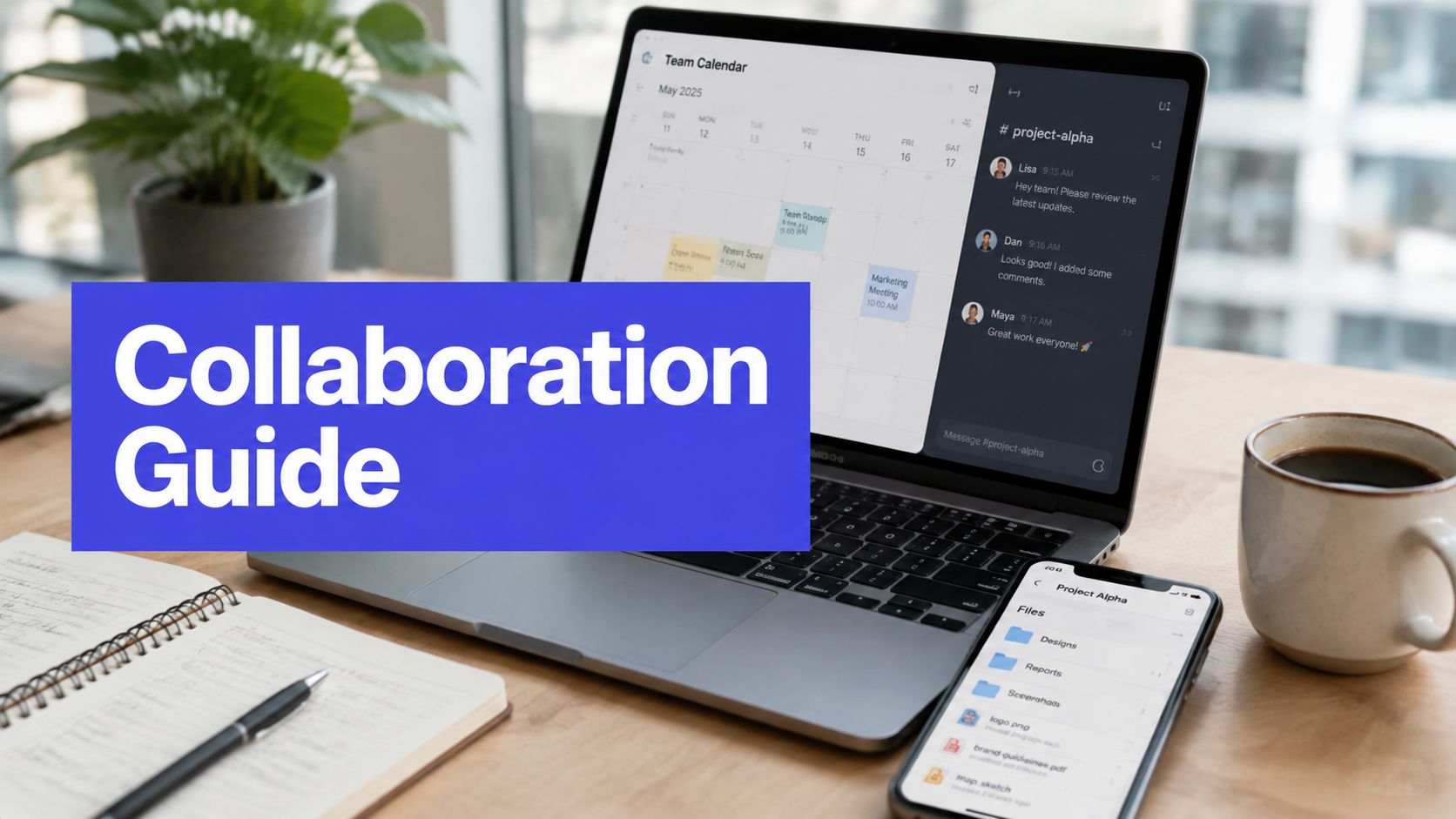









Your team doesn't need another chat tab. It needs a reliable place where people can see what was decided, find the current file, understand who owns the next step, and approve work without reconstructing the story from email threads.
That distinction matters because collaboration software has moved into core business infrastructure. One industry estimate values the team collaboration software market at USD 36.1142 billion in 2024, with a projection of USD 57.4038 billion by 2030 at a 7.4% CAGR from 2025 to 2030. Another forecast estimates USD 27.89 billion in 2025 and USD 68.20 billion by 2034, with a projected 10.1% CAGR from 2026 to 2034. The differing estimates point in the same direction, collaboration apps now support how distributed teams communicate, share work, and make decisions, rather than serving as optional productivity extras. (Grand View Research)
When Teamwork Starts to Crack
A six-person marketing team starts Monday with good intentions. Slack handles quick questions, email carries approvals, Dropbox stores campaign assets, and a shared spreadsheet tracks the content calendar. Nobody thinks the setup is broken because each tool works well enough on its own.
By Wednesday, the problems become visible. A campaign post goes live with an outdated image because the final approval was sitting unread in an inbox. The designer has the latest file, the copywriter has an older attachment, and the account manager assumes the client has already signed off. On Friday, the manager spends hours rebuilding a status report by hand before the Monday meeting.
Three warning signs usually appear first:
- Critical conversations are scattered. The decision may be in a Slack thread, the reason behind it in email, and the supporting file in a shared drive.
- Work in progress is invisible. Unless the owner manually reports an update, everyone else sees only a vague deadline or an empty row in a spreadsheet.
- Manual reconciliation consumes creative time. Managers copy task states, chase approvals, compare file versions, and prepare summaries instead of improving the work.
A useful content approval process makes the handoff explicit, but the process also needs a place where its status remains visible. That's where a team collaboration app earns its keep. It combines conversation, files, tasks, and approvals into one operational surface, so the team doesn't have to babysit several disconnected systems.
Practical rule: If a manager has to ask three people for the current status of one deliverable, the problem is probably workflow design, not employee effort.
The app won't eliminate every meeting or prevent every mistake. It can, however, make ownership, context, and the next action easier to find.
What a Team Collaboration App Actually Is
A team collaboration app is software that brings communication, document handling, and task coordination into one environment connected to the team's actual projects. It isn't just a messaging app, and it isn't only a project manager with a chat box attached.
Think of the difference between a shared workshop and several toolboxes left in different rooms. In the workshop, the materials, instructions, workbench, and job list sit close together. A collaboration app aims to create that same operational proximity for digital work.

The three-layer mental model
The conversation layer includes channels, threads, mentions, direct messages, meetings, and asynchronous updates. Its job is to preserve context instead of forcing every question into a meeting or a private inbox.
The content layer holds shared files, working documents, knowledge pages, calendars, dashboards, and other artifacts. A copywriter and designer should be able to open the same current asset, not compare attachments with different filenames.
The coordination layer turns intentions into action through tasks, owners, due dates, approvals, templates, automations, and reporting. It answers the operational questions that chat alone can't answer: who owns this, what state is it in, and what happens next?
Most products emphasize one layer and connect to the others. Slack and Microsoft Teams are strongest around communication, while Asana, Monday.com, and Jira focus more heavily on structured execution. Notion and Google Workspace center on documents and knowledge. A visual community platform can also clarify how discussion structures differ from private workplace coordination, as shown in this comparison of Meta's Forum app versus Reddit.
The app won't replace clear ownership or a sound process. It makes those elements easier to enforce because the work, decision history, and responsibility appear in the same environment.
Core Features That Power Daily Work
Mature collaboration platforms tend to cover six capability pillars. The important question isn't whether a vendor lists all six. It's whether each pillar addresses a bottleneck your team experiences.
Messaging that preserves context
Persistent channels separate projects, clients, or functions, while threads keep replies attached to the decision they discuss. Mentions bring the right person into the conversation without forwarding an entire chain. Asynchronous voice notes, video updates, and activity feeds can replace some status meetings when the team needs context rather than debate.
File sharing that ends version confusion
Shared drives, permissions, version history, inline previews, and co-editing give people one working reference. A designer can upload a revised image, a copywriter can review it beside the caption, and the account lead can see which file is ready for approval. The benefit isn't just storage. It's the connection between an asset and the work that depends on it.
Workflows and tasks that show ownership
A task system turns recurring work into a repeatable sequence. A content workflow might move from idea to draft, design, internal review, client approval, scheduling, and reporting. Templates help teams avoid rebuilding the same checklist, while owners and due dates prevent responsibility from dissolving into a group channel.
Calendars that expose timing conflicts
A shared calendar can show deadlines, meetings, publishing dates, and resource commitments together. It helps a team spot that three campaigns need the same designer in the same week, or that an approval deadline falls during a client's absence. Calendar visibility is most useful when it connects to task status rather than becoming another static schedule.
Approvals that create a clear green light
Approval features formalize sign-off for social posts, budgets, design changes, contracts, and vendor decisions. A recorded approval makes the decision visible to people who weren't in the original conversation. It also gives the owner a defined response path, instead of asking them to search through messages for an informal “looks good.”
Analytics that reveal friction
Operational analytics should help managers see cycle time, bottlenecks, overdue work, workload distribution, and approval delays. Those signals support better questions. If content remains in review, the team can investigate whether the blocker is unclear criteria, missing client access, or excessive handoffs.
| Feature Pillar | What It Does Daily | What It Leaves Behind |
|---|---|---|
| Messaging | Keeps project questions and decisions connected | Unstructured chatter without ownership |
| File sharing | Gives people access to the current working asset | Files that lack clear purpose or status |
| Workflows and tasks | Assigns steps, owners, and due dates | Work that falls outside the defined process |
| Calendars | Shows timing, deadlines, and capacity conflicts | Priorities that were never agreed |
| Approvals | Records who reviewed and accepted the work | Judgment calls that require deeper discussion |
| Analytics | Surfaces delays, workload, and process patterns | The human context behind a metric |
Depth varies sharply by vendor. Score each pillar against your team's bottlenecks, not against the length of a feature grid.
How SMBs, Agencies, and Social Teams Use It
The same collaboration stack behaves differently depending on the operating model. A small business usually needs low overhead. An agency needs separation between client work. A social team needs a visible pipeline that connects ideas to publishing and engagement.
| Team type | Typical pressure | Example workflow |
|---|---|---|
| SMB | Too many email threads and informal updates | A new hire joins one onboarding workspace, follows a checklist, reads the relevant documents, and asks questions in a shared channel |
| Agency | Multiple clients, reviewers, and deadlines | A new campaign gets its own client workspace, approval stage, asset folder, and restricted guest access |
| Social media team | High content volume and frequent review | A weekly calendar moves posts from idea to draft, review, approval, scheduling, and performance analysis |
For an SMB, the app can act as a lightweight operating system. The team doesn't need elaborate administration if every recurring activity has a home, an owner, and a visible next step. A hiring manager can assign onboarding tasks, attach policy documents, and keep questions available for future hires.
Agencies need stronger boundaries. Client channels should have clear membership, naming conventions, and approval rules. A campaign workspace can keep drafts, brand references, feedback, and final decisions together without exposing one client's work to another client team.
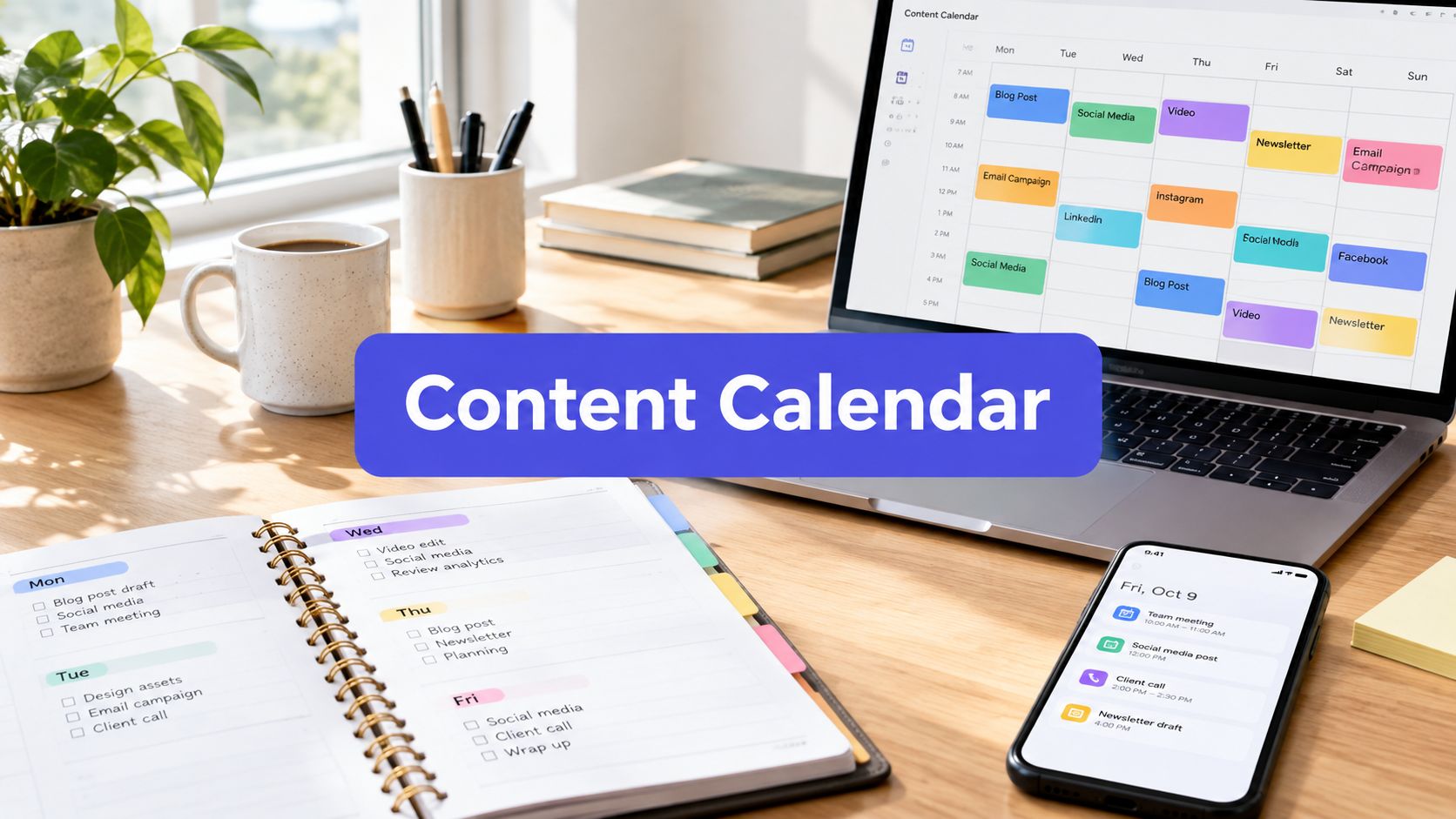
Social teams operate closer to the publishing edge. Their workspace often needs a content calendar, draft queues, review gates, platform context, and a comments inbox. Collaborative editing works best when people can contribute without creating a confusing chain of duplicate files, which is the practical concern behind this guide to collaborative editing.
For teams communicating across locations, short video updates can preserve tone and context without adding another live meeting. The video case study about Randstad Group offers useful background for evaluating that format in internal communication.
The buyer shouldn't ask, “Which team uses this app?” Ask, “Which workflow must become easier to see, govern, and repeat?”
How to Choose the Right Team Collaboration App
Choose the app for the job it must perform, not for the number of features shown during a demo. Most buyers are trying to reduce coordination cost, control access, and connect work to systems they already depend on.
Start with deployment
Cloud-hosted software usually reduces infrastructure work and lets administrators apply updates through the vendor's service. Self-hosted deployment can provide more control over the environment and data handling, but it places more responsibility on internal technical teams. Hybrid deployment may fit organizations that need cloud collaboration with selected systems or information kept under tighter control.
Market data shows why deployment deserves more attention than a simple cloud-versus-server checkbox. One forecast estimates that cloud deployment held 72.17% share in 2025, while hybrid deployment is projected to grow at a 12.86% CAGR through 2031. These are projections and market estimates, not a universal recommendation. (Mordor Intelligence)
Test governance before convenience
Check role granularity, audit trails, guest access, retention controls, workspace ownership, and administrator visibility. Ask whether permissions map cleanly to your organization chart and whether an external client can review one project without seeing another.
Third-party integrations deserve special scrutiny. Research demonstrated proof-of-concept attacks against collaboration platforms that could eavesdrop on private messages, initiate fake video calls, and merge code into repositories without user approval. Treat every installed integration as part of the trust boundary. Require least-privilege scopes, explicit approval, and regular reviews of apps that no longer need access. (USENIX Security research)
Follow the data through integrations
Map the systems your team already uses, including CRM, storage, calendars, publishing platforms, identity management, and project tracking. An integration is useful only if it removes duplicate entry or preserves an important handoff. A one-way notification may be enough for a simple alert, while a two-way connection matters when status changes must remain synchronized.
Compare the pricing shape
Pricing may be based on seats, active users, workspaces, storage, or feature tiers. Heavy contributors and occasional reviewers create different cost patterns, so model your actual user mix rather than multiplying a headline seat price by the entire organization.
Create a weighted scorecard:
- Coordination cost: How much could the app reduce status chasing, duplicate updates, or approval delay?
- Governance fit: Can administrators control access without making normal work painful?
- Integration depth: Does information move reliably between the app and existing systems?
- Deployment fit: Does the hosting model match security, compliance, and IT requirements?
- Adoption likelihood: Can ordinary users understand the workflow without constant coaching?
Test contenders with a real campaign, support request, or onboarding process. Vendor demos show possibilities. Your own workflow reveals friction.

A Social Media Team Workflow in Practice
A five-person social media team starts the week with a familiar problem. The strategist knows the themes, the copywriter has draft ideas, the designer is waiting for direction, and the client reviewer wants enough notice to approve posts. Without a shared workflow, each person can be busy while the campaign remains stuck.

On Monday morning, the strategist places the week's themes in a planning channel and adds them to a shared content calendar. Copywriters, designers, and the client reviewer can see the same schedule. Each draft moves across a board from idea to writing, design, review, approval, and scheduled, with comments attached to the relevant post instead of spread across email.
That structure changes the team's behavior. The designer doesn't need to ask which image is current because the asset sits with the post. The reviewer receives a clear approval request, and the strategist can see which item is blocked without collecting individual updates.
Later in the week, the community manager works from a unified comments inbox. Replies from Instagram, LinkedIn, and X appear in one place, so engagement work doesn't require constant switching between native applications.
A short analytics review closes the loop. The team checks post-level performance inside PostSyncer, labels useful patterns, and carries those observations into the next planning session. The important result isn't a larger dashboard. It's a connected sequence from planning to publishing to learning.
The following video can help teams assess whether asynchronous visual communication belongs in their own workflow.
Rolling Out a Collaboration App Without the Chaos
A rollout should be treated as a small operations project, not a software installation. Start with a 30-day pilot involving one team or one workflow, then define what success means before anyone starts configuring channels.
Choose a champion who understands the daily work and a technical owner who can manage access and integrations. Write a narrow target, such as fewer status meetings, faster approvals, or more tasks completed inside the app. Avoid broad promises about productivity because they make it difficult to decide whether the pilot worked.
Set governance on the first day:
- Channel ownership: Decide who can create, archive, and rename spaces.
- External access: Define how clients, contractors, and guests are invited and removed.
- Naming rules: Make projects easy to find through consistent workspace and channel names.
- Retention expectations: Document what belongs in the app and how long it should remain available.
- Integration review: Approve only the connections the pilot needs.
Use short enablement sessions instead of one launch webinar. A live walkthrough of the workflow, followed by a one-page cheat sheet, gives people a practical route into the tool. Keep the setup organized with a clear workspace organization approach before more teams join.
Track the pilot weekly through three measures: weekly active users, tasks completed inside the app, and time to decision on a sample request. These measures describe behavior and flow, not just whether someone logged in. Expand only after the pattern stabilizes, then add adjacent teams one at a time.

A Monday-morning checklist is simple: select one workflow, name the owners, write the success measures, configure permissions, invite the pilot group, and schedule a review. Don't expand because the tool looks impressive. Expand because the workflow is clearer.
Putting It All Together
A team collaboration app is core operational infrastructure, not a workplace perk. The right choice depends on three decisions: which feature pillars match your real bottlenecks, which operating profile describes your team, and how you'll pilot, govern, and measure adoption before scaling.
Run the workflow with real work, watch the adoption and decision measures, and let evidence outweigh a polished vendor demo. The target isn't more tabs. It's fewer dropped handoffs, clearer ownership, and faster decisions.
PostSyncer brings content calendars, approval workflows, shared workspaces, comments management, scheduling, and analytics into one social media operating environment. If your team needs to coordinate publishing across brands or clients, visit PostSyncer and test the workflow with a real content cycle.