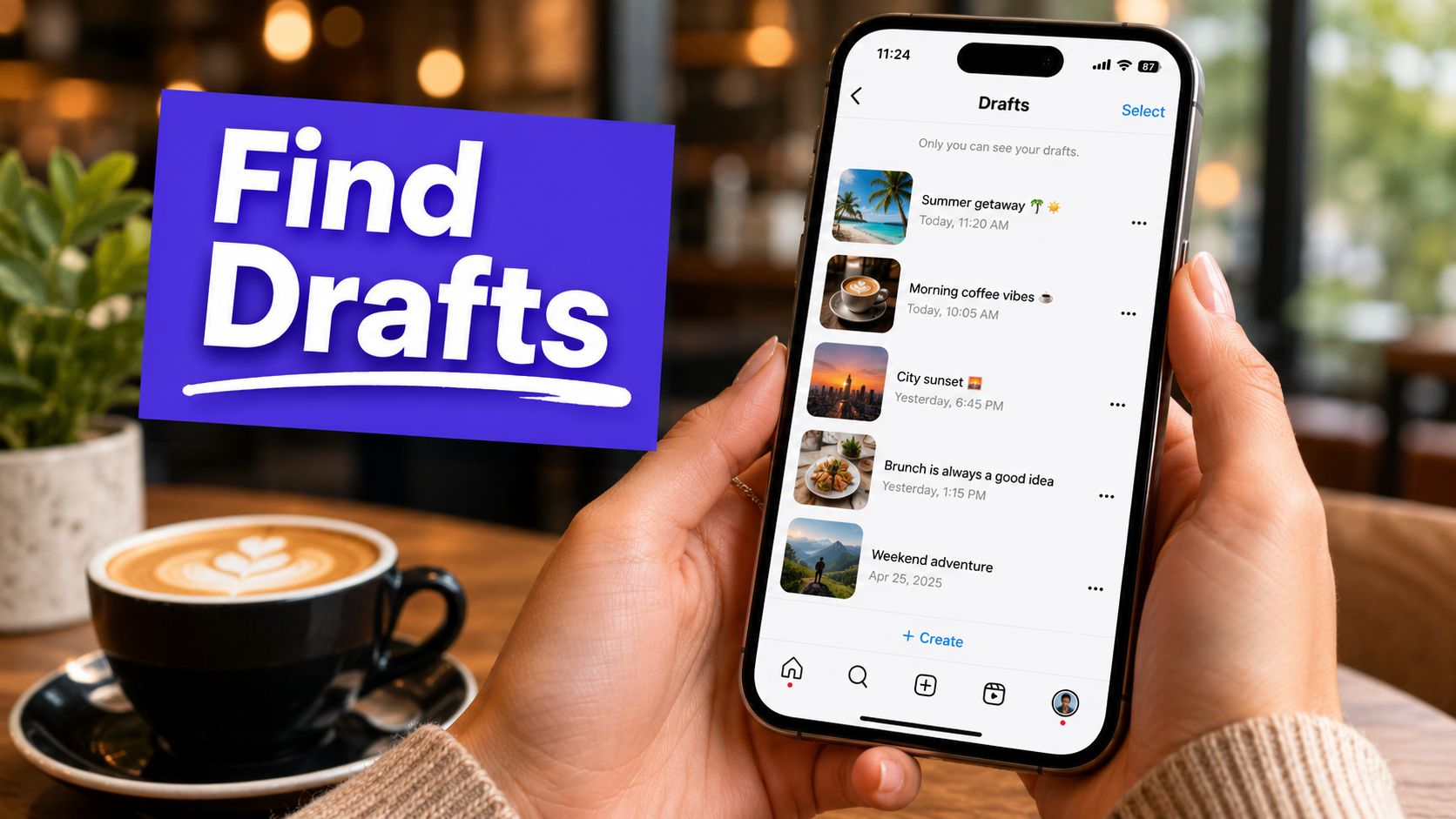












You open Instagram, tap around, and the draft you were sure you saved isn't where you expected. The caption was done. The crop was right. Maybe you even had the hashtags cleaned up. Now you're asking the same question a lot of people ask in a panic: where are my Instagram drafts?
The good news is that many drafts aren't gone. They're just buried in different places depending on whether you saved a feed post, Reel, or Story. The bad news is that Instagram's draft system is a lot more fragile than widely acknowledged, especially if you manage content across devices or accounts.
I've dealt with this enough times to be blunt about it. Native Instagram drafts are useful for quick saves, but they're not reliable for serious planning. First, check the right location for the draft type you created. Then, if it still isn't there, check the conditions that cause drafts to disappear. That's usually what separates a recoverable draft from a lost one.
That Heart-Sinking Moment You Can't Find Your Draft
Losing sight of a draft feels worse than it should. It's not just a missing file. It's the time you spent editing media, rewriting the caption, and getting the post close enough to publish.
Most of the time, the draft isn't missing in the way people think. Instagram doesn't keep every draft in one universal inbox. Feed posts, Reels, and Stories can appear in different places, which is why users often save something successfully and then look in the wrong screen later.
That also explains why two people can give completely different advice and both sound right. One is talking about post drafts. The other is talking about Reel drafts. Meanwhile, Story drafts behave differently again.
Practical rule: Before you assume a draft is lost, identify what you created last. Post, Reel, or Story. That determines where you need to look.
There are also a few situations where recovery isn't possible. If the app was removed, the device was reset, or the draft aged out, Instagram may have already wiped it. That's the part most quick guides skip.
To locate your Instagram drafts, the fastest approach is this:
- Start with feed posts and carousels if you were building a standard post.
- Check the Reels area separately if the draft was vertical video.
- Treat Story drafts as time-sensitive because they don't hang around for long.
- Verify the account first if you manage multiple brands or creator profiles.
Once you know which draft type you're dealing with, finding it gets much easier.
How to Find Your Feed Post and Carousel Drafts
Feed post drafts are the easiest ones to recover, but only if you enter through the right creation flow.

Use the post creation path
If you saved a regular image post or carousel, do this:
- Open the Instagram app.
- Tap the + icon.
- Choose Post.
- Look above your gallery for Drafts, usually near Recents.
- Tap the draft you want to reopen.
That click path matches the standard access method described in this guide to finding Instagram drafts, which notes 95% success rates for posts when users go through the proper menu.
The common mistake is opening your profile and expecting a separate drafts library. For feed posts, Instagram usually surfaces drafts inside the creation screen, not as a standalone content folder.
What to look for once you're inside
When the draft section appears, you'll usually recognize the post from its thumbnail. If you saved multiple versions of the same creative, tap each one carefully before deleting anything. A lot of people remove the wrong draft while trying to clean up duplicates.
A few practical notes help here:
- Carousel drafts generally sit with regular post drafts because they're still part of the post workflow.
- Edited captions and crop settings may come back, but check everything before publishing.
- Old draft thumbnails can look similar, especially if you reused the same image set.
If you're planning future feed content often, a visual planner is easier to manage than Instagram's own draft list. A tool like this Instagram feed planner gives you a cleaner way to map post order before anything goes live.
Here's a quick walkthrough if you want to compare what you see on your screen:
If the Drafts tab doesn't show up
Sometimes users say, “I tapped Post and there is no Drafts section.” In practice, that usually means one of three things:
| Situation | What it usually means |
|---|---|
| You don't see Drafts at all | The post may never have been saved as a draft |
| You're in the wrong account | The draft was likely created under another login |
| The draft was removed earlier | It won't reappear automatically |
If Instagram doesn't show a Drafts row in the post composer, don't keep digging in random menus. Switch accounts, then retrace the exact content type you created.
Where to Uncover Hidden Reel and Story Drafts
Reels and Stories cause more confusion because users expect them to behave like feed posts. They don't.

Finding Reel drafts
Reel drafts can feel hidden because people often look in the post composer first. If your draft was a Reel, use the Reel workflow instead.
Try this path:
- Tap the + icon in Instagram.
- Select Reel.
- Open the gallery area.
- Look for the Drafts option.
The same draft-access guide cited earlier notes 85% success rates for reels when users follow the proper Reel route, not the post route. That's one reason Reels seem to vanish more often. They're often just being searched for in the wrong place.
Some users also find Reel drafts through the Reels area on their profile, depending on app version and interface changes. If the first path doesn't surface the draft, check your profile's Reels section next.
Finding Story drafts
Story drafts are their own category, and they are the least forgiving.
To find them, begin as if you're creating a new Story:
- Tap the + icon.
- Choose Story.
- Open your gallery.
- Look for Drafts at the top.
This is also where many people conclude the draft is gone. Story drafts don't behave like a long-term save folder. They are temporary and easy to lose if you wait too long or assume they'll sync somewhere else.
If you're deciding whether a Story or Reel is the better format for a piece of content, this breakdown of Instagram Reels vs Story differences helps clarify the workflow trade-offs.
Story drafts are best treated like scratch notes. Save them only if you're planning to publish soon.
Quick comparison
| Draft type | Where to check |
|---|---|
| Feed post | + icon, then Post, then Drafts near gallery |
| Carousel | Same place as feed post drafts |
| Reel | + icon, then Reel, then gallery or Reels area |
| Story | + icon, then Story, then gallery Drafts |
If you've checked the right content path and still don't see the draft, the issue usually isn't navigation anymore. It's storage.
Why Instagram Drafts Disappear The Technical Reason
Instagram drafts don't live in a cloud workspace the way many users assume. They live locally on your device, inside the app's private storage. Instagram's own help information confirms that drafts are saved locally, not to the cloud, and that they can be lost if the app is removed or the device is reset, as explained in Instagram's draft help documentation.

What local storage actually means
Think of a draft like a note saved inside one phone, not a document saved in Google Docs. If you pick up another device and log into the same Instagram account, that doesn't mean the draft follows you.
According to the same Instagram help source, drafts are saved locally for up to 7 days before being purged if not published, and 100% of draft content is inaccessible from other devices or web interfaces. That's the core limitation that catches teams and creators off guard.
This is why people ask “where are my Instagram drafts” after changing phones and get nowhere. They're looking for something that was never uploaded to a recoverable server-side archive in the first place.
What works and what doesn't
Here is the blunt version:
- Works: Opening the same app on the same device and accessing the correct draft menu.
- Doesn't work: Logging in on a second phone and expecting the draft to be there.
- Doesn't work: Reinstalling Instagram and hoping the old drafts return.
- Doesn't work: Checking the web version for backup drafts.
Instagram's local-only design is fine for casual use. It's weak for professional publishing. If you create content on one device, review on another, or collaborate with a teammate, native drafts become a risk point instead of a workflow tool.
A draft inside Instagram is not a content archive. It's a temporary local save.
Why this matters for serious content management
The technical limitation creates a practical one. A solo creator might only lose a single draft. A team can lose timing, approvals, caption revisions, and version control all at once.
That is why native drafts are best treated as short-term placeholders, not as your operating system for content production. Once you understand the storage model, the behavior makes sense. It also makes the trade-off obvious. Convenience is there. Reliability isn't.
Troubleshooting When Your Draft Is Still Missing
If you've checked the right draft location and still see nothing, run through a diagnostic checklist instead of randomly tapping around the app.
Check the obvious first
Ask these questions in order:
- Was it definitely saved? Exiting the editor isn't always the same as confirming Save Draft.
- Are you in the correct account? This is a constant issue for managers switching between creator, brand, and client logins.
- Was it a Story draft? Those are especially easy to lose if too much time has passed.
- Did the app change recently? An update or cleanup can affect local data.
A lot of missing drafts turn out to be misremembered draft types. Someone thinks they saved a post, but they started a Story. Or they think they were on one brand account when they were on another.
Know the hard stop conditions
Some situations have no recovery path.
Instagram drafts live in the app's private sandbox on the device. The verified data is clear here: 0% of users can recover drafts after uninstallation, and 70% of draft loss incidents occur due to accidental app deletion, based on the same Instagram help reference discussed earlier.
That means if any of these happened, recovery is unlikely:
| What happened | Recovery outlook |
|---|---|
| You uninstalled Instagram | No recovery path |
| You reset the phone | No recovery path |
| You cleared app data aggressively | Often no recovery path |
| You switched devices | Draft won't transfer |
If the app was removed from the device, stop spending an hour on recovery tricks. The time is better spent rebuilding the post from saved assets.
Best last checks before you give up
Do these final checks once:
- Reopen the exact content type you created.
- Switch through every active Instagram account on that device.
- Look for source files in your camera roll, notes app, or caption docs.
- Rebuild from assets quickly if the draft was only partly complete.
This is the frustrating part of Instagram's native draft system. Once local storage fails, there usually isn't a hidden restore option waiting somewhere.
Beyond Drafts A Stress-Free Content Workflow
Once you've lost enough drafts, your workflow changes. You stop treating Instagram as the place where content lives, and start treating it as the place where content gets published.
That shift matters because the native draft system is fragile by design. Historical data in the verified set shows that 68% of draft content was lost due to device malfunctions, app updates, or accidental deletions, and that 55% of professional creators in 2024 now use external tools to avoid draft loss. That behavior makes sense. External tools solve the exact weakness Instagram leaves exposed.

What a more reliable setup looks like
A professional workflow usually includes:
- Cloud-based draft storage so content isn't tied to one phone
- Cross-device access so you can draft on desktop and review on mobile
- A content calendar for planning sequences, launches, and approvals
- Asset organization so captions, media, and versions stay together
For teams and creators who want that kind of setup, a platform like PostSyncer fits the use case because it supports drafting, planning, and scheduling in one workspace instead of relying on Instagram's temporary local saves.
The real trade-off
Instagram's built-in drafts are fast. They are not dependable enough for campaigns, client work, or multi-step approvals.
If you're posting casually, that's fine. If content has a deadline, a stakeholder, or revenue attached to it, you need a workflow that doesn't disappear because one phone changed, one app was reinstalled, or one draft expired.
The simplest rule is the one most social teams learn the hard way: create and store content outside the platform, then publish into the platform.
If you're tired of wondering where your Instagram drafts went, try a workflow that doesn't depend on one phone's local storage. PostSyncer gives you a cloud-based place to draft, plan, and schedule content so your work stays accessible when Instagram's native drafts don't.